Admin Guide
Welcome to the eLegere's Admin Guide.
The Admin Guide explains everything related to managing eLegere's licenses and subscriptions, users, workspaces, and authentication methods.
Abstract
Read the introduction to the Organization before beginning:
Check the Delegates' task list to learn how to undertake them. The list divides the topics by area of competence:
This guide introduces to new administrators what's an Organization, a Delegate and their permissions, and a Workspace in eLegere. Also, it teaches you how to access the Organization panel where to perform the admin tasks.
Tip
The Admin Guide assumes the concepts explained in this page. Please, check this document before learning about all the Organization's features!
Introduction
A Workspace is the sandbox where users create applications without any knowledge of coding and use them. (See for a general overview the eLegere's Get Started, in particular the chapter Your First Application.)
People and businesses must manage clusters of Workspaces inside eLegere with different permissions and allocated users and resources (for example, GBs of storage, credits or number of applications that you can design). You can buy a License to obtain and assign these resources. The Organizations simplify the task.
The Organization is the container of Workspaces where administrators called Delegates manage users and Workspaces. You can access the Organization's panels and tools if you are a Delegate.
Example
John Doe's company has appointed him as Delegate of eLegere: an admin managing one or more tasks in the Organization. John will have to create Workspaces, assign admins to the Workspaces, manage users, and assign the resources to each Workspace. His job requires accessing the Organization Manager and its features.
What's an Organization?
The eLegere structure organizes the workflow through various levels, where users with different roles can perform different tasks. This subsection explains what you can do in an Organization, and how it reflects on the eLegere environment.
An Organization is the container of Workspaces and Users. (A Workspace is the sandbox where users design and use eLegere applications.)
Depending on your company's needs, you can set up one or more Organizations with different eLegere components and services enabled. Most of the time, users will be administrators of a single Organization.
Example
John Doe's company has an eLegere installation having many Organizations. John's IT Infrastructure department makes him administrator of just the Organization where he will work. John will access that Organization both as user and administrator.
Organizations have a dedicated panel where users with proper permissions can access and perform different tasks: the Organization Manager. The Organization Manager enables the administrators to:
- Create and manage Users.
- Create and manage Workspaces.
- Activate, manage, and assign Licenses.
- Add and manage Authentication Methods/Providers.
- Manage Delegates.
- Edit layout.
Anyone who has access to the Organization Manager is a Delegate. Delegates are administrators who own different permissions. (See Who's a Delegate? below for more information.)
-
Read the Quick Start to learn what the Organization Manager offers and how to redeem a License for a newly-created Organization.
How to Access the Organization Manager
If you are a Delegate, you can access the Organization Manager in any point of the Home:
- Click on your username.
- Click on Organization Manager from the drop-down list opened by step 1. The action leads to the Organization Manager.
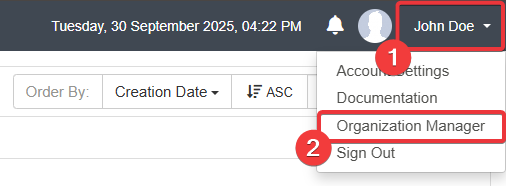
If you don't have any Delegate permissions, you won't see the Organization Manager option.
If you want to go back to the Home from the Organization Manager:
- Click on your account's icon on the upper-right corner of the Organization Manager.
- Click on the Smart Intelligence from the drop-down list.

The action leads you back to the Home (or to the Workspaces' selection if your account belongs to multiple Workspaces).
Who's a Delegate?
This section explains what's an eLegere Delegate, the different Delegate types, and their tasks.
The Delegates are administrators who have different roles in managing the Organization, the Licenses to redeem resources, and managing Workspaces and their administrators.
Roles and Tasks
Delegates can perform one or more of the following tasks according to their type in the Organization Manager:
- Users Management: Create, edit, delete, add them to Workspace, and assign licenses. (User can perform operations according to the license bought and assigned to them.)
- Workspaces Management: Create, edit, and remove Workspaces, assigning them slots for applications.
- Licenses and Billings: Check billings, manage slots, credits, and renew or upgrade Licenses with a valid Key.
- IT Management: Edit Authentication providers, Layout settings, and manage Modules.
- Organization Management: Assign or remove Delegate roles, and change the Organization's logical name.
Delegate Types
Different sorts of Delegates can perform one or more tasks according to their type.
Admin Delegates can assign Delegate permissions to other users. Admin Delegates have no limits regarding what they can do in the Organization. The other Delegate types can access only certain sub-panels, performing actions according to their permissions.
Belonging to a specific Delegate type grants the access to one or more sub-panels in the Organization Manager.
A Delegate can have many permissions, for instance being both a IT Delegate and a Users & Workspaces Delegates.
See the table below:
| Delegate Type | Users Management | Workspaces Management | Licenses and Billing | IT Management | Organization Management |
|---|---|---|---|---|---|
| Admin Delegates | |||||
| Users & Workspaces Delegates | |||||
| Licenses & Billings Delegates | |||||
| IT Delegates |
Example
When the IT Infrastructure has created the Organization, it has designated John Doe as Admin Delegate.
John requires another couple of admins to help him to manage the Organization. They must perform only certain actions and manage only certain areas. So, John makes Jane Doe both Licenses & Billings Delegate and Users & Workspaces Delegate while Daniel Doe IT Delegate.
Resources and Licenses
Administrators can activate eLegere and buy resources under the form of Licenses. eLegere requires Licenses to work.
Organization
In this section you'll find a general overview of the main resources you will manage as a Delegate. What specific resources will be available to you depends on your eLegere instance setup.
Check Deploy, License, and Organization Type for more details about your installation set up.
The Core License
The Core license activates the eLegere installation. A Core License is absolutely necessary to run an eLegere Organization. It's a prerequisite to redeem all other Licenses types. The other Licenses buy further resources (e.g. Workspaces, users, and applications slots) and features (e.g. Mobile apps and network balancer).
Example
John Doe is now a Delegate. The management has asked him to create two Workspaces and a list of applications to satisfy their business needs.
John purchases an eLegere License key including the Core License. Then John Doe activates the License and refill the Organization's reserve with the resources. John Doe creates the Workspaces, adds users, and enables the Designers to build the requested applications by spending resources from the reserve.
There are different Licenses to add on top of a Core License. Each License enables to create new Workspaces, users, and applications.
Organization
Your Organization Type determines what licenses you will be able to redeem. eLegere currently supports two Organization Types:
The Starter Organization gives you access to all essential eLegere features:
- Build Basic Applications to manage your processes.
- Divide your workflow across different Workspaces.
- Add Users with Flat and Viewer Licenses.
The Professional Organization gives you access to the full eLegere components set. In addition to the Starter features you will be able to:
- Build Advanced Applications with advanced features and Custom Actions.
- Build Mobile Apps.
- Expand your data storage with extra Database services (32GB, 64GB or 5GB).
- Connect your own private Database and manage it yourself.
- Enable all Pay per Use options.
Check Deploy, License, and Organization Type to learn more about Organization Types.
Users
Delegates register new Users in the Organization. During the account creation Users can receive a Flat or Pay per Use license, or No License at all. This choice can be modified at any time according to purchased licenses.
A Flat license enables the user to navigate and edit data without any restriction.
A Pay per Use license is a usage-based option: the user account consumes credits assigned to a Workspace for each operation (opening applications, view data, and inserting data).
With No License the user can't access Workspaces or Applications, but can still perform a Delegate role and access the Organization Manager.
Organization
- Flat Licenses are available for every Organization.
- Pay per Use Licenses are only available for Professional Organizations.
Check Deploy, License, and Organization Type to learn more about Organization Types.
Both Flat and Pay per Use licenses have the Viewer User and Interactive User options. The Interactive option enables Users to edit data, while the Viewer option limits Users to a read-only mode.
See What's the difference between Flat, Pay Per Use, Interactive, and Viewer users? to learn more about each license available for users.
Workspaces
Each Workspace requires a dedicated License to work.
Organization
Workspace Licenses are available for both Starter and Professional Organization.
Check Deploy, License, and Organization Type to learn more about Organization Types.
The Delegate redeems a key with a certain number of Workspace licenses. Then the Delegate can assign them to Workspaces either during the creation or later.
A Workspace requires a Workspace License to work. Otherwise, it will expire and disappear within 30 days. You can go to the Workspace's settings in the Organization Manager to assign a License. (Check How do I edit or delete a Workspace and manage its Licenses? for more information about assigning or removing a License.)
Note
Removing and assigning again the License won't restart the expiration counter: the 30 days expiration is an absolute value. (If you remove for 5 days a license, assign it back, then remove it again, the counter will start at 25 days.)
Applications
A Workspace contains the applications and the data that users interact with. Inside a Workspace, each Application requires a License to work.
When Designers create an application, it appears in Trial mode. Designers can access and design the applications in Trial Mode without limitations, but users can't access it. Users can access the applications if and only if the application has a Basic or Advanced License assigned. The Basic License is the minimum License required for an application to work. Applications require an Advanced License only for certain features.
Organization
- Basic Licenses are available for every Organization.
- Advanced Licenses are only available for Professional Organizations.
Check Deploy, License, and Organization Type to learn more about Organization Types.
If the Designer assigns then removes an application License, the applications switch to Restricted mode: only users with Designer, Application Managers, and Workspace Admin can view them. Standard users can't use Restricted applications.
Check the What's the difference between Basic and Advanced Applications? for more information about applications and licenses.
Databases
Every Organization, both Starter and Professional, will come with a Common Database Service (10GB) included.
If you need to expand your storage capacity, for example for additional services or backups, you can redeem appropriate licenses to add extra Database services. The available options depend on your Deploy and Organization Type.
You can also add your own Private Database, entirely managed by yourself.
Organization
Check Deploy, License, and Organization Type for more details about Deploy, Organization Types, and available Database services.
Summary
Keeping track of all available components and configurations can be complex.
Check this Summary Table for a full overview of every available combination.
What's a Workspace?
This subsection explains what's a Workspace contained in an Organization.
Workspaces are sandboxes in which users design applications and use them.
Each Workspaces has one or more Workspaces Admins that can assign permissions to users inside the Workspace. (See Using eLegere in a Team chapter in the Get Started for more information.)
Warning
Any user account requires a License to access a Workspace and use applications, including Workspace Admins.
Users accounts with Delegate permissions can always access the Organization Manager despite the lack of License.
If you are a Workspace Admin, you can access the panel where you manage the Workspace. (But not the Organization Manager, unless you're also a Delegate.)
-
In the Workspace's Home, click on the Workspace's name in the upper-left corner.

-
Click on the icon next to a Workspace name from your account's Workspaces list. (The icon appears next to Workspaces where you're assigned as Workspace Admin.) The action leads you to the Workspace's administration panel, called Workspace Settings.

In the Workspace Settings, you can:
- Add existing users to the Workspace and assign permissions to them.
- Create Custom Groups.
- Configure who can access, design, and view applications in the Workspace.
- Configure the Email notification settings.
- Edit the Workspace's layout and icons.
Each tab on the left leads to a sub-panel where you can perform such actions.

Note
Organization's Delegates don't coincide with Workspace Admins, but they can cover both the roles.
You can add a Delegate as a Workspace Admin and cover also this role. Delegates can't access a Workspace they don't belong to. A Delegate can access only the Organization Manager.
Example
John Doe requires Jane Doe who is a Delegate to manage a Workspace and design applications inside it.
John Doe adds Jane Doe as Workspace Admin to a Workspace. From now on, Jane can access both the Organization Manager and the assigned Workspace as admin.
John and Daniel Doe can't access any Workspace, unless they add their account to each Workspace they want to access.
Users and Workspaces
Learn how to manage the Workspaces and Users in the Organization.
Actions in the Organization Manager
- What's the difference between Flat, Pay Per Use, Interactive, and Viewer users?
- How do I add a user to my Organization?
- How do I search and sort users in my Organization?
- How do I either edit, remove or assign a license to a user in my Organization?
- How do I lock or unlock a user's access?
- How do I change a user's password?
- How do I create a new Workspace?
- How do I make a Workspace the default one when users access my Organization?
- How do I edit or delete a Workspace and manage its Licenses
- How do I assign application slots and credits to a Workspace?
- How do I manage applications in a Workspace?
Actions in the Workspace Settings
- Can I customize a Workspace even if I don't have a Delegate permission?
- Can I grant access to applications in a Workspace?
- How do I manage Workspace Users as a Workspace Admin?
- How do I edit users' groups and permissions in the Workspace?
- How do I create and manage User Groups?
IT and Delegates Management
Learn how to configure some settings like layout, email server for notification, authentication systems, and the Delegate permissions to perform administrative tasks.
- How do I customize the Organization's info?
- How do I customize the Organization's colors and layout?
- How do I make (or unmake) a user Delegate?
- How do I configure an alternative authentication system for the users in the current Organization?
- How do I create and manage different Organizations as administrator?
- How do I configure plugins in my Organization?
- How can I configure an email service in my Organization?
- How to Extend the Storage Space for Your Organization by Adding a New Database
- How Do Delegates manage the Organization's Data Storage?
- Can Workspace Admins configure additional email services besides those of the Organization?
Licenses Management
Learn how to manage licenses to use eLegere and check how many resources you have employed.