How do I configure Plugins in my Organization?
Required Delegate Permission
You can perform this operation if and only if you are either an Admin Delegate or IT Delegate.
Check the Admin Guide's Introduction to learn more about Delegates and the Organization Manager.
Abstract
Introduction
eLegere offers the option to enable plugins that add new feature to your Workspaces and applications. Delegates can enable plugins from the Settings panel in the Organization Manager.
Note
You can enable only the plugins from the list made available by the developers.
Info
These are the plugins currently available for the eLegere Organizations.
- SSRS Reporting: Enable the access to the configured SQL Server Reporting Services according to the eLegere Groups and restrictions.
- Power BI: Enable the access to Microsoft PowerBI according to the eLegere Groups and restrictions.
This document guides you in configuring the plugins in your Organization.
Enable a Plugin
-
In the Organization panel, click on Settings on the left sidebar.

-
Click on the Plugins tab. The action leads to the list of enabled plugins in your Organization.

-
Click on the Add Plugin button.

-
Click on the plugin type's tile you want to configure, then on the Next button.
Tip
At any time, click on the Back to Plugin button next to Create Plugin to return to the Plugins subpanel.
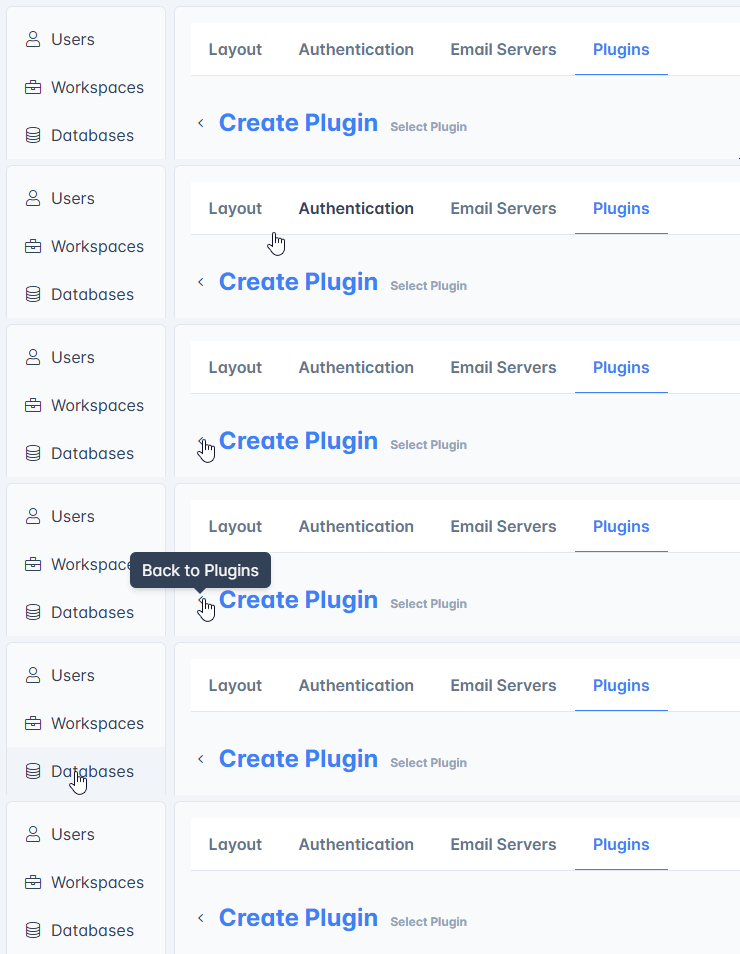
A window will ask for confirmation. Click on Leave to return to the Plugins subpanel or Cancel to stay in the current subpanel.

-
The next step Configuration changes according to the selected plugin type. (See Requested Parameters to learn about the parameter necessary for each plugin's configuration at this step.) Click Next after having filled the required information.
-
Check the Summary page to verify that all the information are correct. Click on Complete to confirm or Back to rectify the information.

Success
You've enabled a new plugin in your Organization.
Requested Parameters
This section lists the requested parameters for each available plugin from the list.
SSRS
- Plugin Name: The label to assign to this configuration of SRSS.
- Service URL: The SQL Server Reporting Services's URL to connect.
optionalWorkspace: The Workspace where to enable the plugin. If specified, the plugin will be enabled only for the specified Workspace.- Username: The username required to log into the SQL Server Reporting Services.
- Password: The password required to access the SQL Server Reporting Services.
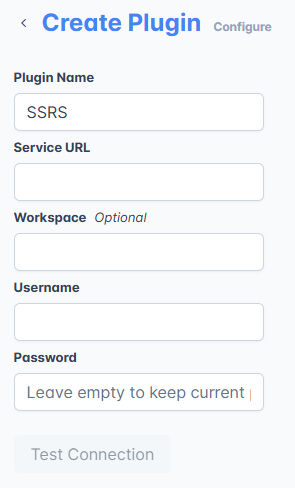
After having inserted the parameters, you can proceed with the next step if and only if you test the connection first. Click on the Test Connection button to test the connection.

If the test succeeds, you can proceed to the next step. If the test fails, check the inserted parameters.

Power BI
- Plugin Name: The label to assign to this configuration of Power BI.
- Service URL: The Power BI's URL to connect.
optionalWorkspace: The Workspace where to enable the plugin. If specified, the plugin will be enabled only for the specified Workspace.- Username: The username required to log into the Power BI.
- Password: The password required to access the Power BI.

After having inserted the parameters, you can proceed with the next step if and only if you test the connection first. Click on the Test Connection button to test the connection.

If the test succeeds, you can proceed to the next step. If the test fails, check the inserted parameters.

Change a Plugin's Settings
-
In the Organization panel, click on Settings on the left sidebar.
-
Click on the Plugins tab. The action leads to the list of enabled plugins in your Organization.
-
Click on the Settings on the tile of the plugin to edit. The action opens the Update Plugin window where you can change the parameters.

-
Edit the parameters according to the plugin. (See Requested Parameters to learn about the parameter necessary for each plugin's configuration.) Click then on Save to confirm or Cancel to abort the changes.
Success
You've updated the chosen plugin's information.
Remove a Plugin
-
In the Organization panel, click on Settings on the left sidebar.
-
Click on the Plugins tab. The action leads to the list of enabled plugins in your Organization.
-
Choose the plugin to delete and click on the Delete button on its tile.

-
A window will ask for confirmation. Type
DELETEand click on Delete to confirm or Cancel to abort.
Success
You've deleted a plugin from the list in the Organization Manager.