How do I search and sort users in my Organization?
Required Delegate Permission
You can perform this operation if and only if you are either an Admin Delegate or a Users & Workspaces Delegate.
Check the Admin Guide's Introduction to learn more about Delegates and the Organization Manager.
Abstract
Introduction
This section teaches how to search, filter, and sort all the users in the Users sub-panel's table in the Organization.
Sometimes, Delegates must find and edit one or more users in an Organization containing hundreds of them. It might be difficult to skim page after page to identify a user and edit the relevant information. For this reason, the Users sub-panel table has different tools helping navigating the users' list.
Example
John Doe's Organization has a couple of hundreds of users. His company asked to perform two actions: changing the email of a user and deactivating the login of a former employee. John Doe will have to filter and sort the Users sub-panel table to find these users without scrolling page after page.
Learn how to filter and sort the users in the Organization's Users sub-panel.
You can access the Users sub-panel in the Organization Manager by clicking on Users in the left sidebar.

Searching and Filtering
Learn how to filter the Users table by a particular column's value. Each table's header has either a search textbox or a drop-down menu to search the column.
You can search the Name, Email or Username by typing the desired keys in the textboxes.
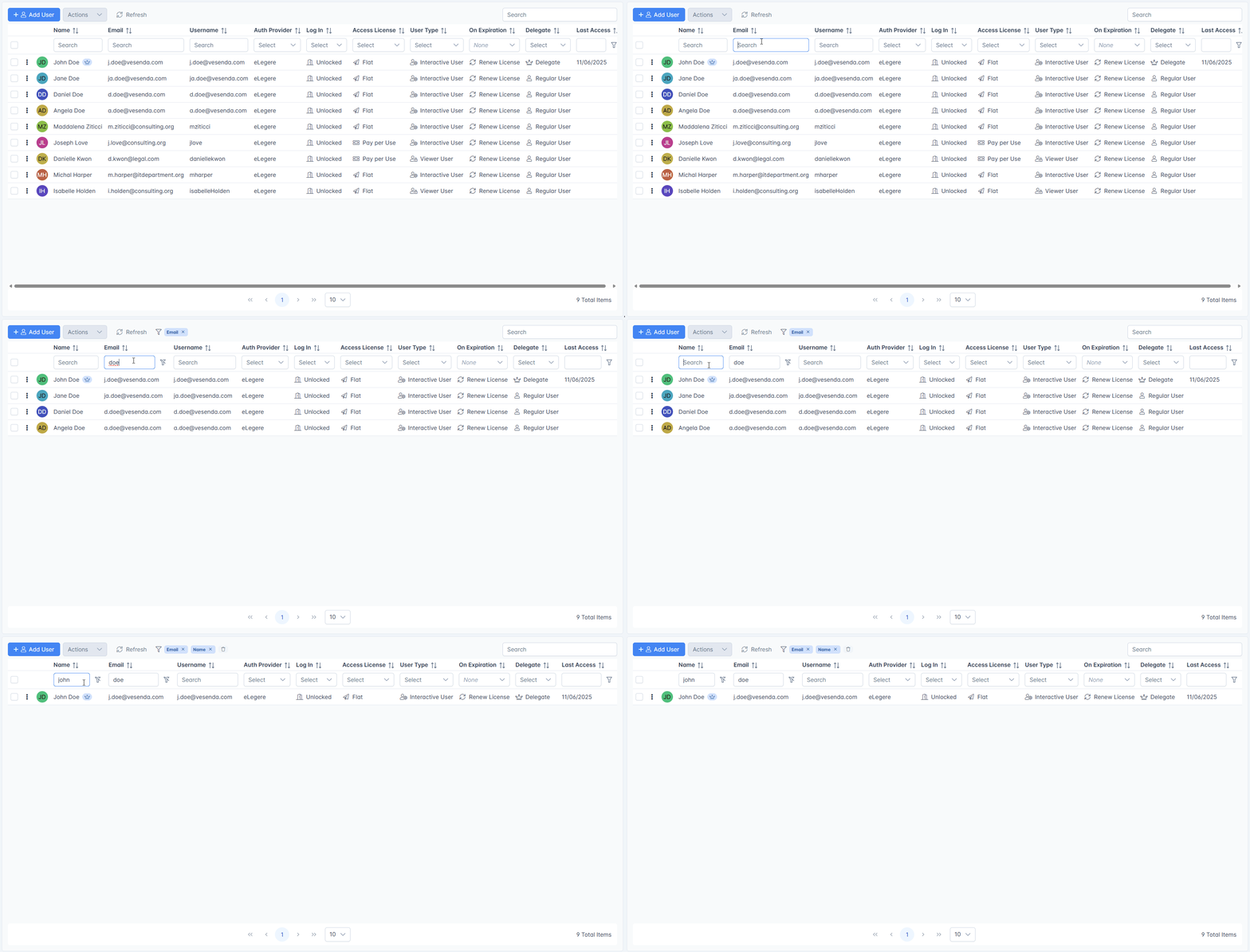
For the rest of the columns, click on the drop-down menu and choose the value for which you want to filter.

Clicking on the Last Access column opens a calendar to choose a day to filter the table.

As alternative, you can right click on a value on a column's cells and choose Filter. The action filters the whole table for that cell's value.

Each filter you've applied will appear as a tag above the table next to the icon.

You can delete the filters at any time by:
- clicking on the on a tag above the table.
- clicking on the button next to the header to remove that filter.
-
clicking on the button above the table to clear all the filters all at once.

Example
John Doe access the Users sub-panel.
Inside the panel searches the Email column by typing the address of the first user, then edit their email.
Sorting
Learn how to sort the results in the Users table.
Click on a column's name to sort the results either in ascending or descending order. (Click twice on the column's header to remove the sorting.)

Tip
The table highlights the sorted column. Also, an icon will remind you about the selected order. (ascending / descending )

Example
John Doe must find a user of whom doesn't remember neither the name nor the email address.
John searches then by Last Access since he asked the last time this user has logged. He sorts then the table by User Type in descending order, managing to find the user and lock them.
Success
You've learnt how to filter and sort the Users table in the Organization Manager.