Can I customize a Workspace even if I don't have a Delegate permission?
Required Permissions
This section assumes that you are a Workspace Admin and you can access the Workspace Settings. See What's a Workspace? in Admin Guide's Introduction.
Learn how to customize a Workspace's Layout as Workspace Admin.
If you aren't a Delegate (see for more information How do I edit or delete a Workspace and manage its Licenses?), you can't edit a Workspace's Layout from the Organization's panel. But if you are the Workspace Admin, you can edit the Workspace's Layout through the Workspace's Settings.
Follow the step below to edit the Workspace's layout from the Workspace Settings as admin:
-
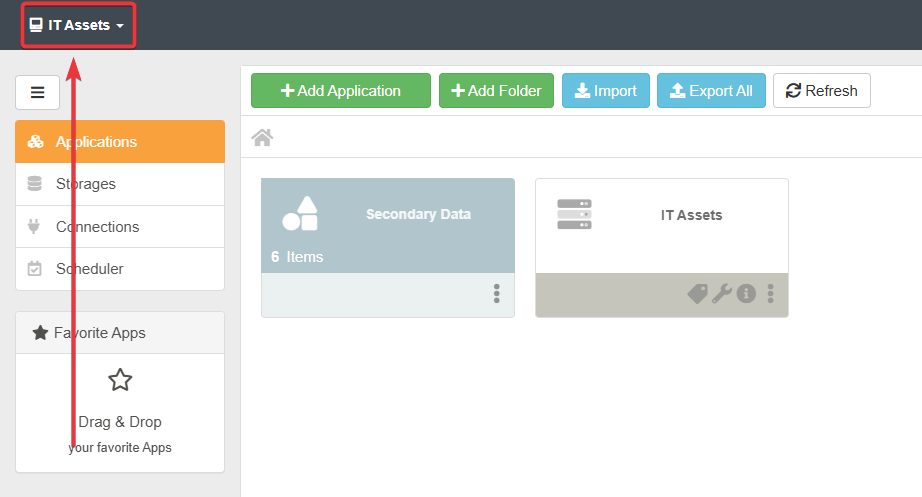
In the Home, click on the Workspace's name in the upper-left corner.
-
Click on the icon next to the current Workspace's name in the drop-down list menu.

-
In the Workspace's Settings, click on Layout in the left sidebar.

-
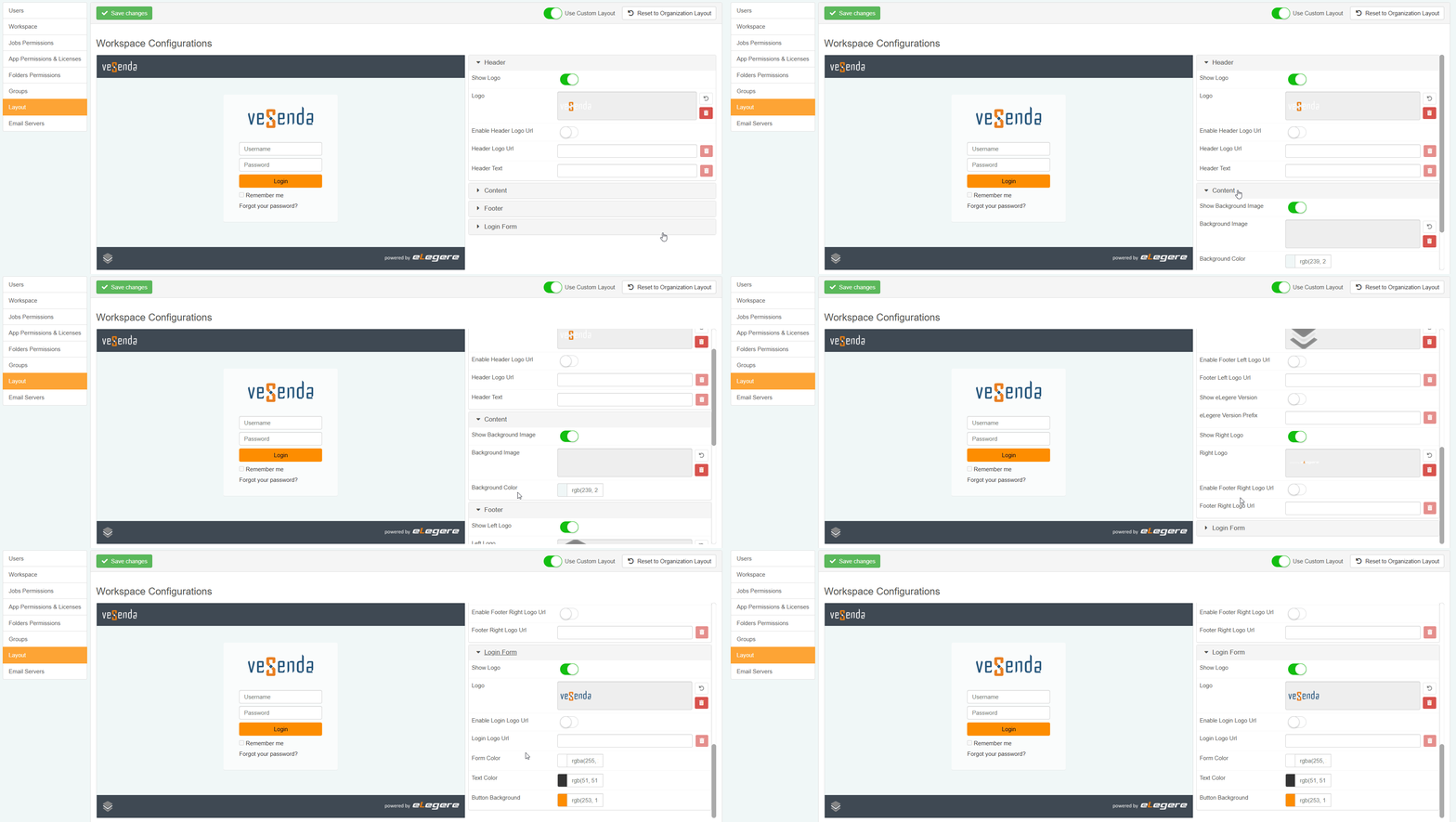
Inside the Layout sub-panel, turn ON the Use Custom Layout toggle switch. This action enables the editor to customize the current Workspace's appearance.

-
Click an element to customize from the right. The action expands the options available.
Tip
If you want to restore the Organization's layout applied by default, click on the Restore Organization Layout button. The action applies the default Organization's layout settings in the Workspace's Layout editor.
-
Once done, click on the Save Changes button.
If you leave without clicking Save Changes, a window will ask whether you want to save the changes. Click on Save to save the changes, Back To Editing to go back and edit the layout or Discard Changes to leave without save anything.
