Conceal the Cells' Values for Sensitive Data
Required Permissions
This section requires the Application Designer permission from your Workspace's administrator.
Check What are the Design Tasks? to learn more about permissions to work with Design Mode and other tools.
Learn how to hide and blur the cells' values of a table column.
Spoiler Mode hides the data in the specified column's cells in Design Mode. If you enable for a field the Spoiler Mode, the option blurs the cells in the column. The users must click them to reveal and view the data.

Warning
The Spoiler Mode isn't a security measure. The Spoiler Mode hides some information at first sight. Anyone accessing the application and viewing the column can read the data by clicking on the blurred cell.
Don't rely on Spoiler Mode to hide sensitive information from the users.
Note
The procedure is the same for both Master and Detail tables.
For a Detail Table, you find the same interface by going into Details > [Desired Detail table] > Configure.

The action leads you to an interface that behaves like that of the Master Table in the Master sub-panel.
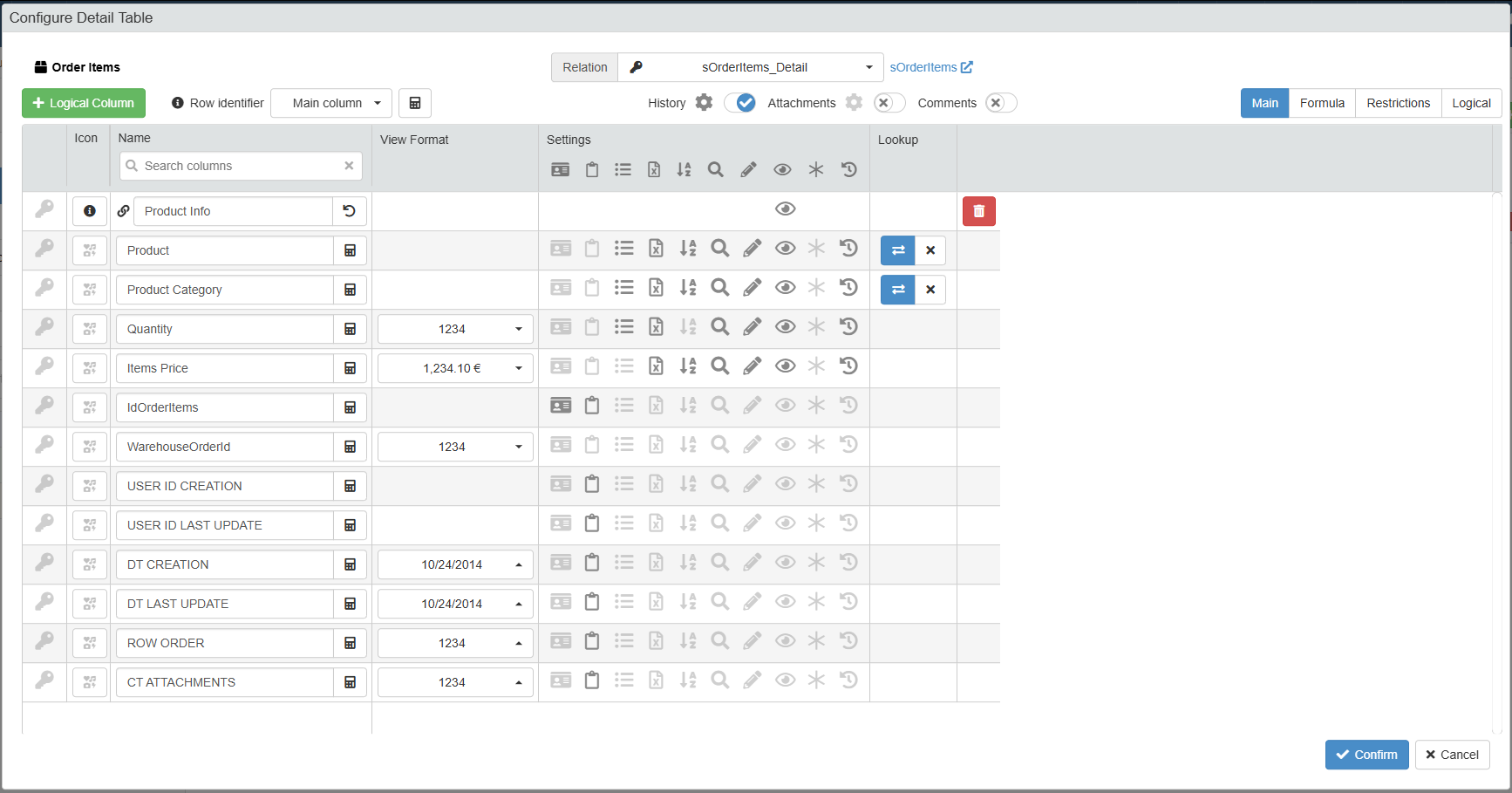
For more information about Details, check How to Attach a Table with Further Information to a Row: Detail Tables.
Follow the steps below to conceal the field column's cells' values.
Example
The Warehouse Orders application manages the order from a warehouse and contains sensitive information like the customers' addresses. It would be useful to hide the address and display it only when a clerk prepares the parcel in one of the warehouses.
-
In Design Mode, go to the table that you want to customize.
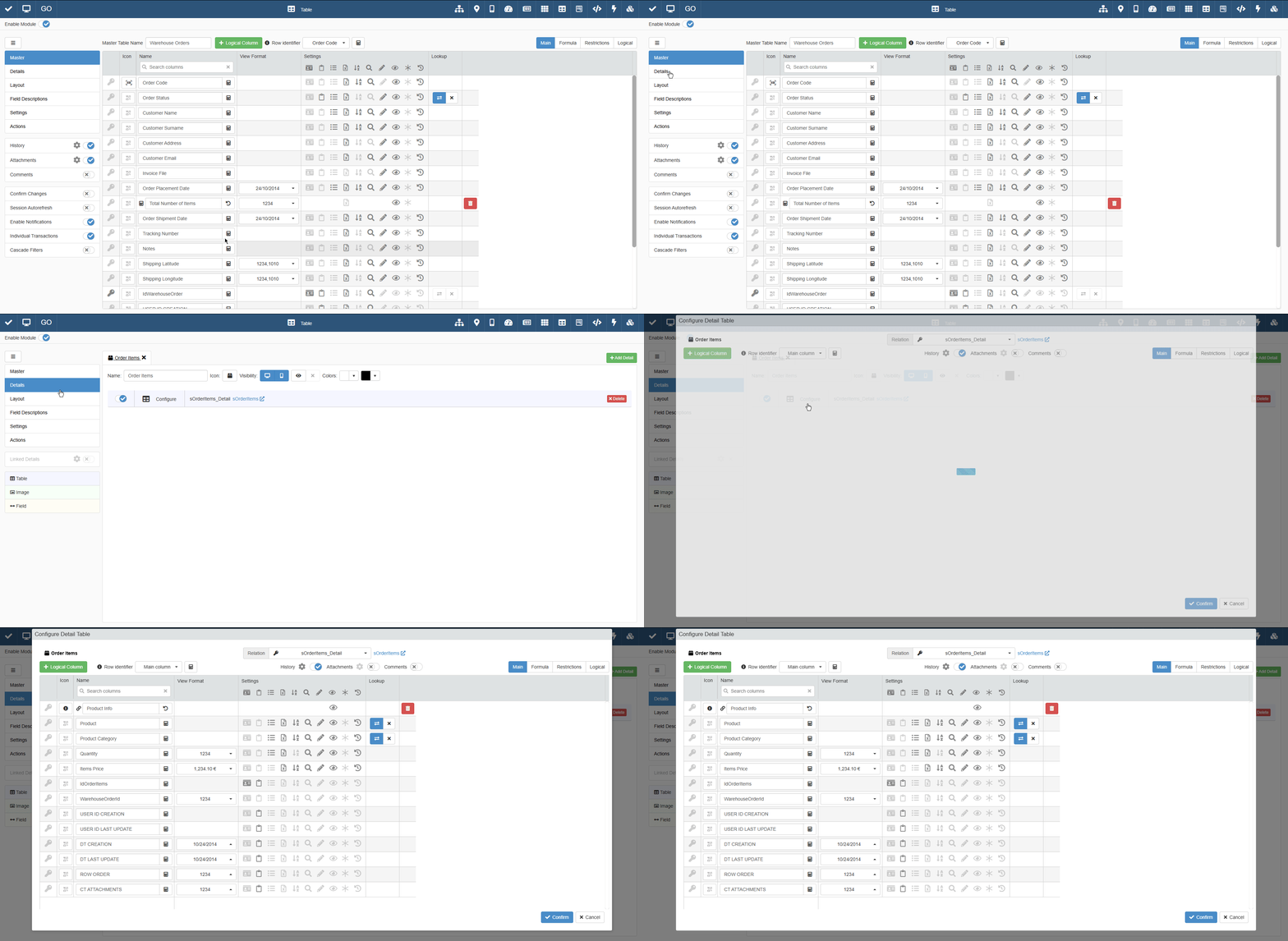
For Master Table, you can find the table settings under the Master sub-panel. The Master sub-panel is the first panel opening by default when you access the Design Mode.

For Detail tables, you must go to the Details sub-panel. Choose one of the Detail tables, and click on Configure.
-
On the preferred table, click on the icon under the Spoiler Mode (hide content) column for the corresponding field to be hidden.

The action enables the Spoiler Mode for the selected field, blurring the cells' content of the field.

-
Click on the Save button to save the change. You find the Save button in the upper-left corner of the Design Mode.

Success
You have configured the Spoiler Mode for the selected field. The cells are blurred and the users must click them to reveal the content.