Import and Start Afresh
During the eLegere tutorials, the documentation offers .eap files. You can create a new Workspace and import the .eap file of the tutorial that interests you. In this way, you can start afresh if you have missed some steps or you have tinkered around with Applications and Storages.
.eap files are archives containing both the applications and the related Storages and data.
.eap files are useful for things like backups or sharing your Applications and Storages with other eLegere installations.
At the beginning of each tutorial, you can download and import the .eap. The .eap file contains everything you need to follow the tutorial from that point.
Note
This tutorial assumes that you are enabled to create Domains in eLegere. Ask to your administrator to be enabled.
Info
Read below to learn just the basics to start afresh.
The documentation explains in depth the concepts introduced here in Import Applications and Storages in a New Workspace section from the Designer Guide.
The Example
Consider the following example to learn what to do with an .eap file. You find the .eap file at the beginning of each tutorial of Your First Application.
Example
Suppose that you want to import the .eap file with all the steps of Building Your First App: Personal Budget completed. The .eap file of Building Your First App: Personal Budget contains the Personal Budget and the related storage Transactions only.
Create a Workspace to Import the .eap file
Create a Workspace to import from scratch the applications and storages of the .eap file.
Note
Skip to the second part Import the .eap in the Workspace if you have a Workspace already.
Follow the following steps to create a new Workspace.
-
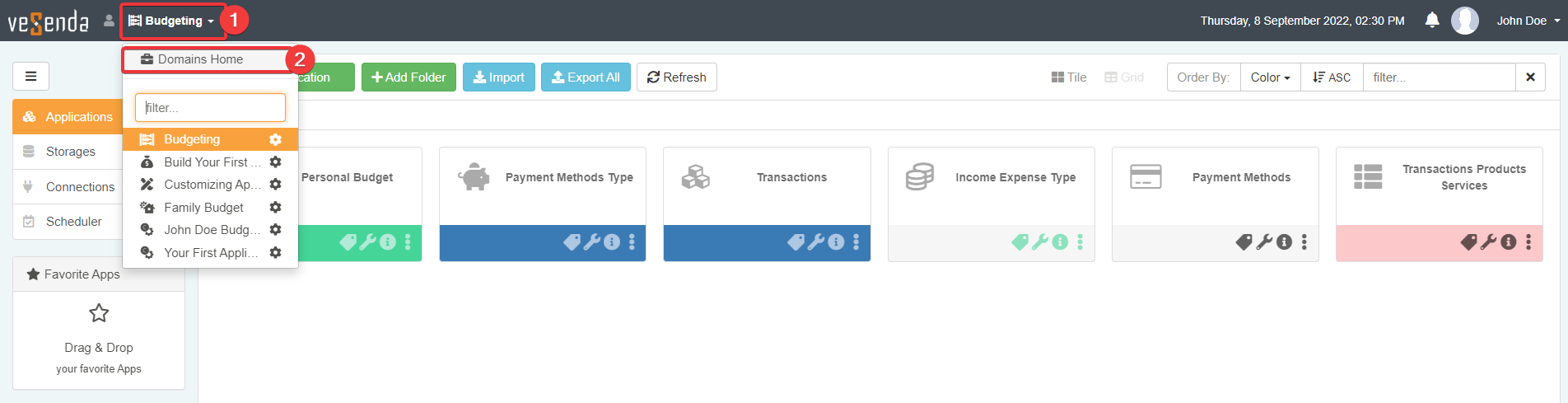
In the Home of the current Workspace, click (1) the name of the current Workspace in the upper-right corner > (2) Workspaces Home.
-
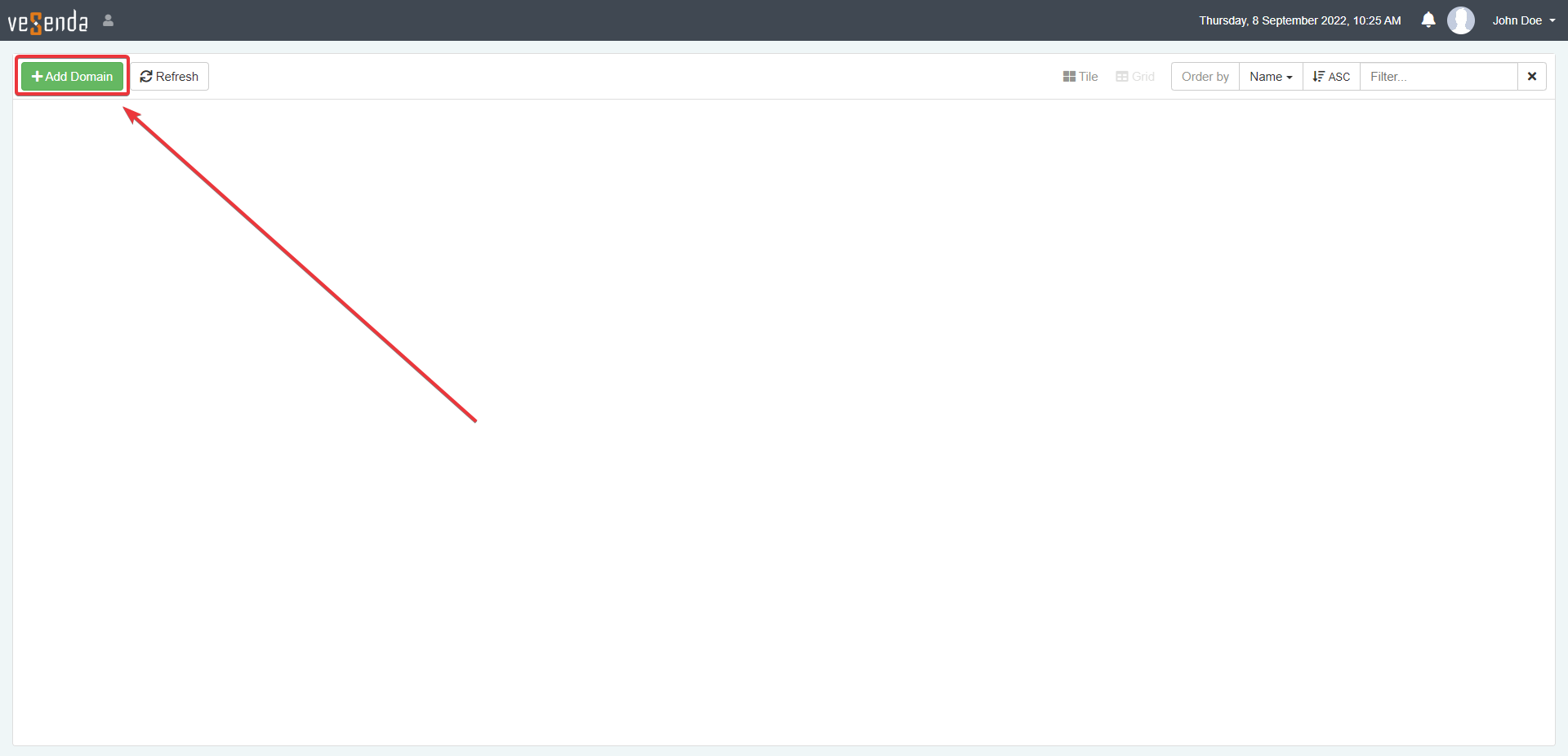
You will land in the Workspaces panel. Click on +Workspace to create a Workspace to import the .eap file later.
Note
Depending on the eLegere installation, you could find multiple Workspaces' tiles in the Workspaces Home already.
-
The window Add Domain will appear.
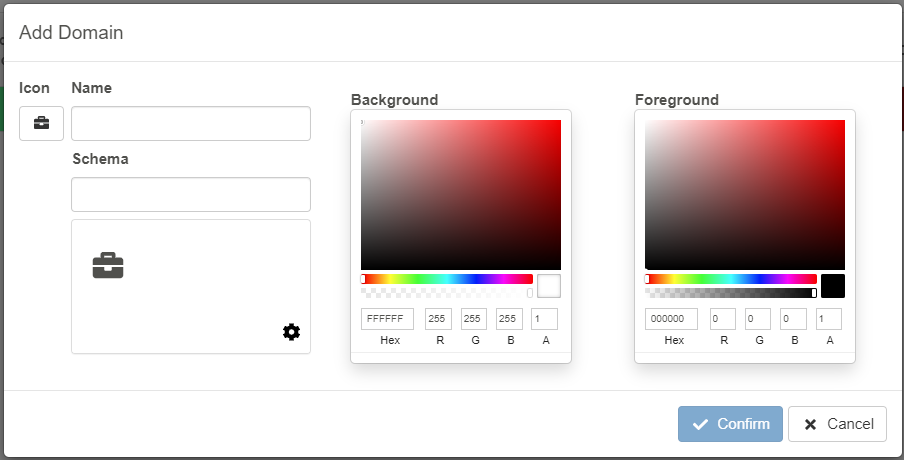
Customize the following settings:
- (1) Choose an icon from the drop-down menu.
- (2) Choose a name for the Workspace. For example
Your First Application. - (3) Choose a code for the scheme, for example
yfa01. (Schema must begin with a letter.) - (4) Choose a background color for the tile.
- (5) Choose a foreground color for the tile.

-
Click on the tile of the new Workspace to access the Home.

Import the .eap in the Workspace
After the Workspace creation, you can import the .eap file.
-
Download the .eap file from the tutorial you are interested in.
-
Access the Workspace for the Import.
-
In the Home of the Workspace, click on the Import button.

-
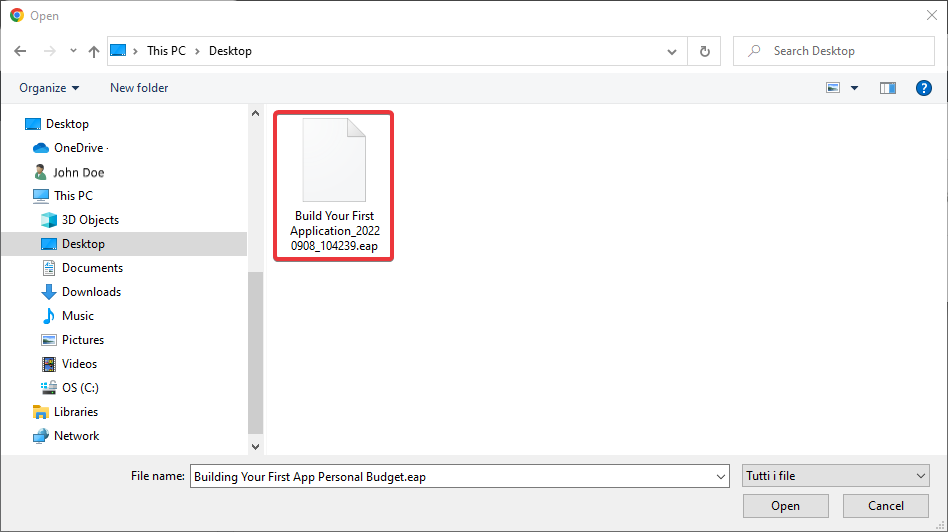
eLegere will open a window in your OS and asks you to upload the .eap file before anything else. Choose the .eap file from you computer or drive.
-
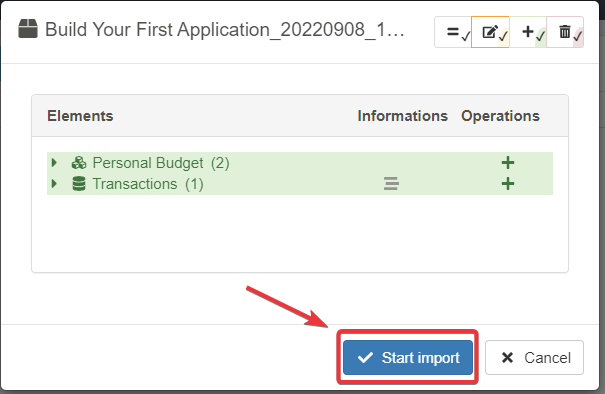
After having chosen the file, the window will appear. The window lists all the applications, the storages, and what storages have data inside (i.e. the icon). Click on the Start import button.
Warning
Be patient and wait. The process could take some time.
-
The window will display the icon when the import has begun. You can click on the Close button to close the window.

A notification in Home will inform you of the success.

Note
If you don't see anything after the import, click on the Refresh button next to Export All button. The action reloads all the storages and applications in the Home.
The imported applications will appear in the Applications sub-panel in Home.
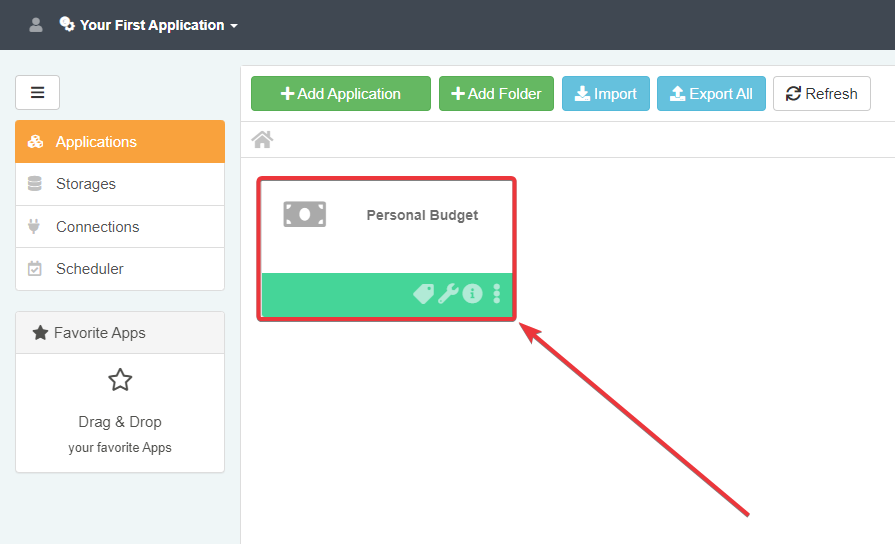
The imported storages appear in the Storages sub-panel of Home. You can find the .eap's storages inside this sub-panel.

Info
In case you import a .eap file from a Workspace with a structured folder tree: the Import function will reconstruct the folders from the source in the new Workspace's folder structure if they don't exist. Otherwise, the Import will place the Storages in the Storages sub-panel's root.
Success
Congrats, you have imported you first .eap file in eLegere!