Users and Permissions in the Workspace
Note
This tutorial presupposes what done in Automate Your Application tutorial. If you have missed or skipped the previous tutorials or you want to experiment and go back, don't worry! You can import this .eap file to sync or restore with what you see in this documentation. Learn about resetting by using .eap files. If you don't use the .eap, what you see might differ slightly from the screenshots.
This section will teach you how to manage users accounts, permissions, how to show or hide applications, and restrictions.
Change the name of the Personal Budget application you developed in Your First Application to Family Budget. Change the tile's color and choose another icon (for example, search house in the Icon drop-down menu).

In this section you will add Users to your Workspace and create the Groups to manage their Permissions and Restrictions. You will apply your choices to the Family Budget application in Application's Restrictions for Users and Groups.
Manage Users' Accounts
If you are a Delegate or a Workspace Admin, access to a Workspace enables adding users to it.
Warning
To add a User to your Workspace the User's account must be present in your Organization. Check How do I add a user to my Organization? for more information.
Follow the steps below to add the users for the Doe family.
-
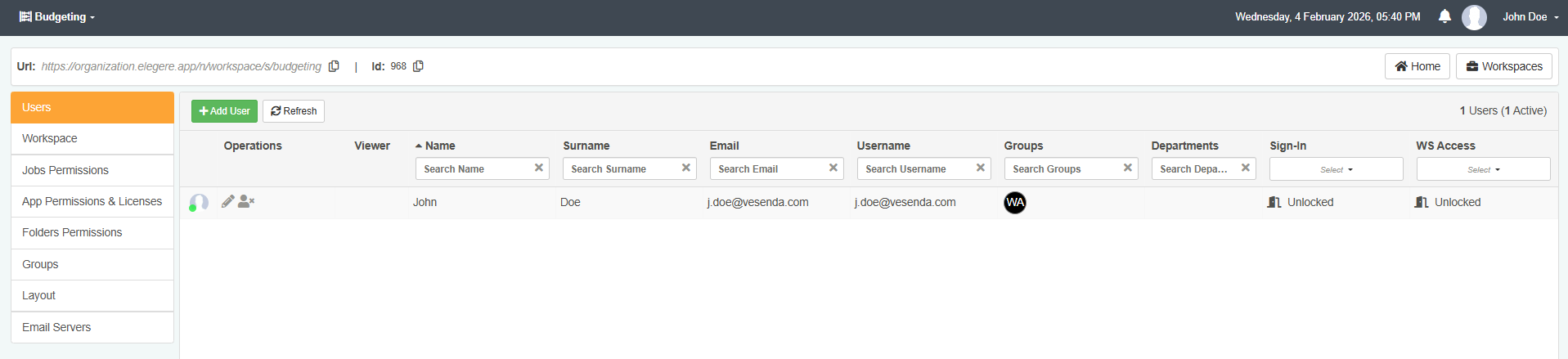
Access the Workspace settings panel. (See What are Workspaces? for more info about how to access the panel.)
-
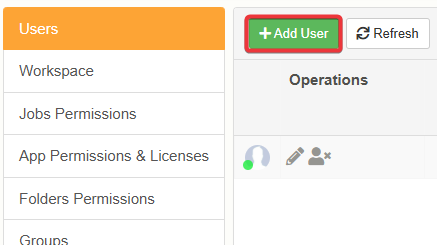
Click on Add User on the left corner of the panel next to the task bar.
-
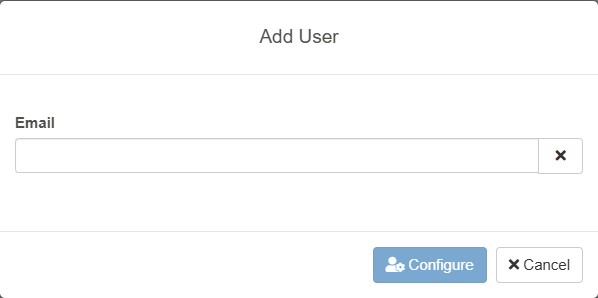
Type the user's email in the window that appears.
-
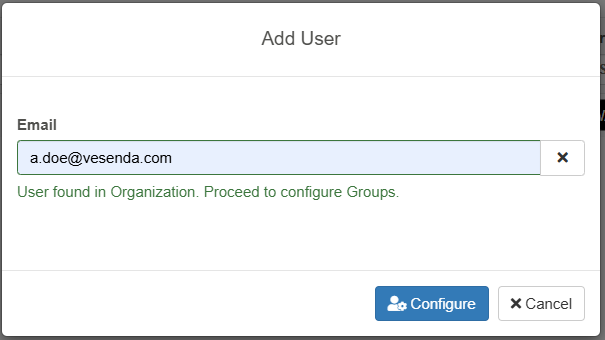
If eLegere doesn't recognise the email as part of the organization a warning will appear and suggest to contact the Administration. Otherwise click on Configure to proceed.
Add Users to the Workspace
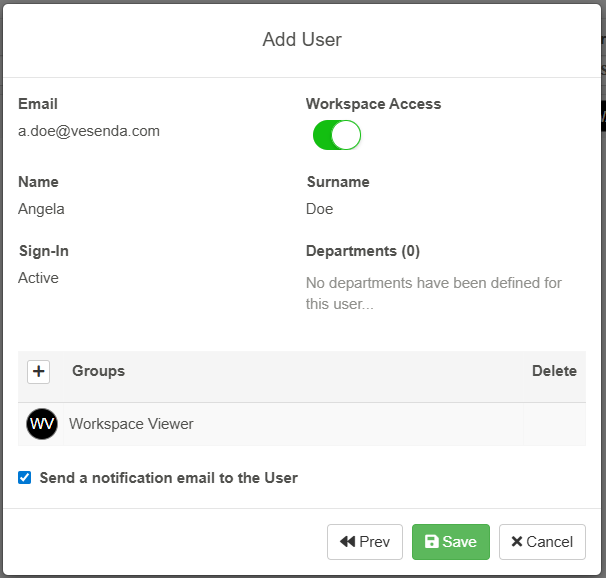
Users' info will be automatically filled. Click on Save to proceed.
Note
Ignore Groups for the moment. You will return to this window to add Groups in the next section Add Users to a Group. For now, it's enough to add the user's account.
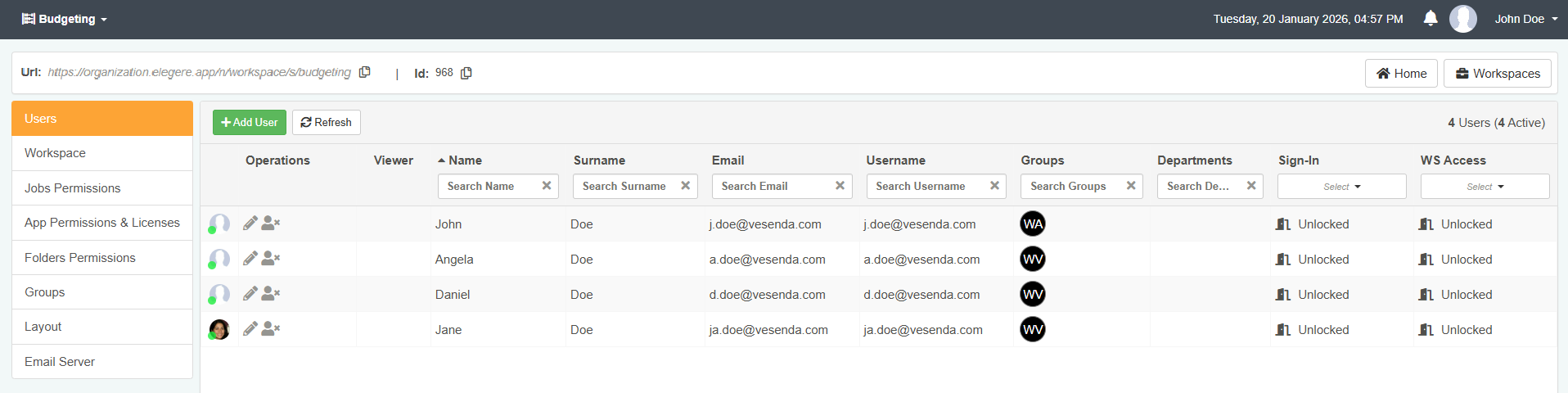
In the case of the tutorial, add the User accounts for the family members:
| Name | Family Relation | |
|---|---|---|
| Angela Doe | Daughter | a.doe@vesenda.com |
| Daniel Doe | Son | d.doe@vesenda.com |
| Jane Doe | Wife | ja.doe@vesenda.com |
Manage Users' Permissions
You will learn how to assign permissions to Users and Groups.
Create Groups
You can manage the Users' permission through Groups.
Groups determine what a User can see or do within the Workspace.
You will create three groups to manage the permissions for the Family Budget application.
Family MembersGroup of family members who can access Family Budget.ParentsGroup of the parents in the family.Budget ManagerGroup of users who can view everything, design, and manage all the applications.
Follow the steps below to create new Groups:
-
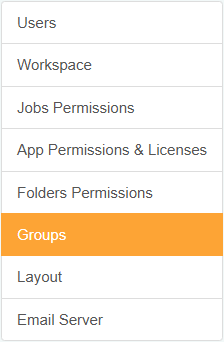
Click on Groups on the left task bar of the Workspace Settings.
-
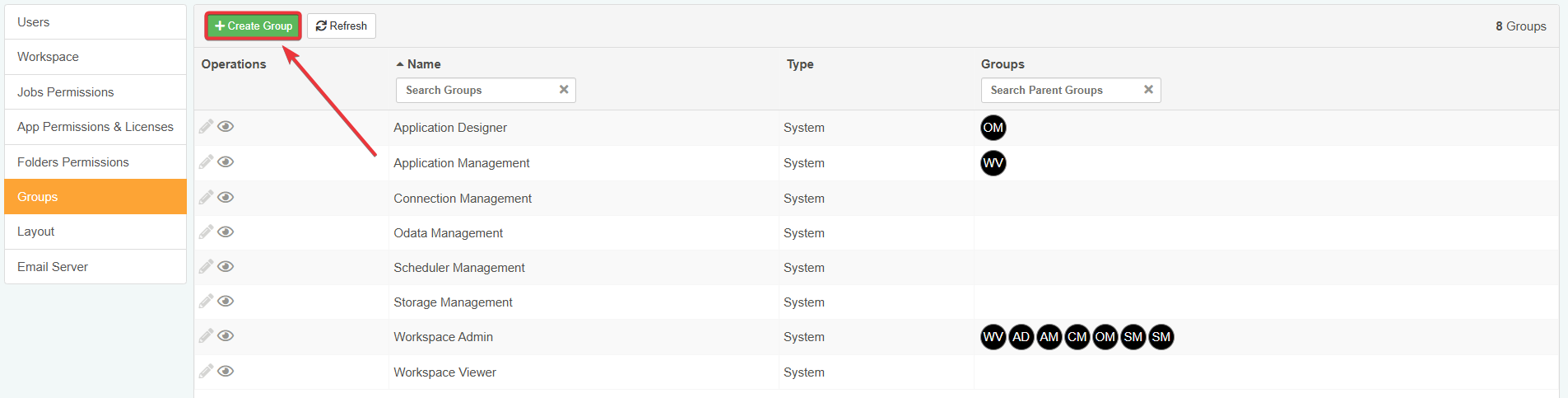
Click on Create Group on the upper left corner of the panel next to the taskbar.
-
Type in the textbox the name of the group
Family Membersand click on Confirm.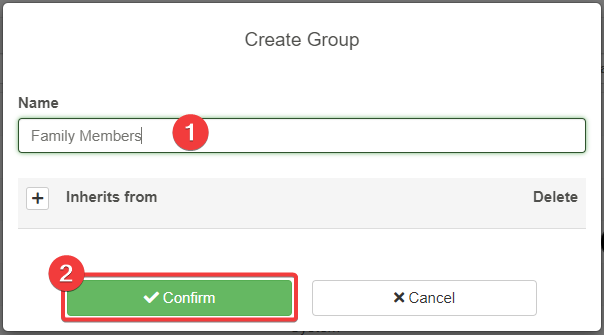
-
Repeat the previous Step 3 to create the other two User Groups
ParentsandBudget Manager.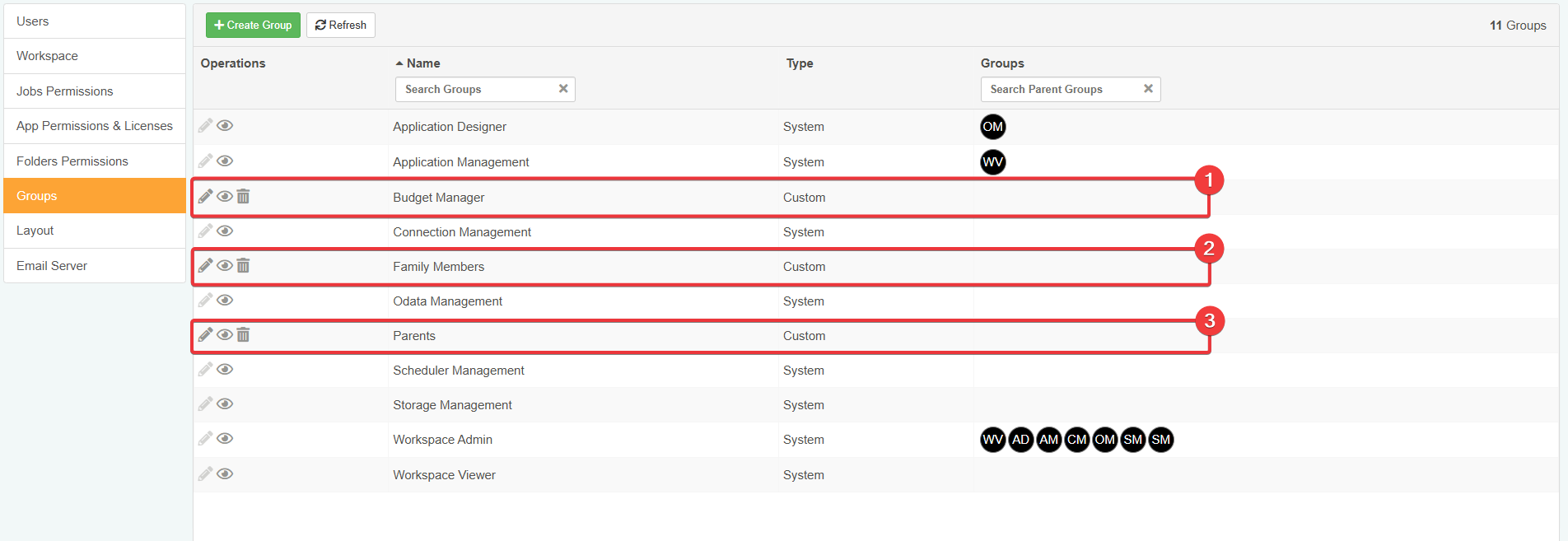
Add Users to a Group
You have created the Groups. You must add the Users to each Groups. Add "Jane Doe" to Parents and "Daniel Doe" and "Angela Doe" to the Family Members group.
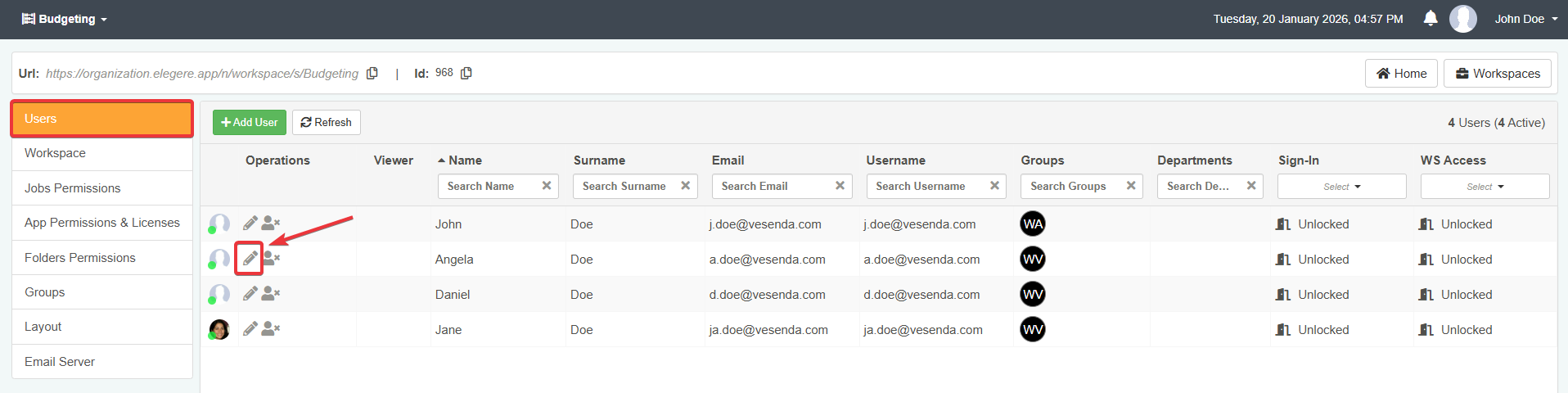
- Go back to the Users panel.
-
Click on the icon to update the information about the User.
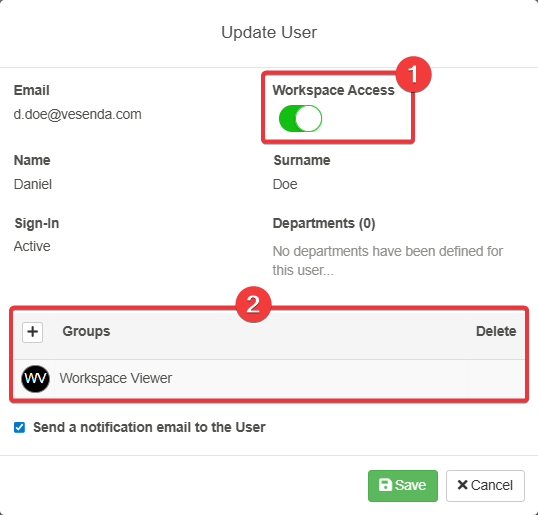
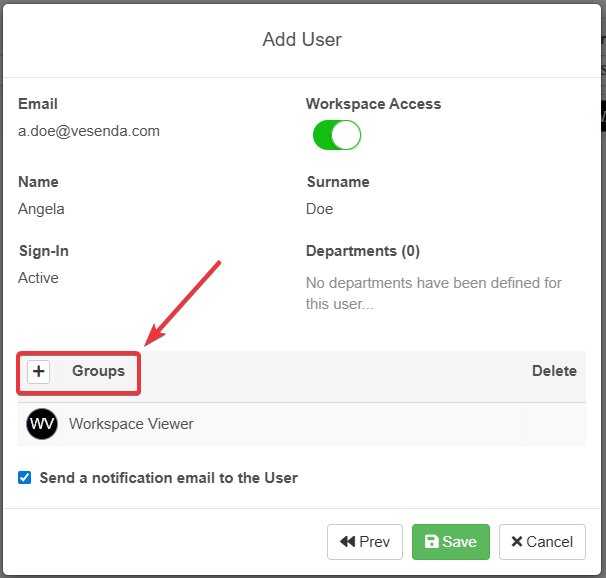
The Update User window will appear. Here you can:
- (1) Click on the toggle switch to remove the user's Workspace access.
- (2) Add to or remove the user from System Groups or Custom Groups.
-
Click on the icon next to Groups.
-
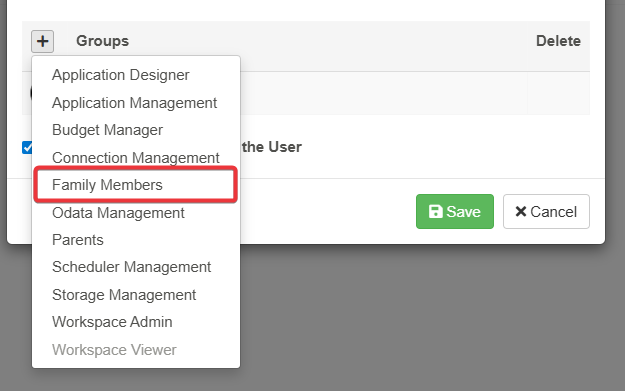
The drop-down list with all the Groups of the Workspace will appear. Select the intended group.
-
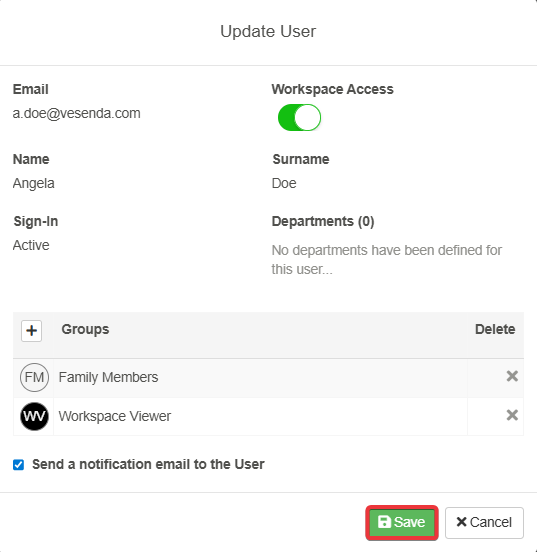
Click on the Save button.
-
Do Step 2, Step 3, and Step 4 to "Daniel Doe" and "Angela Doe" to
Family Members. - Repeat the Steps 2, Step 3, and Step 4 to add "Jane Doe" to the
ParentsGroup. - Repeat the Steps 2, Step 3, and Step 4 to add "John Doe" to the
Budget ManagerGroup.
The final result must be the following:
| User | Family Member | Parents | Budget Manager |
|---|---|---|---|
| Angela Doe (a.doe@vesenda.com) | X | ||
| Daniel Doe (d.doe@vesenda.com) | X | ||
| Jane Doe (ja.doe@vesenda.com) | X | ||
| John Doe (j.doe@vesenda.com) | X |
Warning
This tutorial assumes that who is managing the Workspace is John Doe. John Doe belongs to Budget Manager. But it's you doing all the steps. Add your email as well to the Budget Manager User Group. This action enables you to see the results of the following tutorials. If you skip this step you won't belong to any User Group, therefore you won't see the results.
System Groups: Grant Permissions to Design Mode, Storages, and Scheduled Jobs
You can grant permissions to access the Design Mode, Storages, Connections, and Scheduled Jobs by doing the steps from Add Users to a Group.
Add a User to one of the default System Groups to grant them the corresponding system privileges. (E.g. Adding a user to Application Designer makes the user a Designer.)
Follow the steps from Add Users to a Group the following system groups to Jane Doe:
- Application Management Grants the user to manage Applications: create, rename, and delete.
- Storage Management Grants the user to create and manage Storages.
- Scheduler Management Grants the user to configure Scheduled Jobs.
-
Application Designer Grants the user to enter the Design Mode.
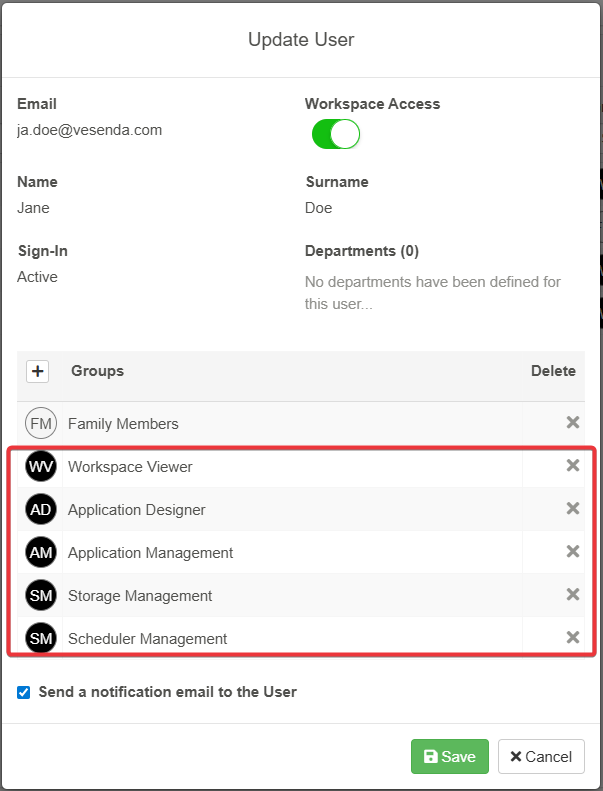
At the end, the permissions of each family member should look like this.

Show or Hide Applications to Specific Groups
Groups enables to display certain apps only to certain people.
Each family member should view and have access in their Home to the following applications:
| Family Budget | Transactions Products Services | Income Expense Type | Payment Methods | Family Members Register | |
|---|---|---|---|---|---|
| Angela Doe | X | ||||
| Daniel Doe | X | ||||
| Jane Doe | X | X | X | ||
| John Doe | X | X | X | X | X |
- Click on App Permissions & Licenses in the taskbar.
-
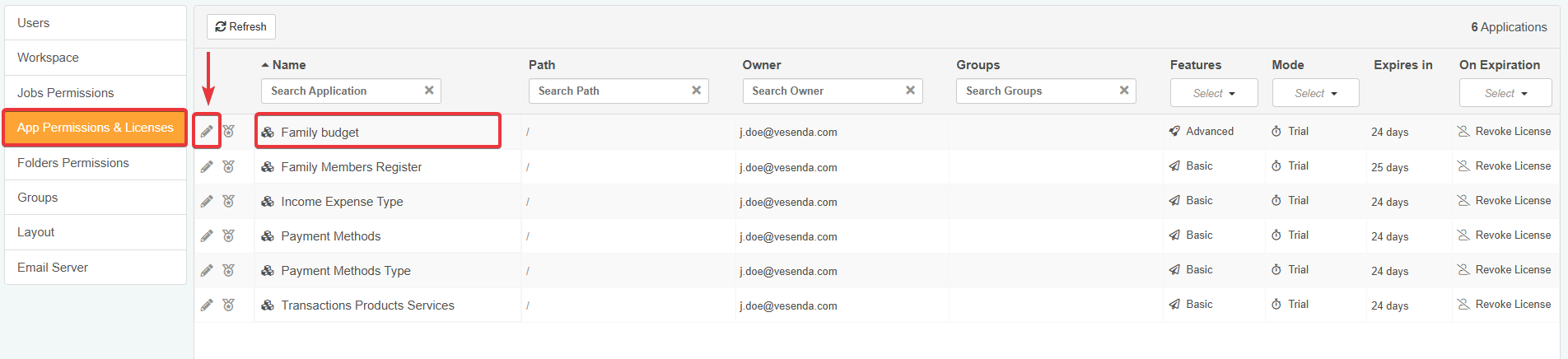
The list of the applications in the Workspace will appear in the panel. Click on the icon next to the application's name Family Budget.
-
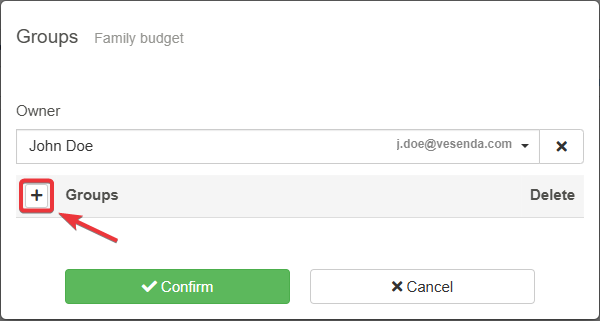
Click on the icon next to Groups to add the Groups.
-
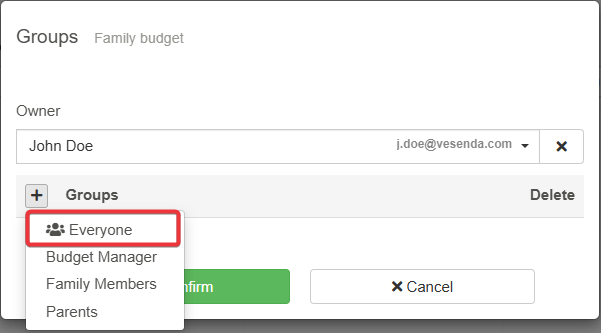
Independently from their Groups, all users must access the Family Budget application. Choose the Everyone option and click Confirm when done. The action enables all the user accessing the Workspace to view and launch Family Budget. Then click Confirm.
Tip
To grant access to the Workspace Viewers on the Workspace to an application independently from their permissions, choose from the Groups drop-down list the Everyone option.
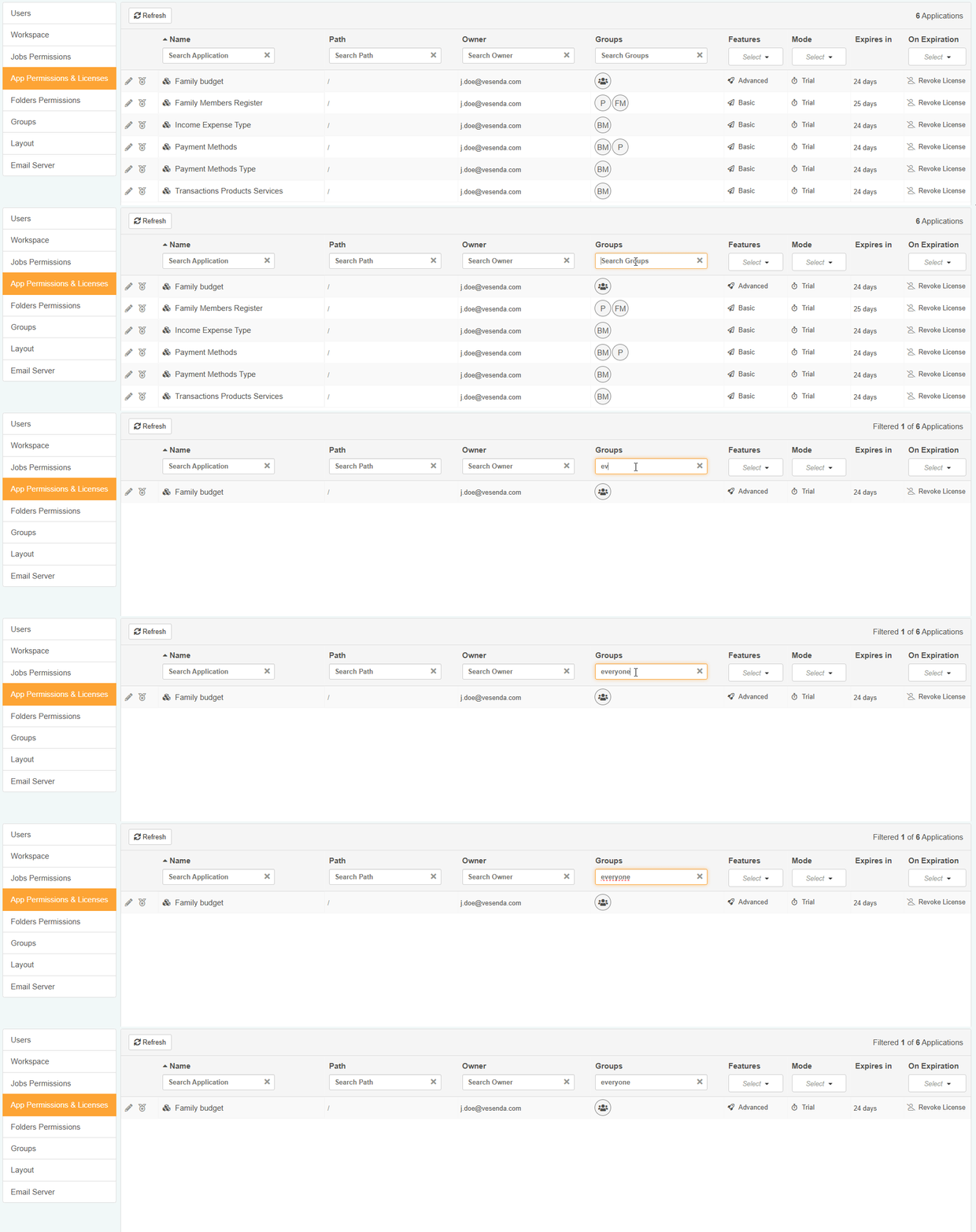
Also, you can filter applications flagged as Everyone like any other Group in the App Permissions & Licenses sub-panel.
-
For the other applications, you must specify instead only the Groups authorized to access. Repeat Step 1, Step 2, Step 3, and Step 4 to grant each group the viewing permissions for the applications. The action is the same of Step 4. This time choose the specific Groups instead of the Everyone option.
-
Budget Manager group can view all the applications.
- Parents group can access only to Family Budget and Payment Methods. (In the next tutorial, you will have to add the new Family Members Register application to this list.)
The permissions should look like this:
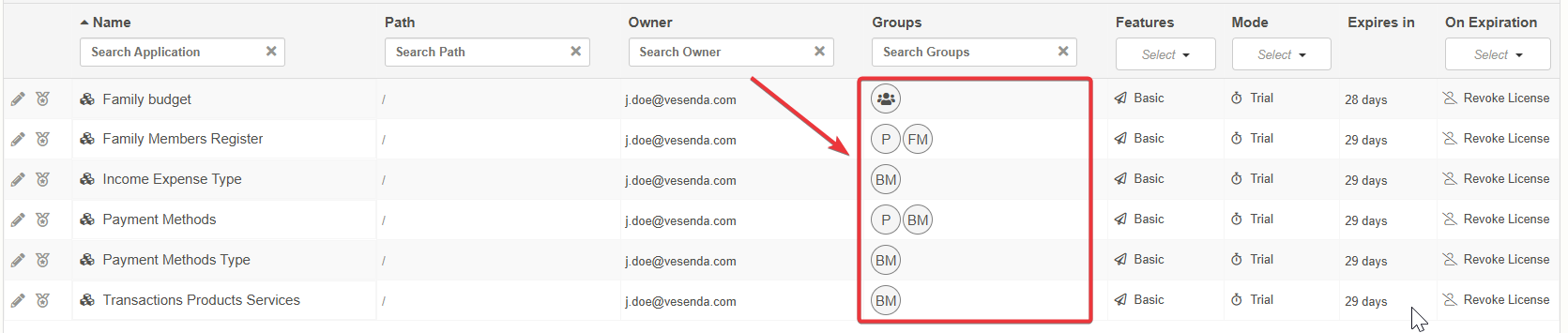
You have granted access by Group to each application. Congratulations!
Success
Learn in the next tutorial Application's Restrictions for Users and Groups how to apply restrictions to eLegere applications. Restrictions enables you to restrict what data users can see and what operations can do in an application.