Add Properties and Groups
Learn how to add Properties and Groups.
Users can add, remove, and search Properties from within the application to narrow or enlarge the data subset.
You can choose what Properties or Groups to add by clicking on the Properties button ().
Note
In the Properties panel, you cannot select certain field columns as Properties. This could happen for two reasons:
- The Designer has not configured that field column as a Property.
- The column you want to use as Property is a Logical Column: columns that calculate data in real time without saving them. Logical Columns can't be Properties. (See Configure Calculations Without the Necessity of Storage: Logical Columns in the Designer Guide to learn more about Logical Columns**.)
In both the cases, you can't select a column as a Property.
You can find the Properties button () on the right side of the top bar.
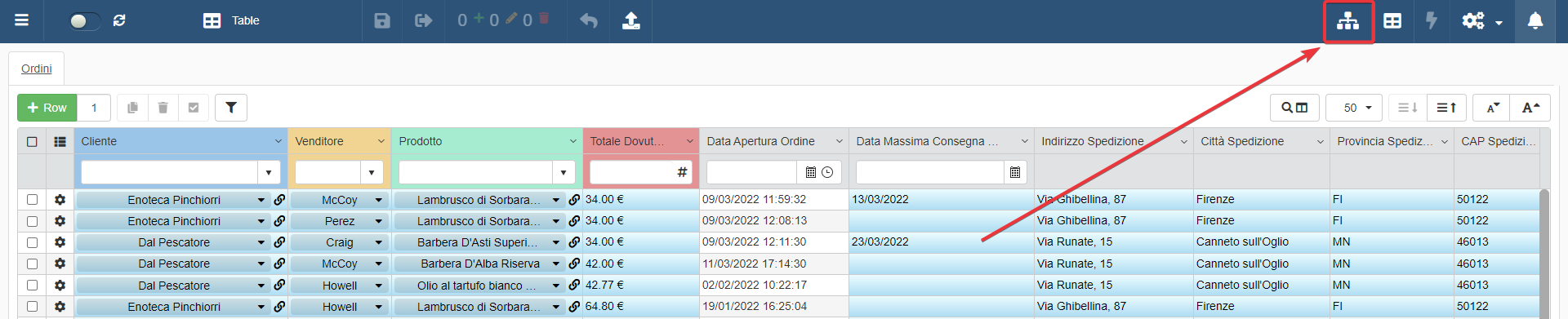
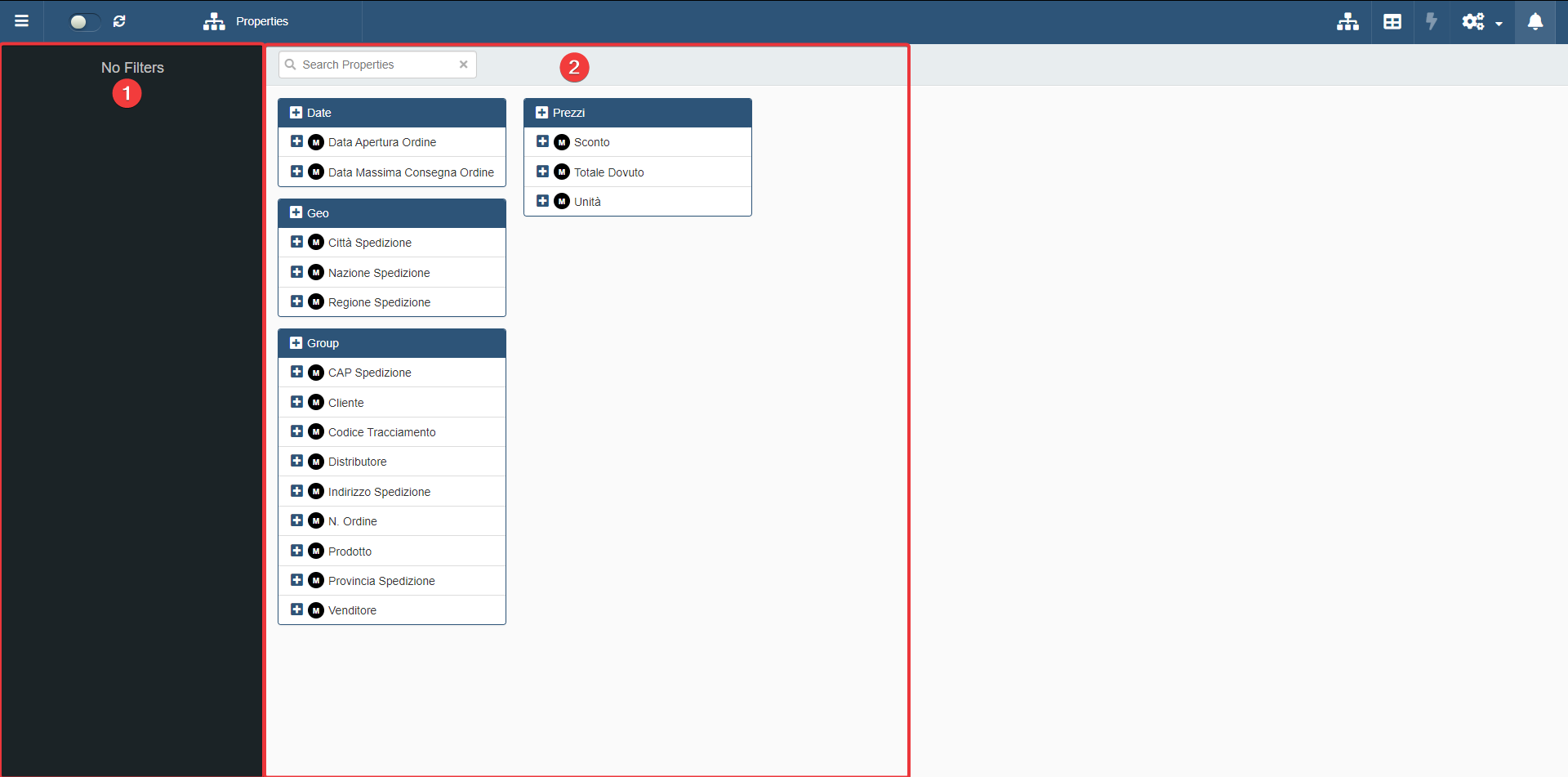
Clicking on the Properties button () brings you to the following panel.
-
The right section lists all the Groups and Properties available.
-
The left section lists all the Groups and Properties activated for the table.
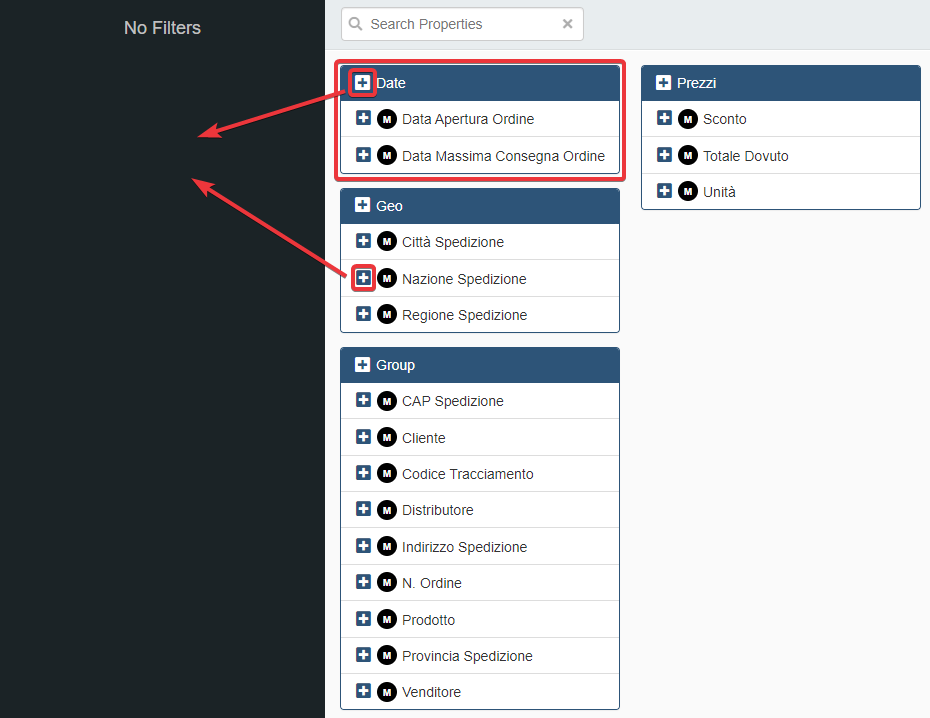
Click on the icon next to either a Property or a Group to add it to section (2). When added to section (2), the Property is active and you can select the values to include.
- Clicking on the Property's icon adds only that Property of the Group.
- Clicking on the Group's icon adds all the Properties of the Group.