Export Applications and Storages
Required Permissions
This section requires the Domain Admin permission from your Domain's administrator.
Check What are the Design Tasks? to learn more about permissions to work with Design Mode and other tools.
You can export Applications, Storages, Data, and Folders from your current Domain to another Domain in the same eLegere installation or in a different one.
Learn how to export either all the Applications, Storages, Data, and Folders or just an individual application. In both cases, Home will prepare a file in .eap format containing everything you chose to export.
Info
The .eap file contains everything you exported. See Import Applications and Storages in a New Domain to learn how to import Applications, Storages, Data, and Folders through the .eap file.
Export All Applications
Learn how to export all the Applications, Storages, Data, and Folders from your Domain.
Warning
The Export function doesn't export scheduled actions from the Scheduler.
If you want to export all the elements from your Domain, follow the steps below.
-
In Home, click the Export button. The action opens the Export All wizard.

-
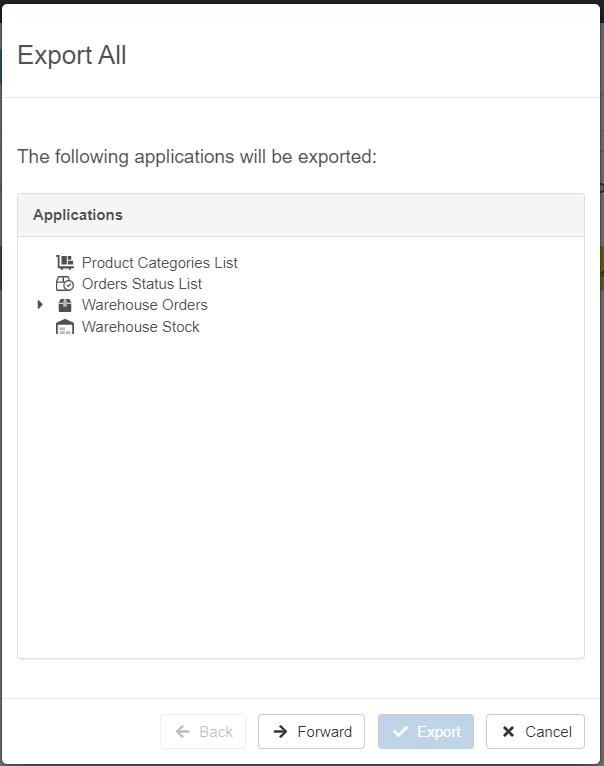
In the Export All wizard, the first window displays the list of applications to be exported. If you are satisfied, click the Forward button or Cancel to abort the export.
-
The next window summarizes the Storages that the wizard will export.
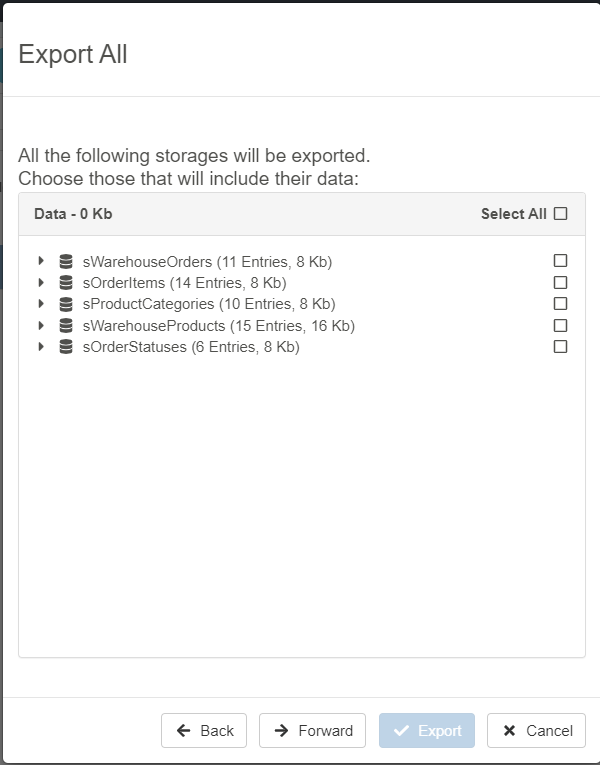
Select the Storages for which you want to export the data as well as the fields. If you do not want to export data but only the fields, leave everything unselected. By default, no data are selected for the Storages.
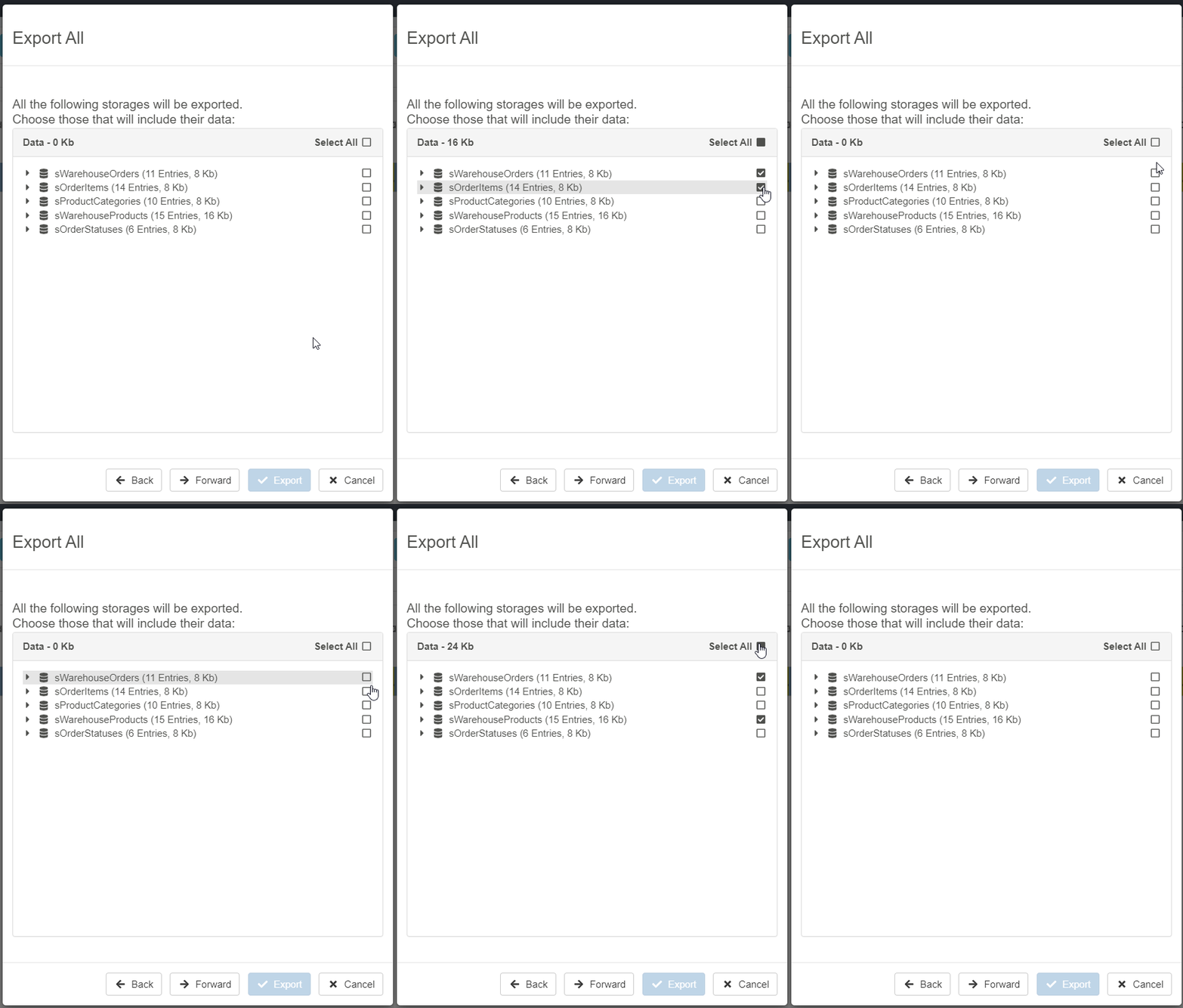
If you are satisfied, click the Forward button or Back to go back to the previous step. Click Cancel to abort the export.
-
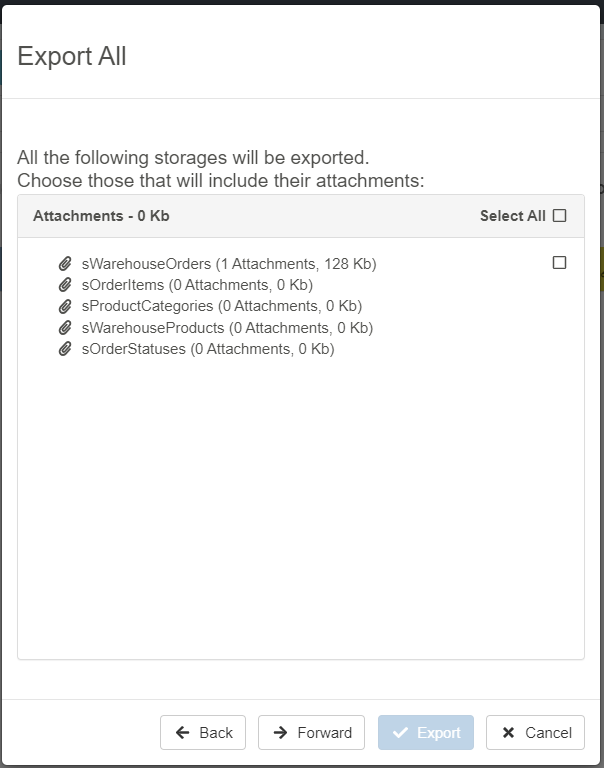
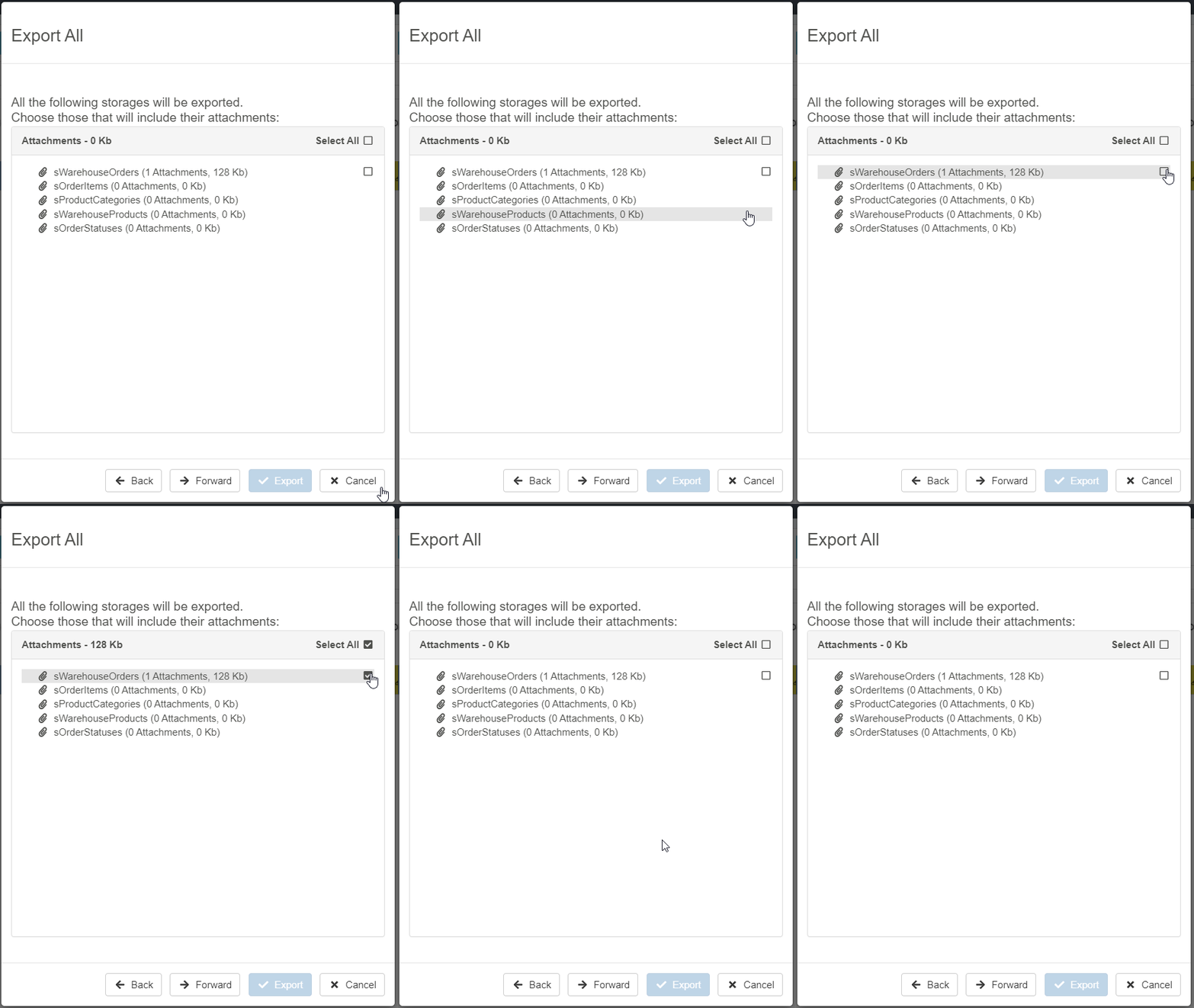
If you selected data in the previous step, choose the Storages for which you want to export the rows' attachments (if any).
Note
If you did not select data in the previous step, this window is empty.
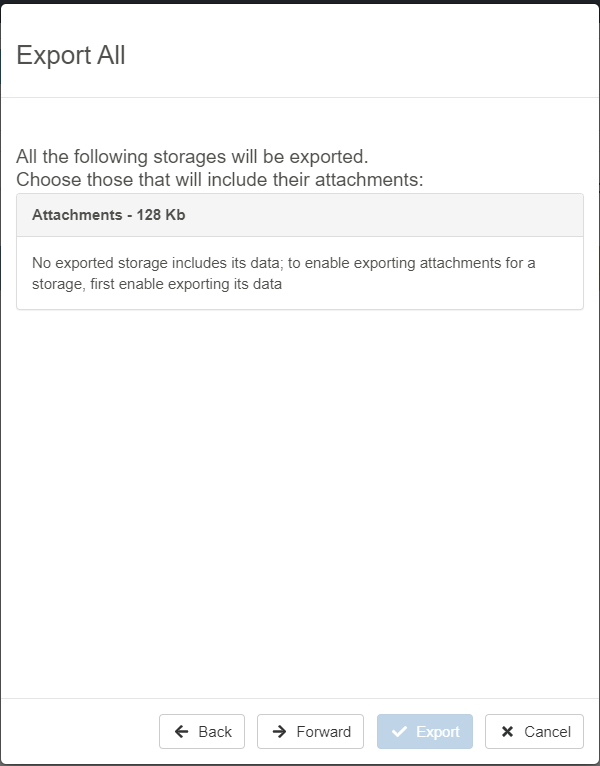
If you are satisfied, click the Forward button or Back to go back to the previous step. Click Cancel to abort the export.
-
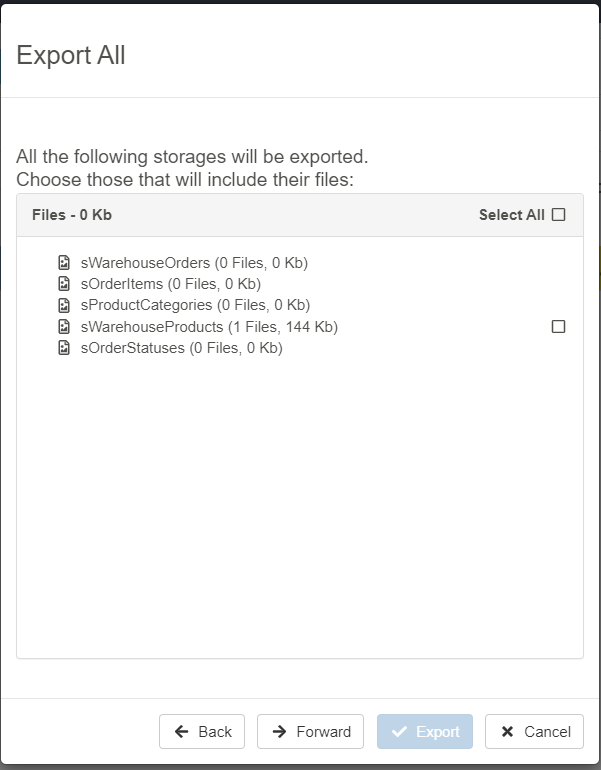
If you selected data in the previous step and you have a File-type field, choose the Storages for which you want to export the files (if any).
Note
If you did not select data in the previous step, this window is empty.
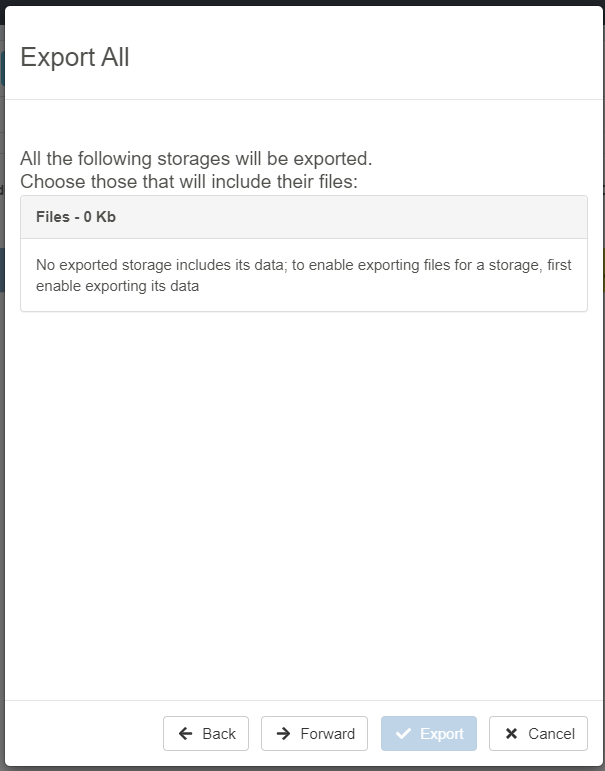
If you are satisfied, click the Forward button or Back to go back to the previous step. Click Cancel to abort the export.
-
If there are External Resources such as Stored Procedures or PowerShell Scripts, the wizard lists what will not be exported. If there are no External Resources, the window is empty.
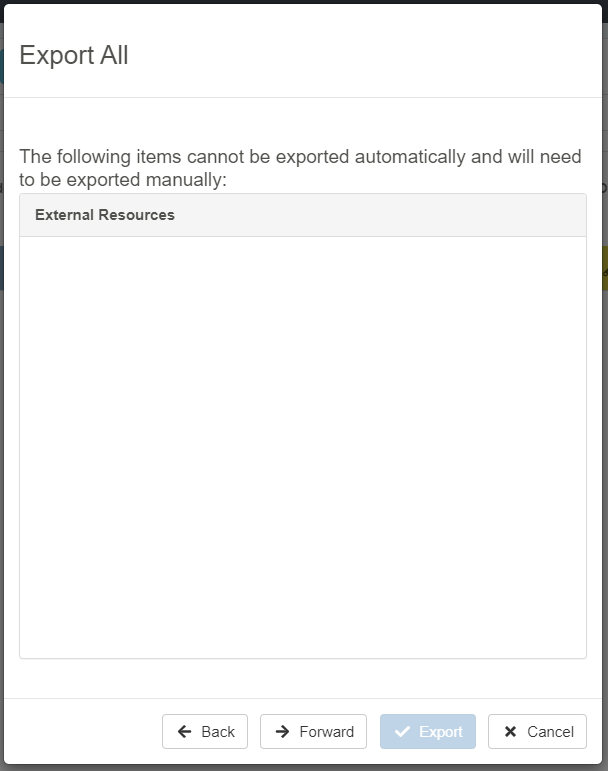
If you are satisfied, click the Forward button or Back to go back to the previous step. Click Cancel to abort the export.
-
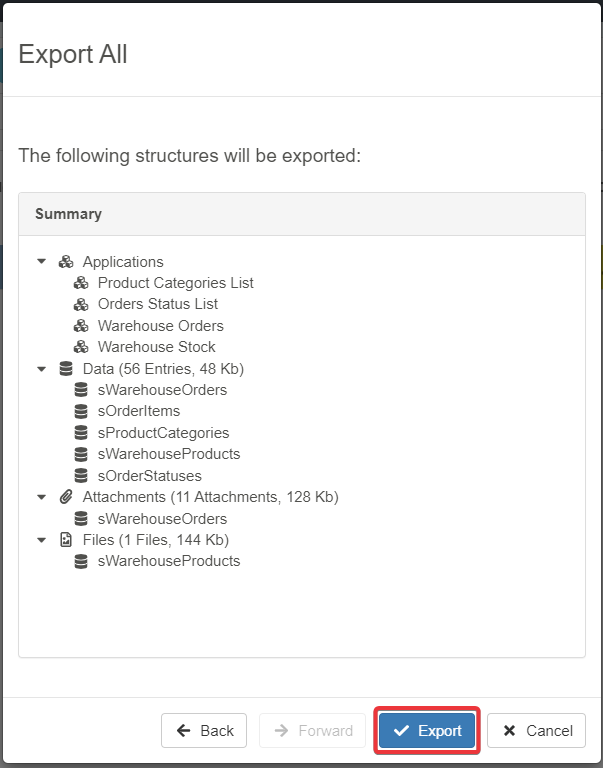
The last window summarizes everything selected for the Export.
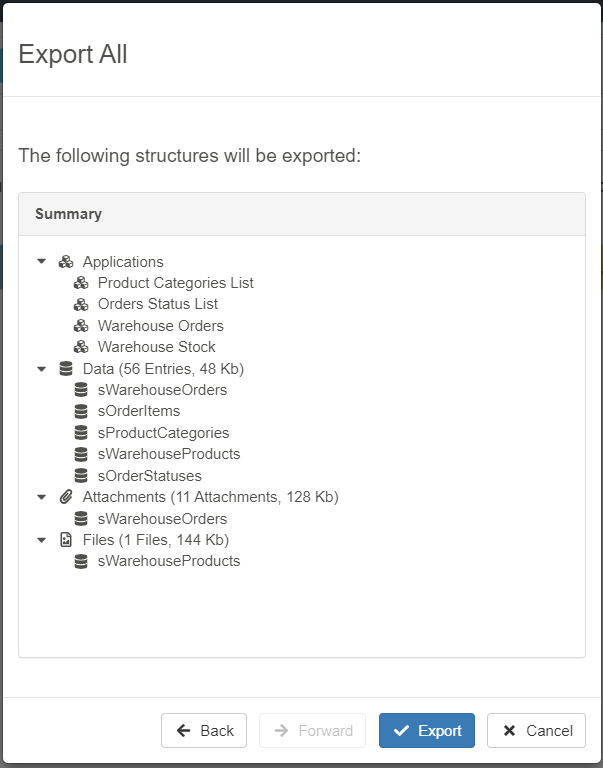
If you are satisfied, click the Start Export button. Click the Back button to go back to the previous step. Click Cancel to abort the export.
-
Wait for eLegere to pack all the selected elements into a .eap file. When done, a notification will inform you of the Export completion.
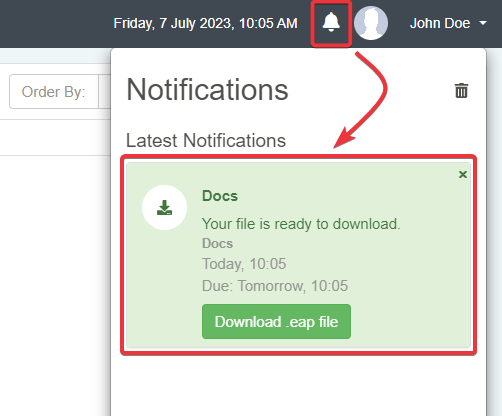
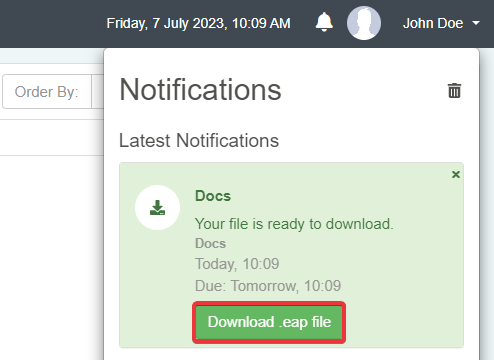
Click the Download .eap file button in the notification to download the .eap file.
Success
You have created a .eap file that you can import into another Domain. The .eap contains all the Applications, Storages, Data, and related Folders selected in the wizard.
Export One Application
Learn how to export a single Application and its required Storages, Data, and Folders from your Domain. If you only need some applications, you can export those instead of all the Domain's elements.
Follow the steps below to export a single application from the Domain.
-
In Home, click the icon corresponding to the Application you want to export. The icon appears in both Tile and Grid views.
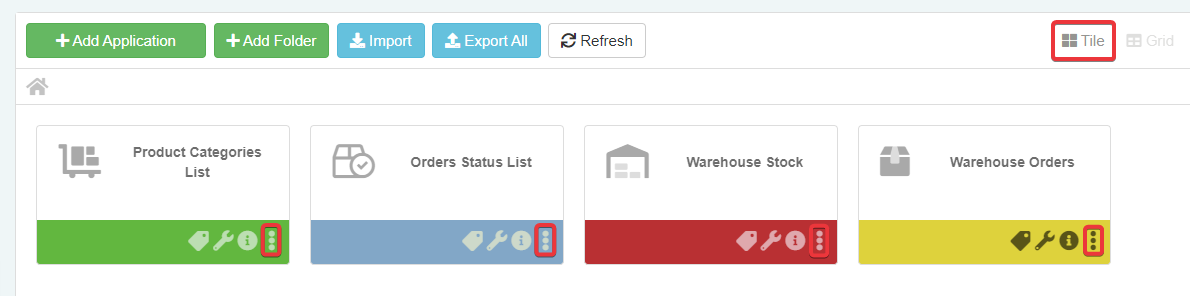
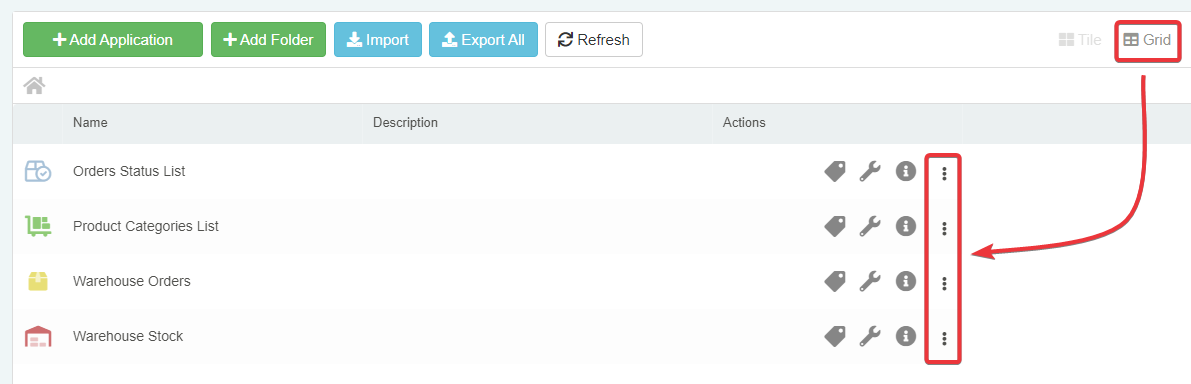
-
The action opens a menu. Choose the Export Application option.
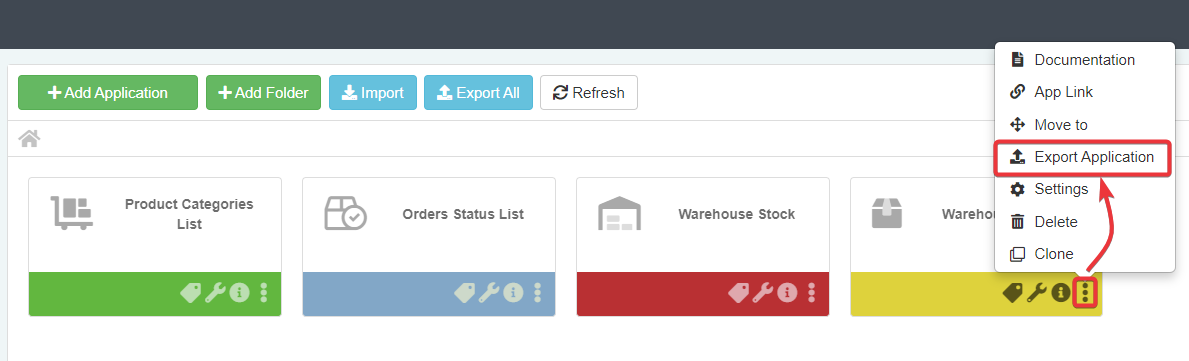
-
The action opens the Export wizard.
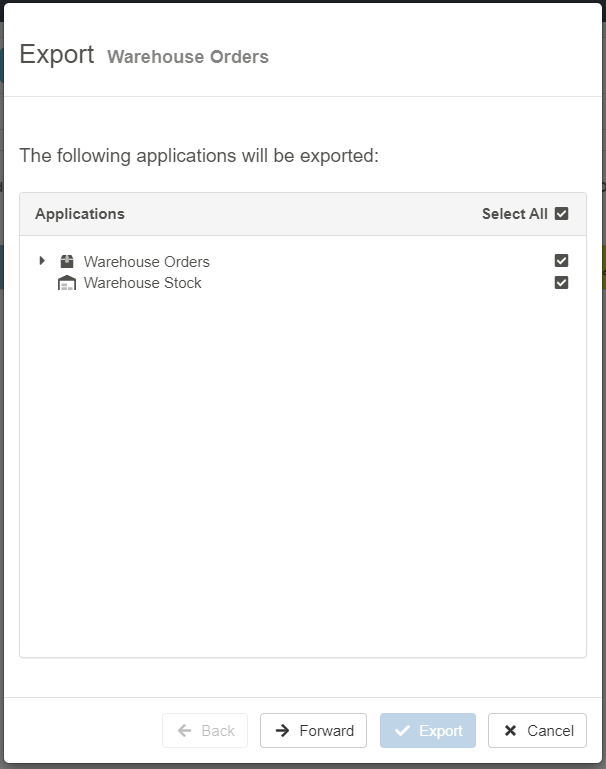
Exporting a single application also includes its related applications.
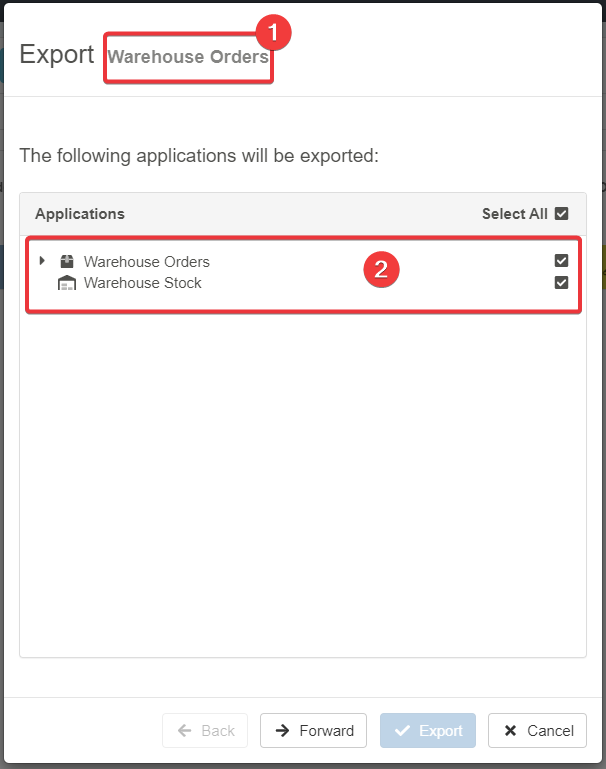
- (1) The window shows the application's name you are exporting.
- (2) The list includes the selected application and all related applications.
If you do not want to export the related applications, deselect them.

If you are satisfied, click the Forward button or Cancel to abort the export.
-
The next window summarizes the Storages that the wizard will export.
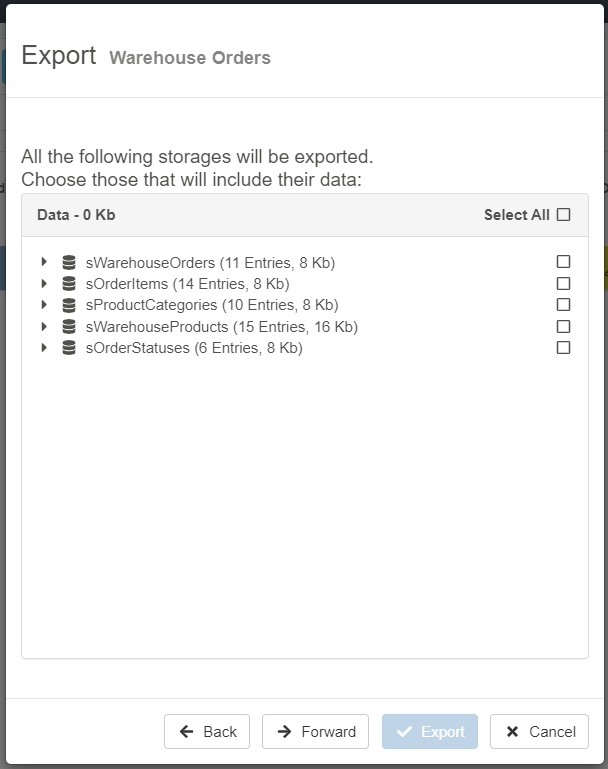
Select the Storages for which you want to export the data.
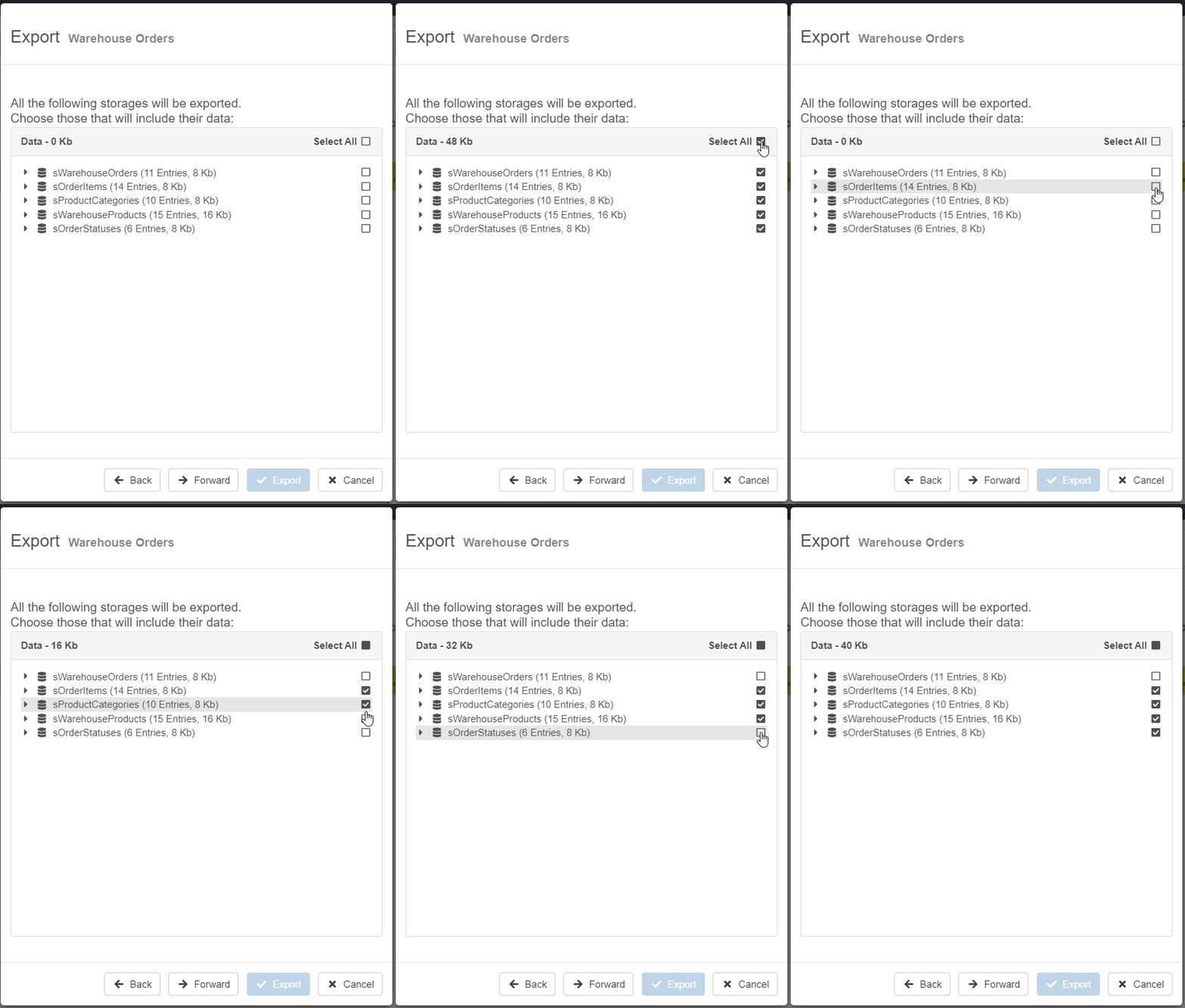
If you are satisfied, click the Forward button or Back to go back to the previous step. Click Cancel to abort the export.
-
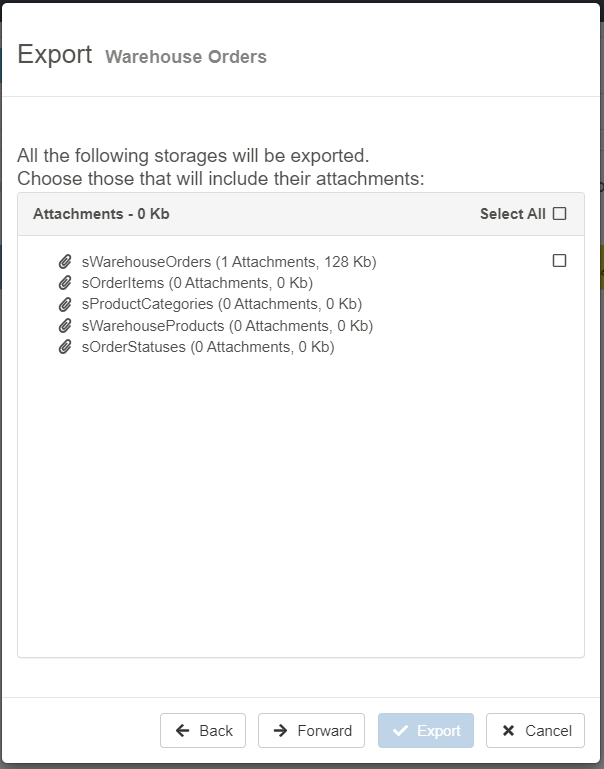
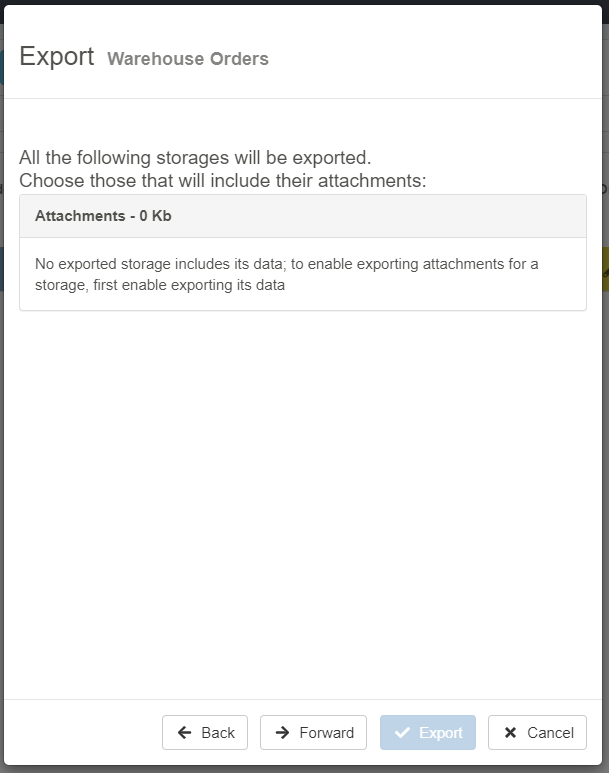
If you selected data in the previous step, choose the Storages for which you want to export the rows' attachments (if any).
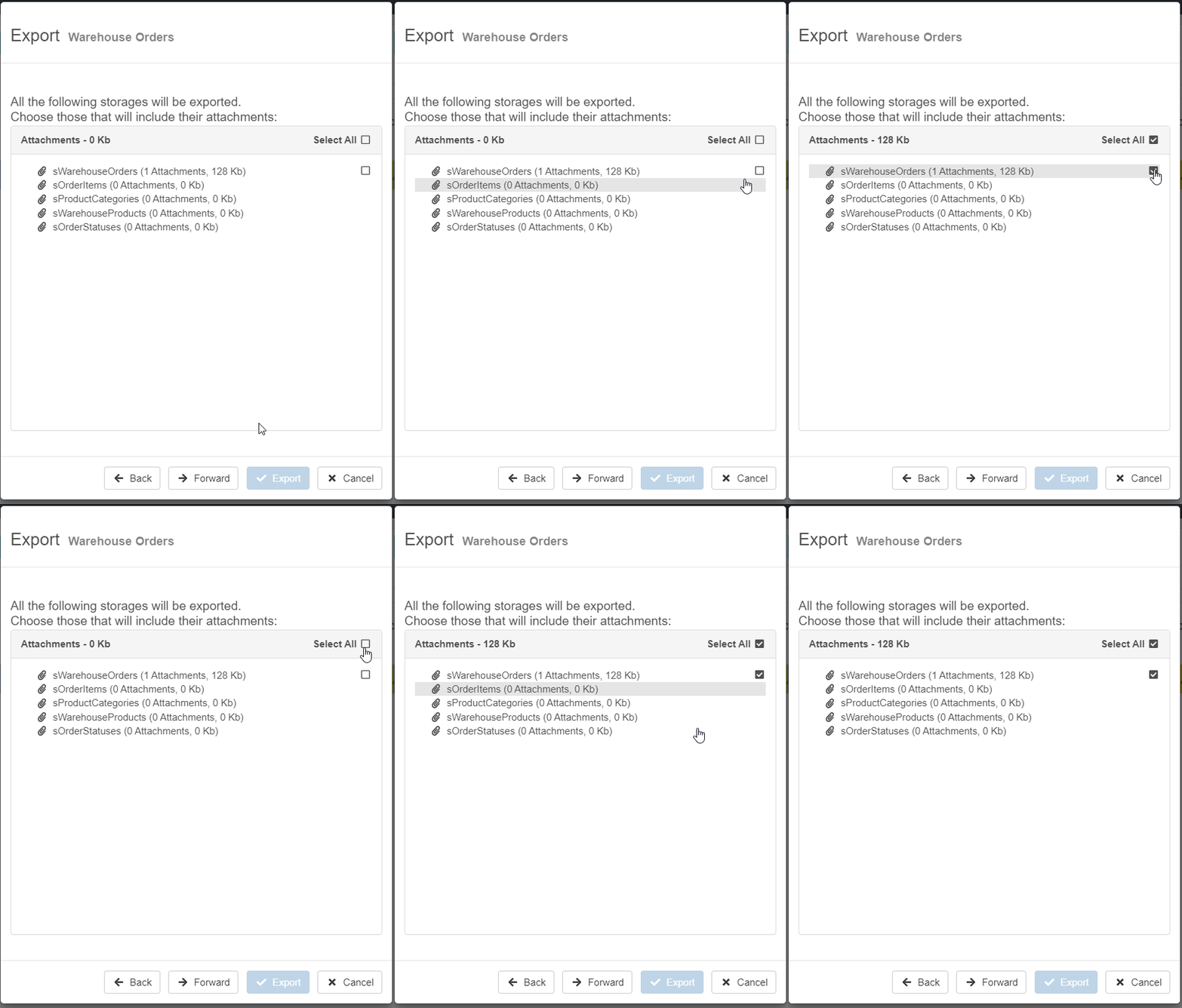
Note
If you did not select data in the previous step, this window is empty.
If you are satisfied, click the Forward button or Back to go back to the previous step. Click Cancel to abort the export.
-
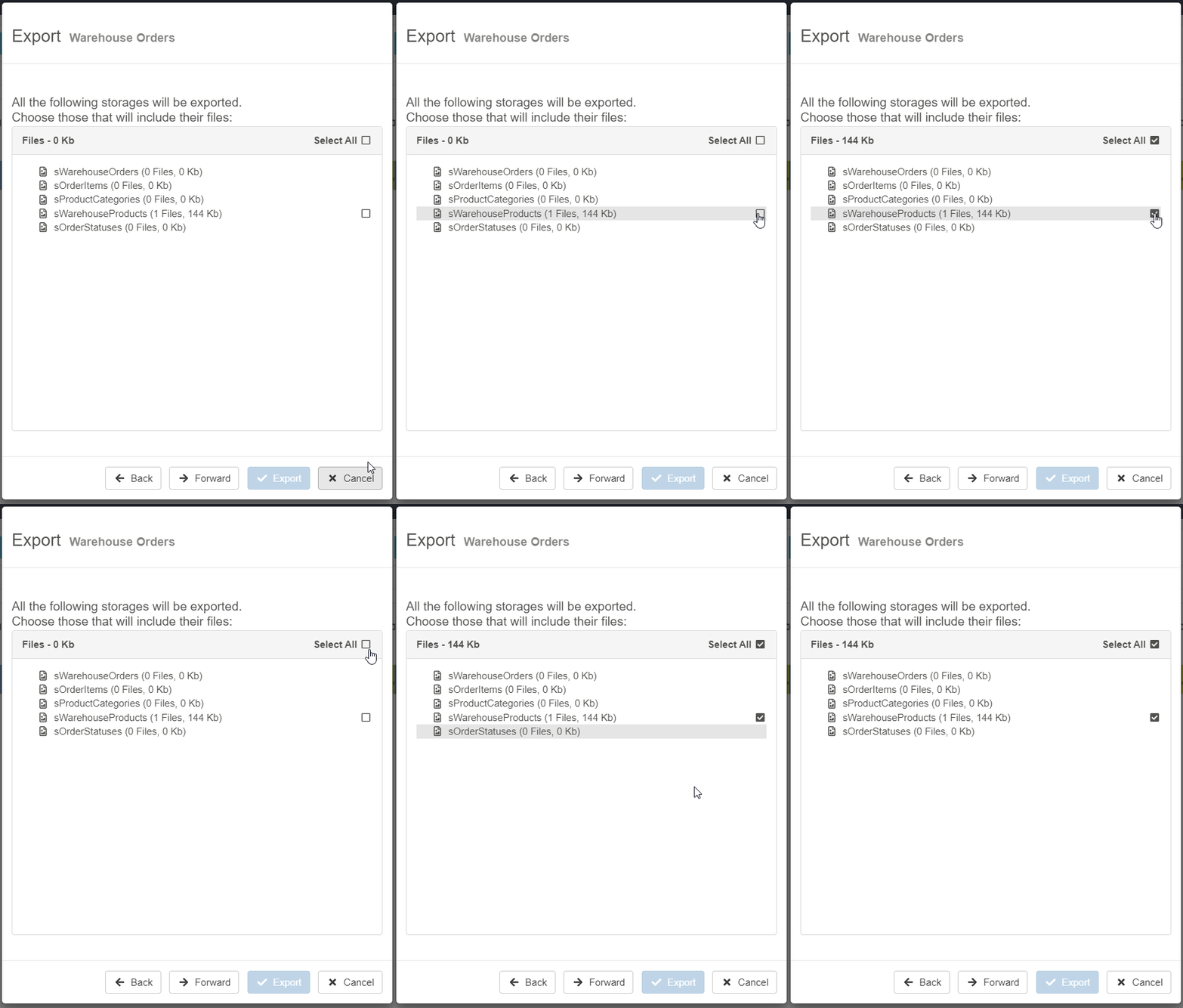
If you selected data in the previous step and you have a File-type field, choose the Storages for which you want to export the files (if any).
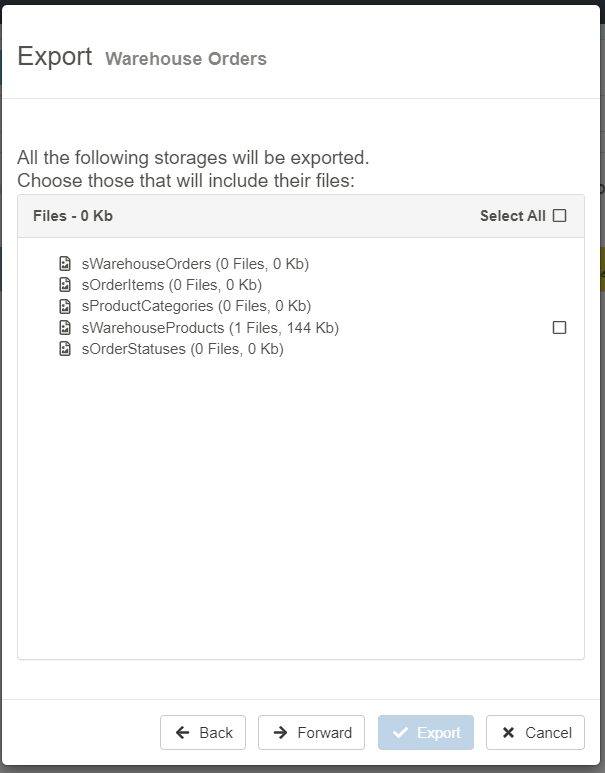
Note
If you did not select data in the previous step, this window is empty.
If you are satisfied, click the Forward button or Back to go back to the previous step. Click Cancel to abort the export.
-
If there are External Resources such as Stored Procedures or PowerShell Scripts, the wizard lists what will not be exported. If there are no External Resources, the window is empty.
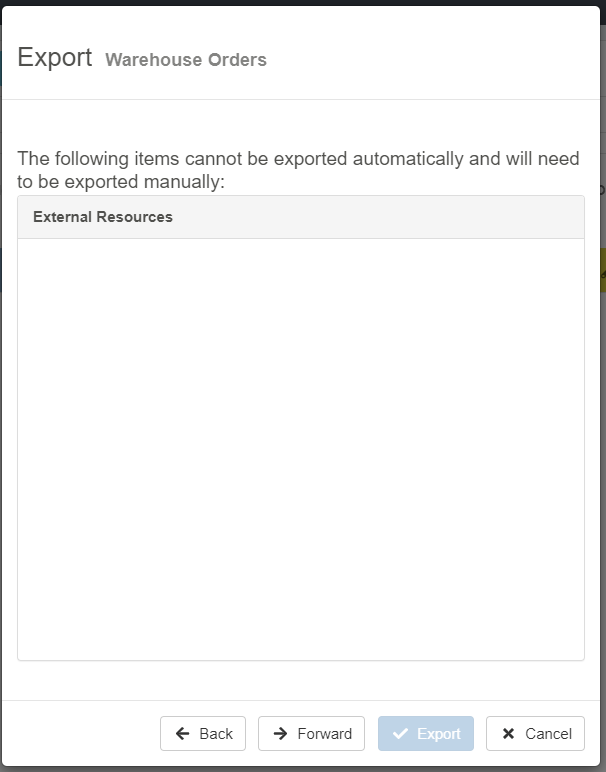
If you are satisfied, click the Forward button or Back to go back to the previous step. Click Cancel to abort the export.
-
The last window summarizes everything selected for the Export.
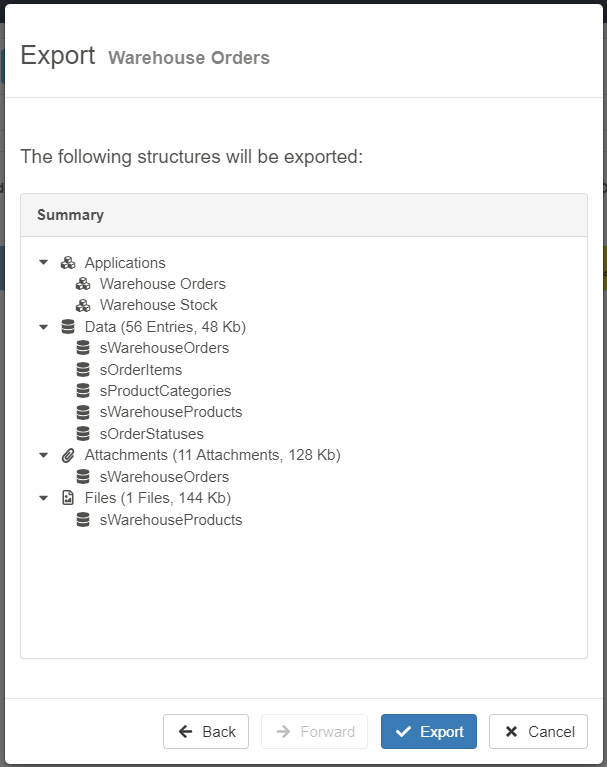
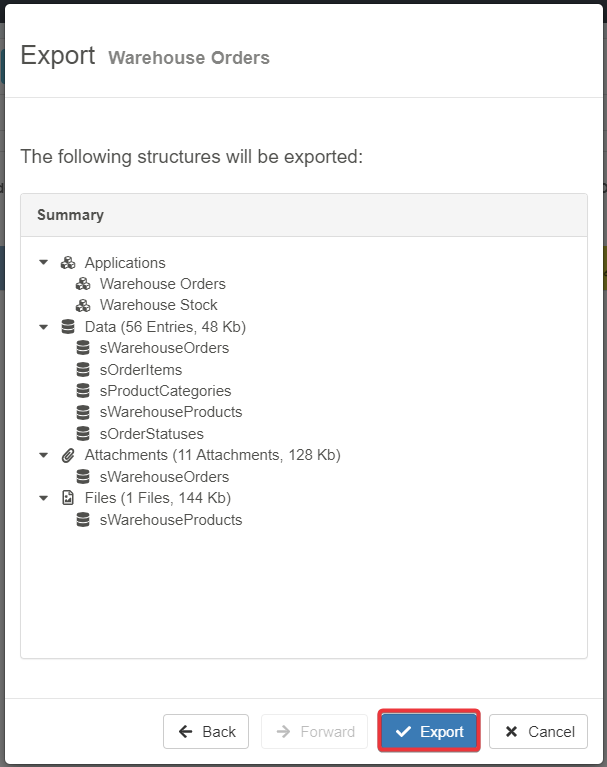
If you are satisfied, click the Start Export button. Click the Back button to go back to the previous step. Click Cancel to abort the export.
-
Wait for eLegere to pack the application into a .eap file. When done, a notification will inform you of the Export completion.
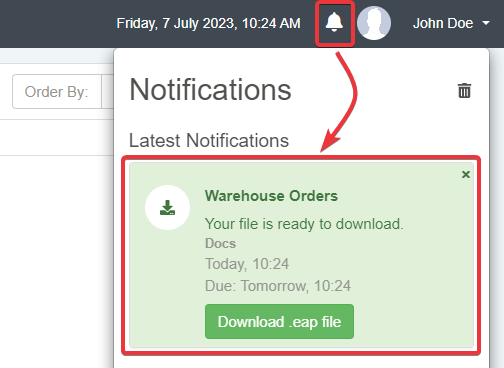
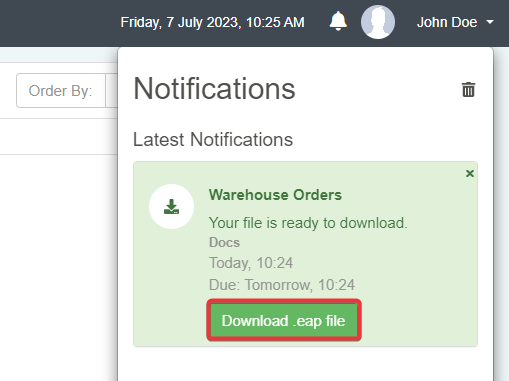
Click the Download .eap file button in the notification to download the .eap file.
Success
You have created a .eap file that you can import into another Domain. The .eap contains the single Application and all the data and options selected during the export.