Create a Session
You will learn how to save as a preset your customizations within an application.
Every time you access an application, eLegere creates a new empty Session for that application. An empty Session has no customizations.
During your Session, you can add Properties, filters, columns' sorts, and customize the table appearance (e.g. hiding a column). You can save your actual Session to recall it any time. The action avoids you to set up all the options in a new empty Session at each access.
Follow the following steps to create a Session:
-
In the upper-right corner of the application's top strip bar, click on the Save Session As button ().
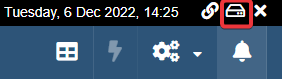
The action will open the Save Session window.
-
In the Save Session window, insert the following information to identify your Session. (The
optionaltag points the optional information not essential to save the Session.)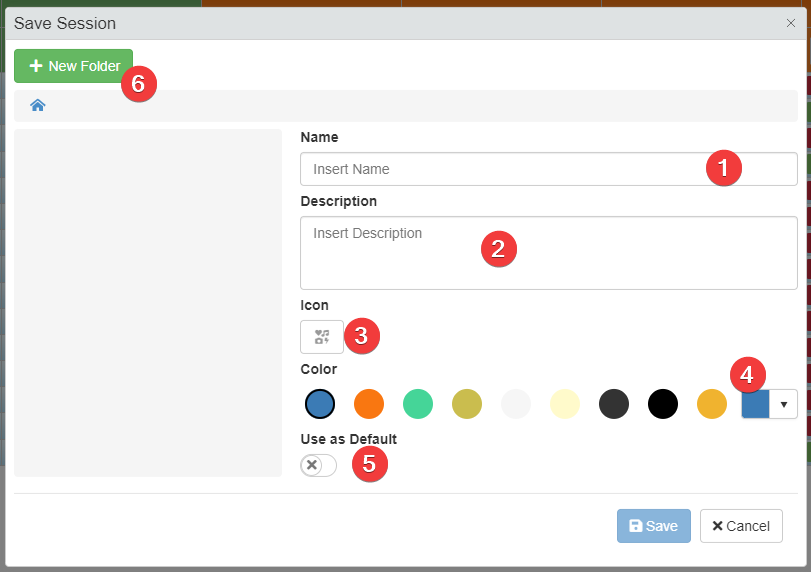
- (1) Name Insert a name to identify the Session.
- (2) Description Insert a Description explaining what settings the Session saves.
optional - (3) Icon Choose an icon to identify the Session.
optional - (4) Color Choose a color to identify the Session or leave the default color.
optional - (5) Use as default The toggle switch sets up the Session as default: at every access, the application will load this Session. (See Load a Session when launching an application automatically for more information.)
optional - (6) New Folder Click to create a folder in which save your Session. By default, new Sessions are saved in the Sessions' Home root.
optional
Tip
You can arrange your Sessions in folders.
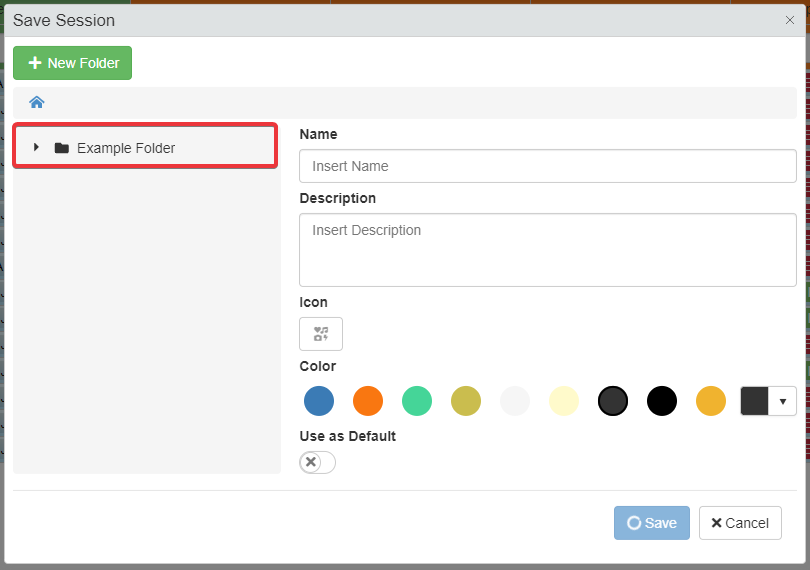
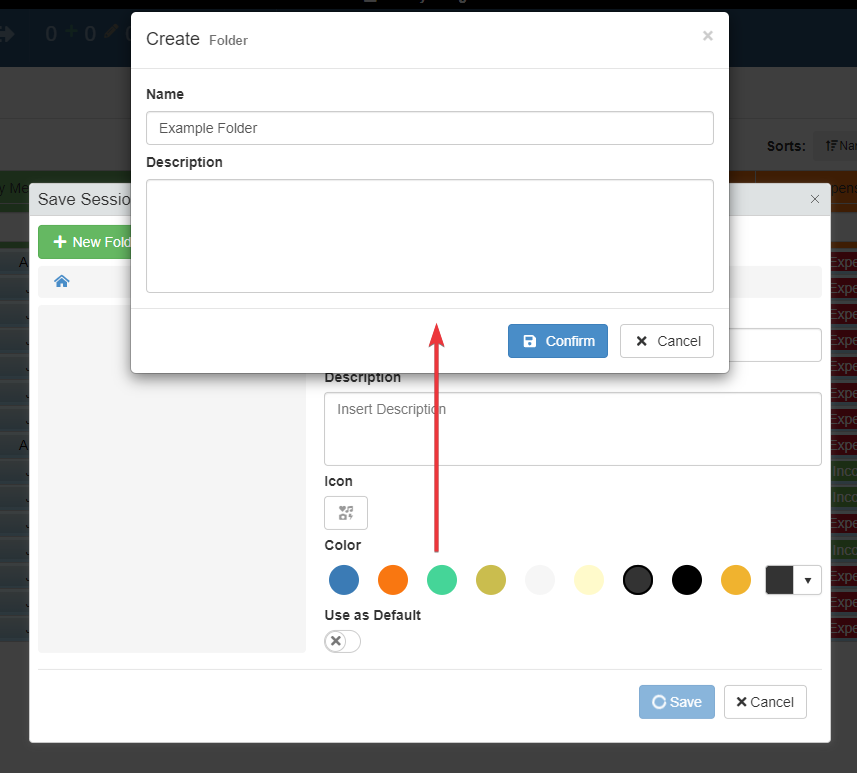
Click on a folder's name in the left sidebar to choose a folder in which you want to save your Sessions. The window will highlight the folders path you are currently in.
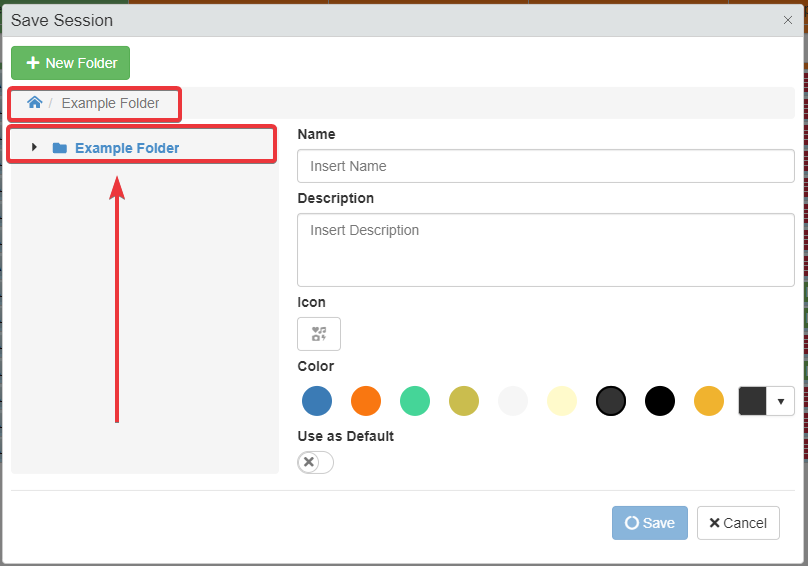
Click New Folder button (6) to create a new folder. Choose a Name and Description. The new folder will appear in the Session folder you are currently in.
-
Click on the Save button to save the Session. Click on the Cancel button to abort the creation.
Note
If there is already a Session with the same name, a window will ask if you want to overwrite it.
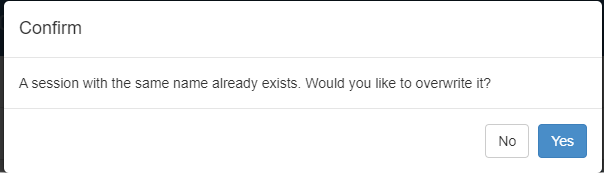
Click Yes to overwrite the Session with the same name with the newer one. If you have changed your mind, click on No to abort the action.
A notification will confirm the success in saving the Session.
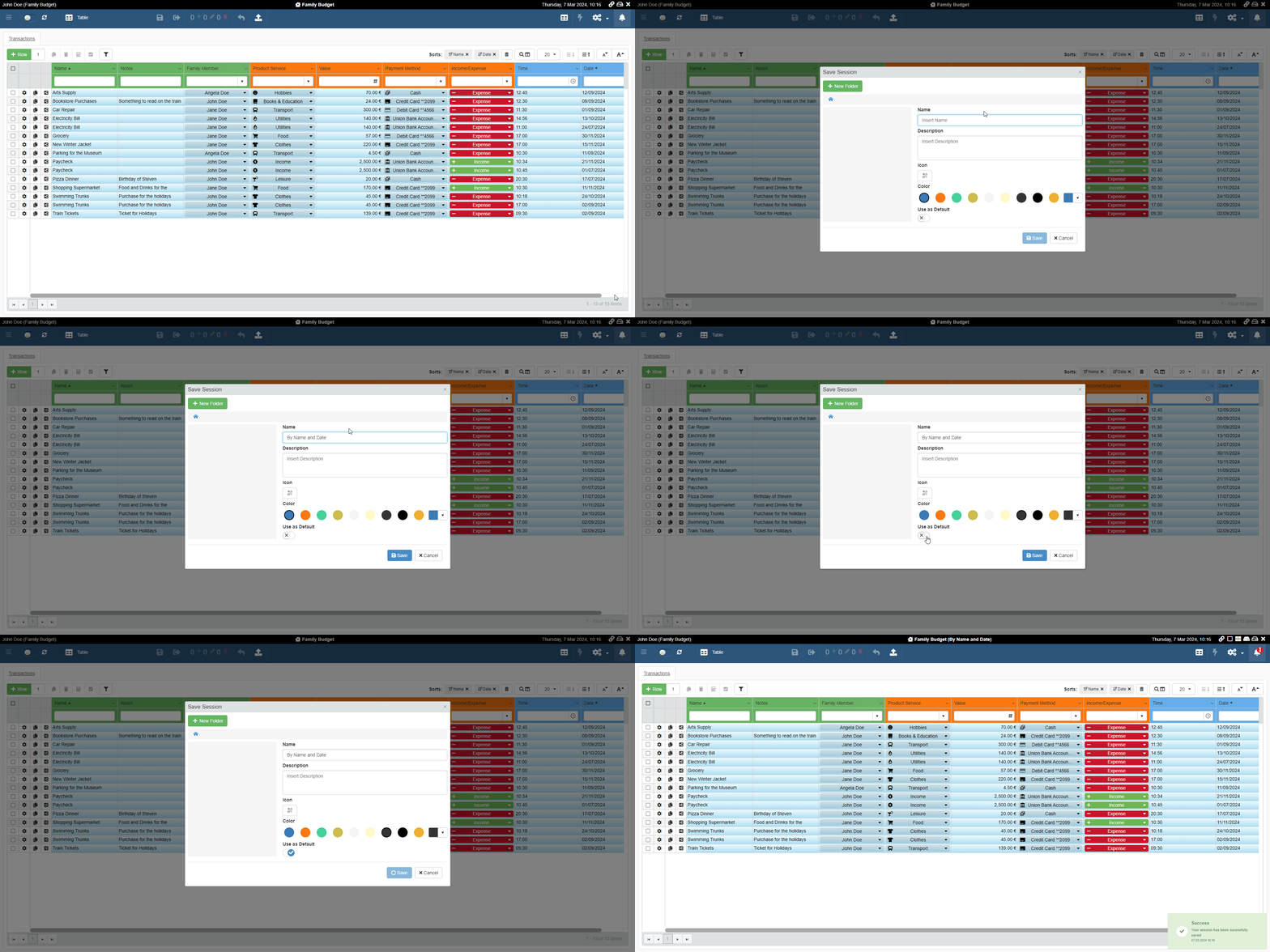
Also, the Session's name will appear next to the application's name.
