SOLUTION - Create a Lookup with a Products and Services Category List for "Personal Budget"
If you have had difficulties in solving the exercise, in this page you find the step-by-step solution.
-
Create a Blank Storage called
Transactions Products Services.Transactions Products Serviceswill record the options for the lookup with all the products and services categories.
-
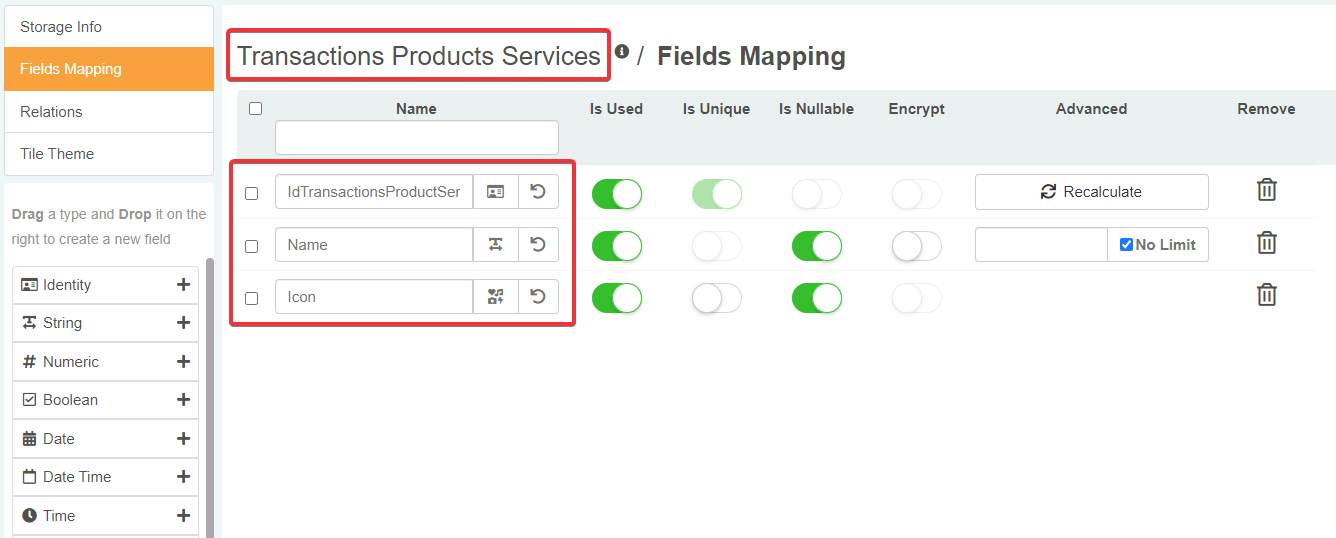
Add to
Transactions Products ServicesStorage the following fields:IdTransactionsProductsServicesIdentityNameStringIconIcon
-
You now need an application to insert data in
Transactions Products Services. Create an application called Transactions Products and Services. Customize the appearance of the application's tile if you like.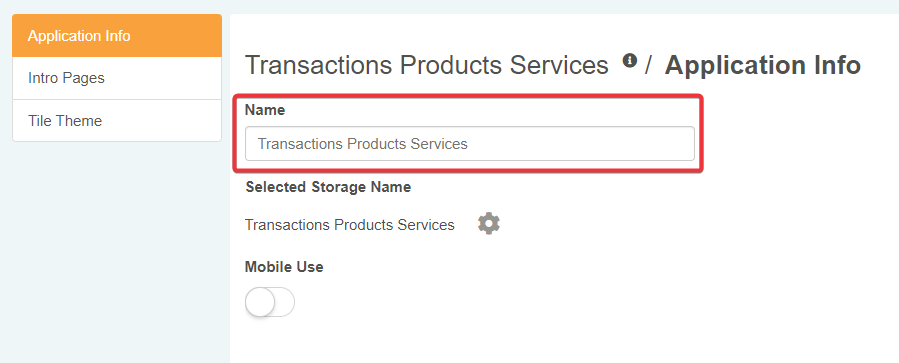
-
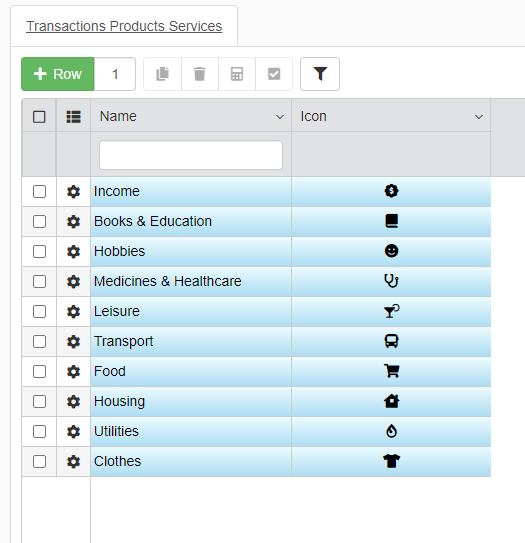
There is no need to customize the appearance, you must fill only two fields Name and Icon.
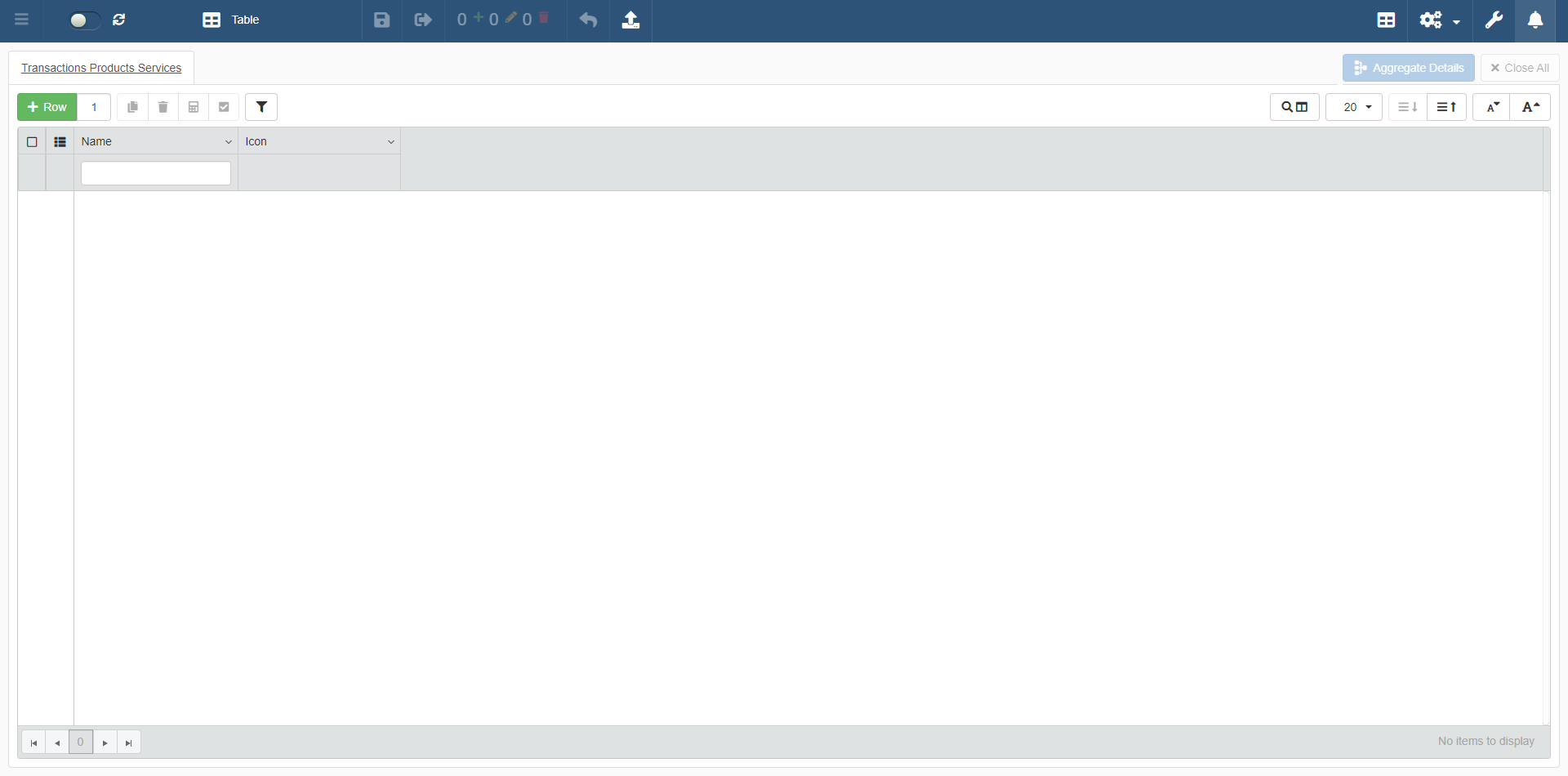
Insert some categories of services and product that you might use in your daily routine with Personal Budget. (E.g. Healthcare, Utilities, Transport).
-
Save all the changes in Transactions Products and Services.
-
In the Storage editor of Transactions, add a Numeric type field
TransactionsProductServiceId.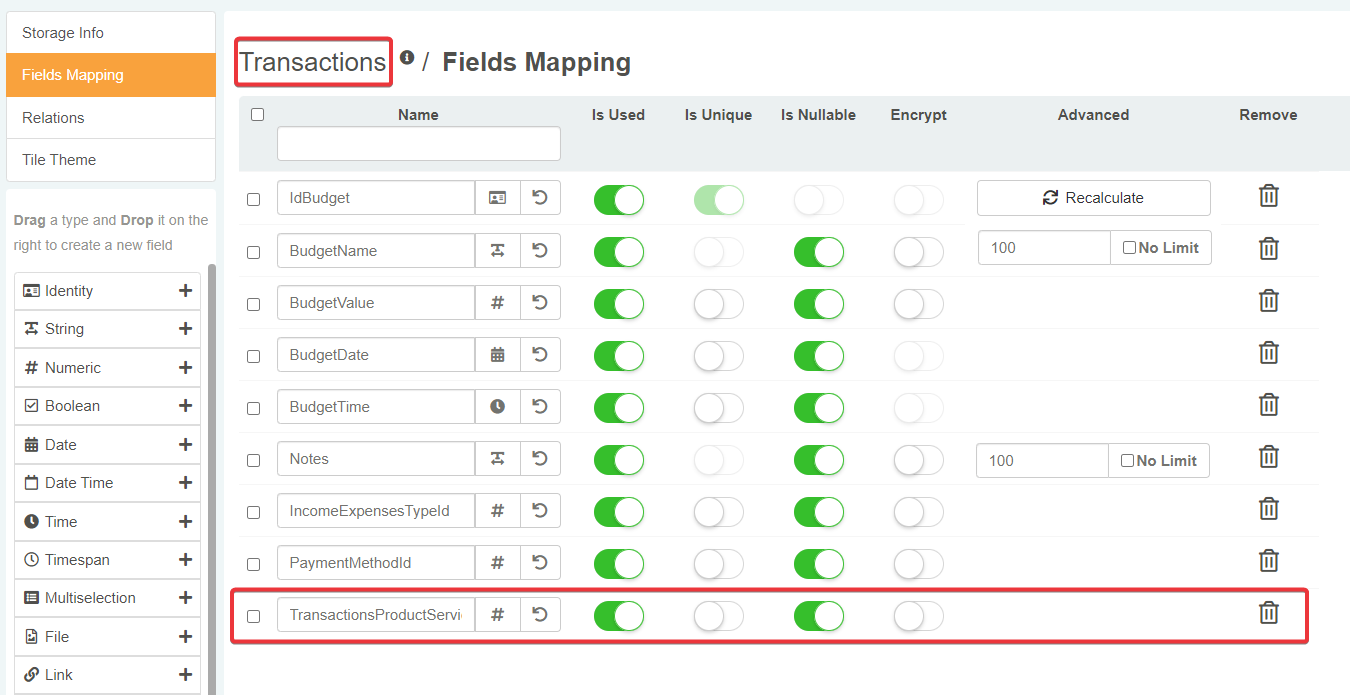
-
Create a Relation between
TransactionsProductServiceIdandIdTransactionsProductsServicesin Transactions. Call itTransactions_Product_Service_Categories_Lookup.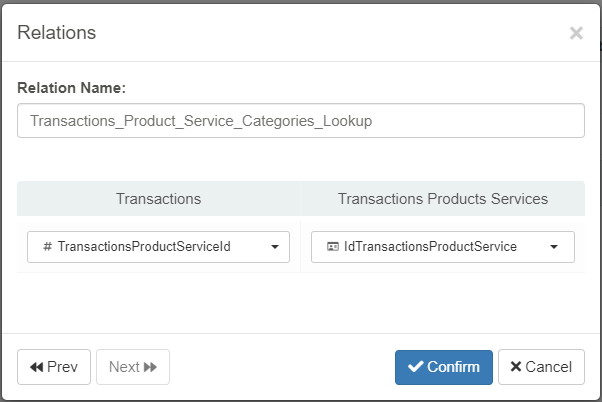
-
Enter the Design Mode of Personal Budget. Configure the Lookup Relation of
TransactionsProductServiceIdas in the image. Then click on the Confirm button to save the changes.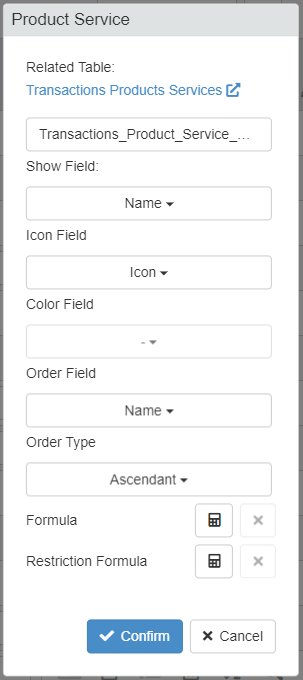
-
Make the
TransactionsProductServiceIdvisible in the Master sub-panel. The Relation should resemble the picture below.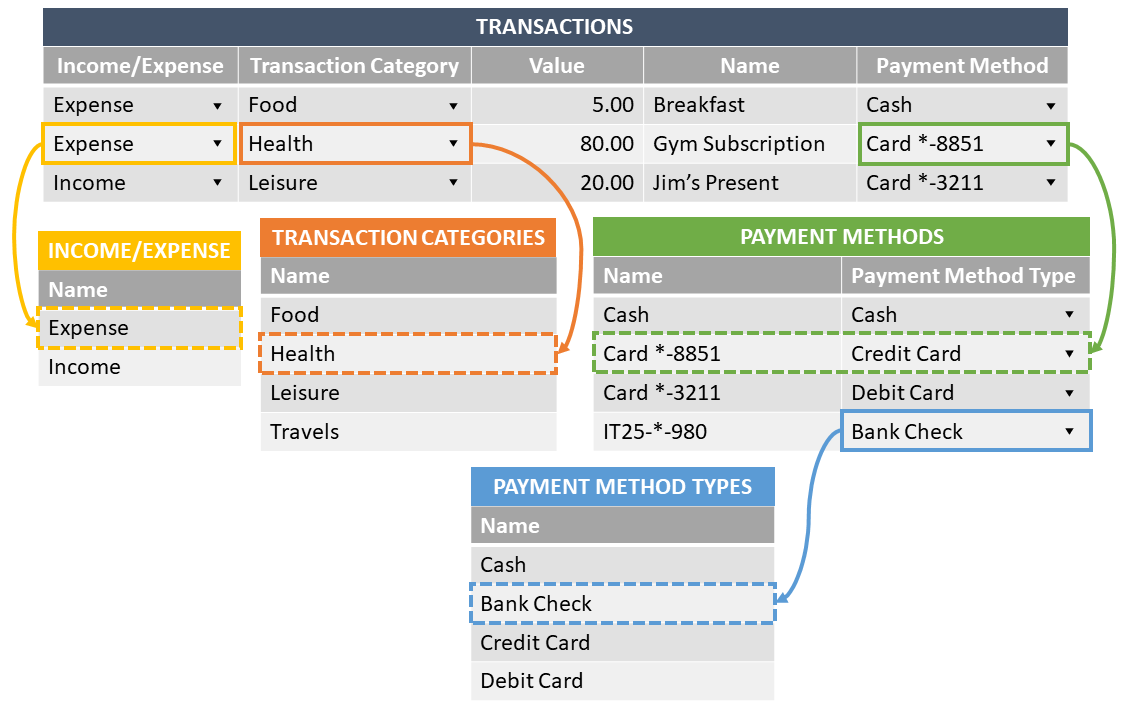
-
Change the header's label of
TransactionsProductServiceIdtoProduct Servicein the Master sub-panel. -
Arrange as you prefer the Product Service column in the Layout. (See the section Customizing the Application's Appearance.)
-
Save all the changes in Personal Budget Design Mode.
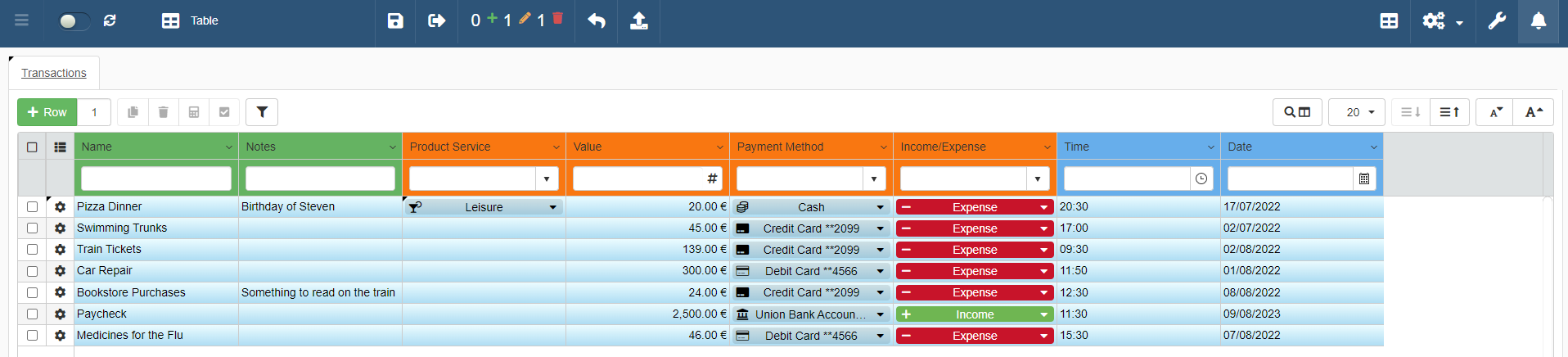
Now Personal Budget should look like this:
You have completed the exercise for the Lookups section. Go back to the tutorial.