How to Forbid Certain Characters in a Field
Required Permissions
This section requires both the Storage Management permissions from your Domain's administrator.
Check What are the Design Tasks? to learn more about permissions to work with Design Mode and other tools.
Learn how to configure a field to forbid users to use certain characters in a text.
Note
The feature is available only for String fields.
Follow the steps below to forbid certain characters of your choice in a String field on the application's table.
Info
The procedure is the same for both Master and Detail tables. Follow the steps below for any Storage's table where you want to apply the character's restriction either Master or Detail.
-
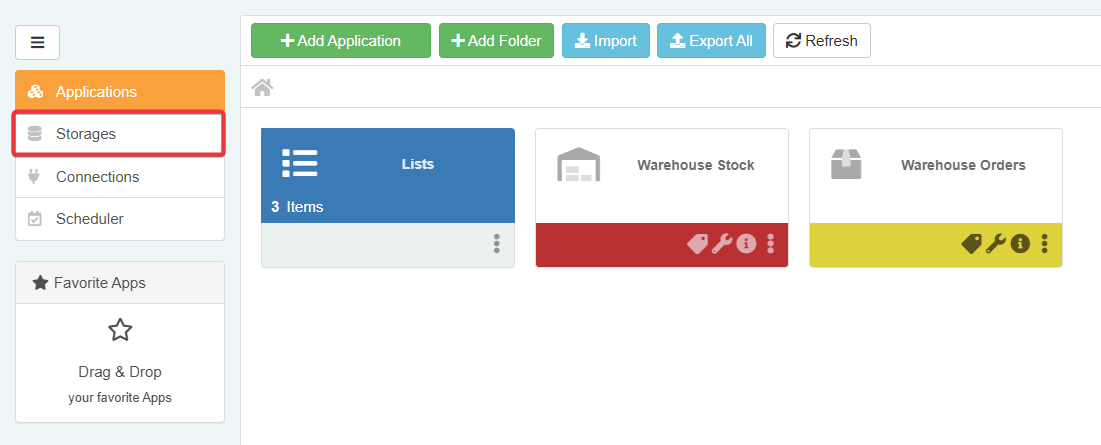
In the Home, click on the Storages tab in the side bar.
-
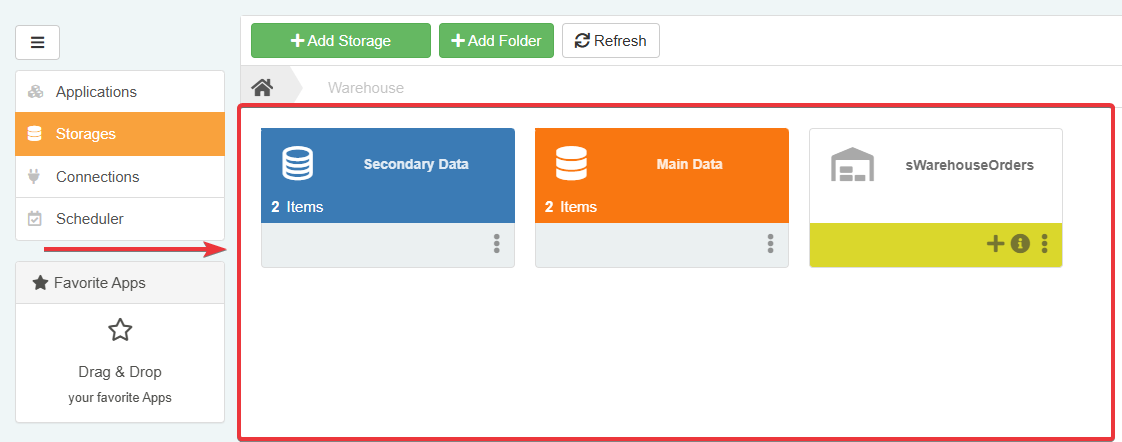
Click on the Storage of the table where you want to insert the characters' restriction. The action lead to the Storage Editor.
-
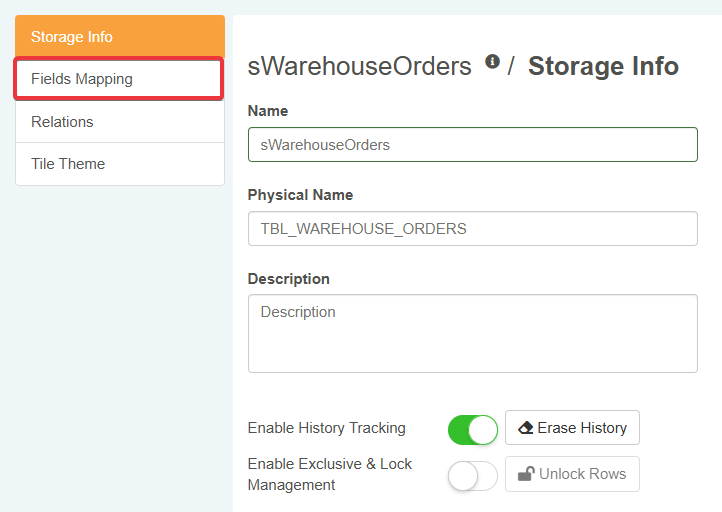
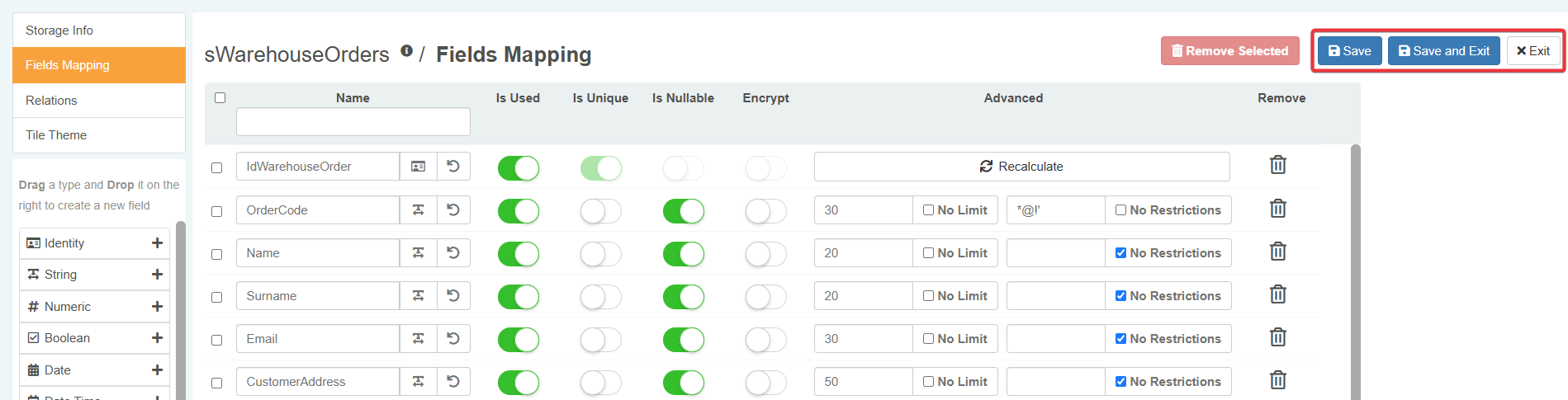
In the Storage Editor, click on the Fields Mapping tab on the left sidebar.
-
Under the Advanced column, you can type the characters you want to forbid in the textbox.
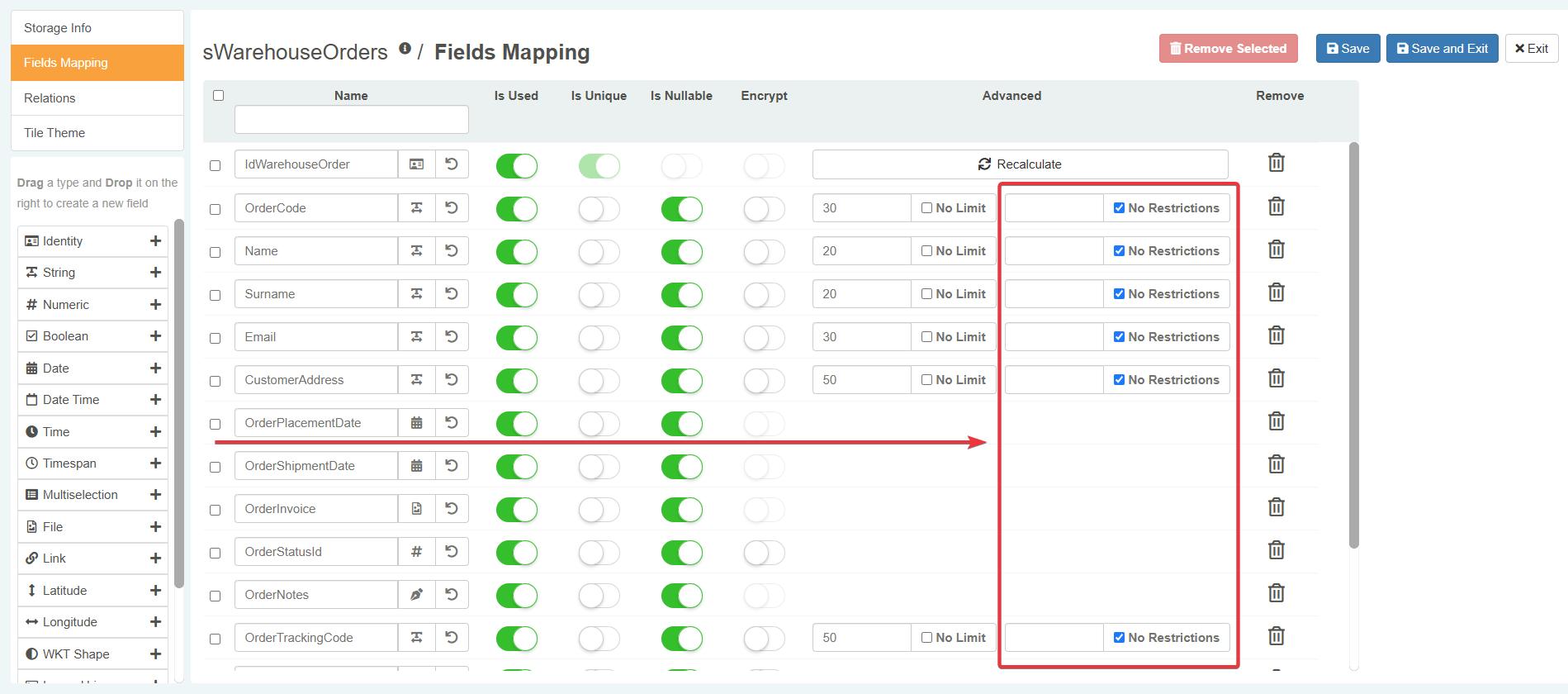
- If the textbox remains empty and the No Restrictions is flagged, no restrictions apply.

- If the textbox contains characters and the No Restrictions isn't flagged, the Storage applies the restriction to the corresponding field.

-
In the upper right corner of the Storage Editor:
- click on Save to save the changes without leaving the Storage Editor.
- click on Save and Exit to save the changes and leave the Storage Editor
- click on Exit to abort any change.
-
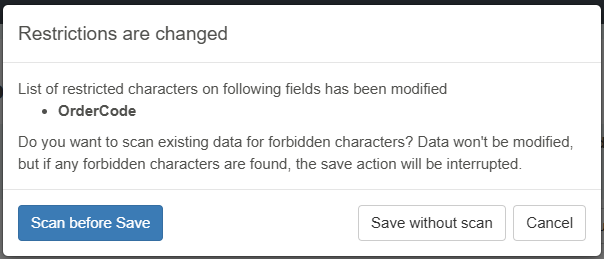
A window will list the fields with character restriction, asking whether to scan the field's column for cells containing the restricted characters.
- If you click on Scan before Save: the Storage Editor scans the fields's column. If there are any restricted characters, the action blocks the saving process.
- If you click on the Save without Scan: the Storage Editor saves all the changes without checking for restricted characters in the column.
- Click on Cancel to abort the action instead.
Note
In both cases, no data will be touched.
If you choose either Scan before Save and there are no restricted characters or Save without Scan, the Storage Editor closes and save the changes.
If the user adds one of the forbidden character to the field having character restrictions, the application blocks the saving process. eLegere permits to save if and only if the user removes the forbidden character from the cell. (See the Save Rows section in the User Guide for more information about saving data.)
Success
You have forbidden the users to use one or more restricted characters in a String text field.