Create a Session
You will learn how to save as a preset your customizations within an application.
Every time you access an application, eLegere creates a new empty Session for that application. An empty Session has no customizations.
During your Session, you can add Properties, filters, columns' sorts, and customize the table appearance (e.g. hiding a column). You can save your actual Session to recall it any time. The action avoids you to set up all the options in a new empty Session at each access.
Follow the following steps to create a Session:
-
In the upper-right corner of the application's top strip bar, click on the Save Session As button ().
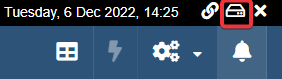
The action will open the Save Session window.
-
In the Save Session window, insert the following information to identify your Session. (The
optionaltag points the optional information not essential to save the Session.)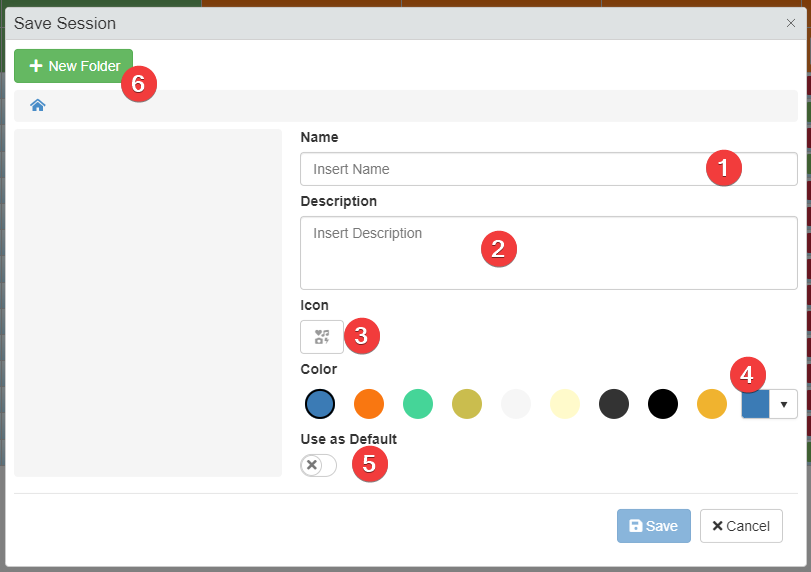
- (1) Name Insert a name to identify the Session.
- (2) Description Insert a Description explaining what settings the Session saves.
optional - (3) Icon Choose an icon to identify the Session.
optional - (4) Color Choose a color to identify the Session or leave the default color.
optional - (5) Use as default The toggle switch sets up the Session as default: at every access, the application will load this Session. (See Load a Session when launching an application automatically for more information.)
optional - (6) New Folder Click to create a folder in which save your Session. By default, new Sessions are saved in the Sessions' Home root.
optional
Tip
You can arrange your Sessions in folders.
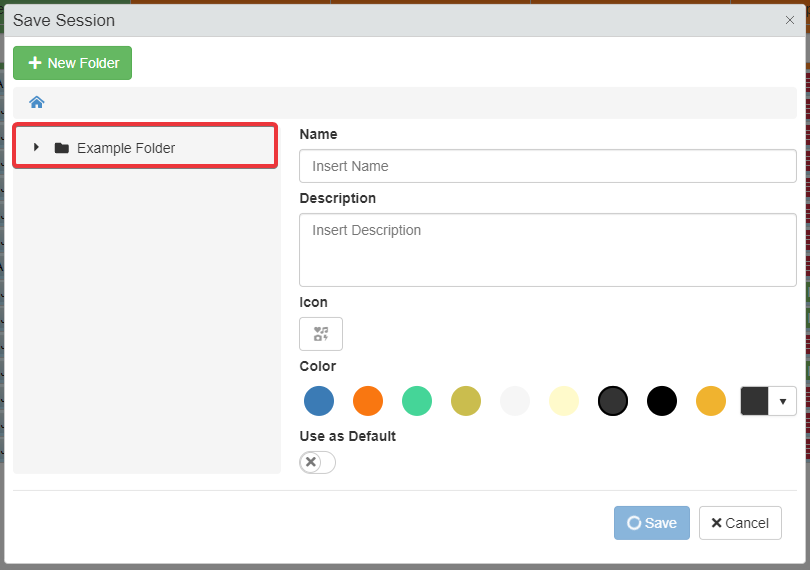
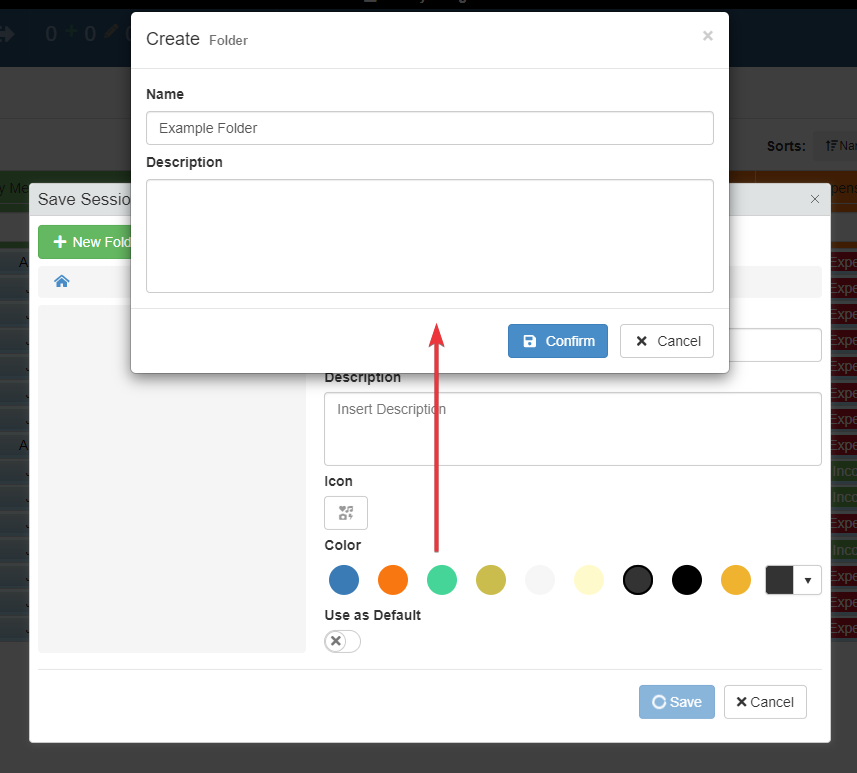
Click on a folder's name in the left sidebar to choose a folder in which you want to save your Sessions. The window will highlight the folders path you are currently in.
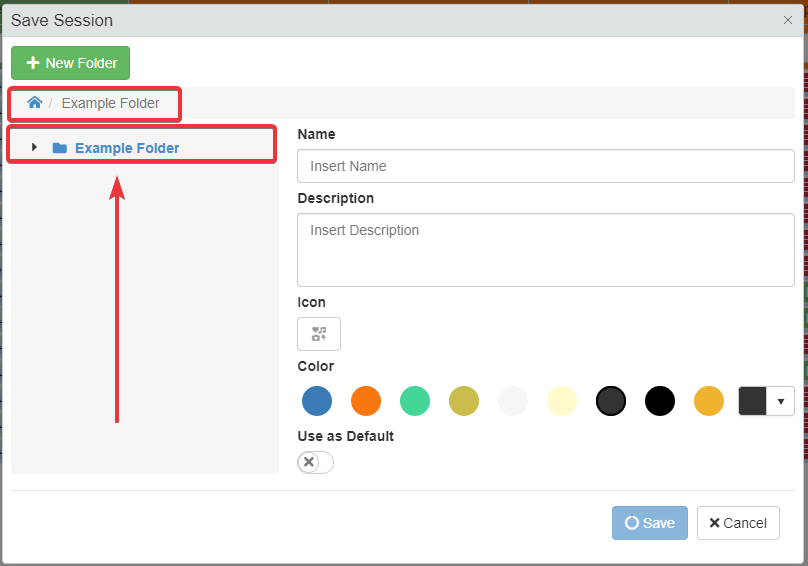
Click New Folder button (6) to create a new folder. Choose a Name and Description. The new folder will appear in the Session folder you are currently in.
-
Click on the Save button to save the Session. Click on the Cancel button to abort the creation.
!!! note If there is already a Session with the same name, a window will ask if you want to overwrite it.
1
2
3
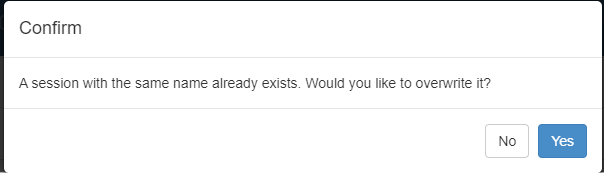 Click **Yes** to overwrite the _Session_ with the same name with the newer one. If you have changed your mind, click on **No** to abort the action.
A notification will confirm the success in saving the Session.
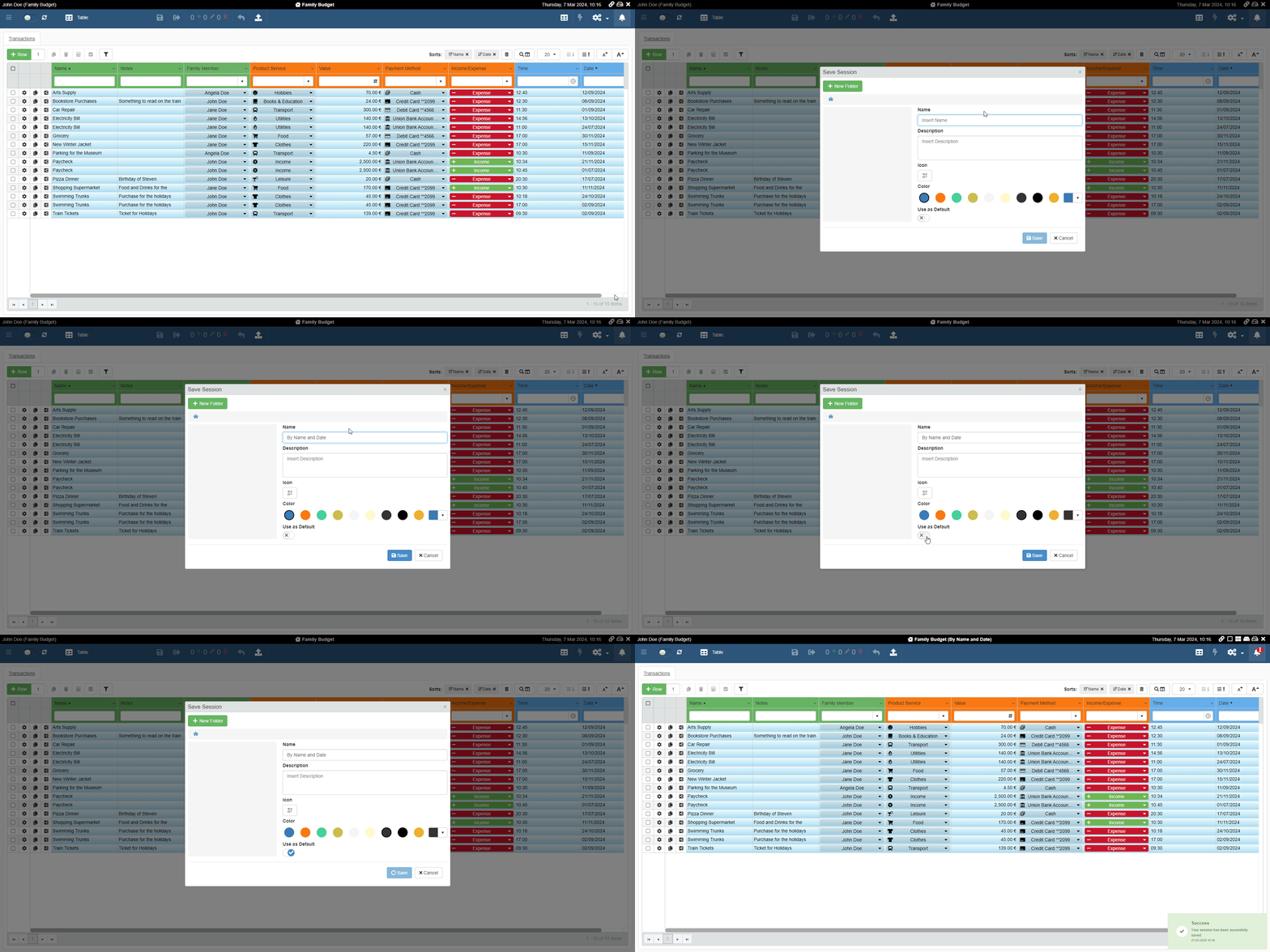
Also, the Session's name will appear next to the application's name.
