Designers Can Now Apply Restrictions Based on Dates
Designers can now use =DATEDIFF(), =DATEPART(), and =DATEADD() functions in Row Restrictions and Lookup Restrictions. (See How to Enable the User to Add, Edit, View, Remove or Clone Row If the Conditions Are Satisfied and How to Configure a Table Cell as a Drop-Down List for more information about Row Restrictions and Lookup Restrictions.)
Employ =DATEDIFF(), =DATEPART(), and =DATEADD() to restrict what rows the user can view or the options they can select from a Lookup drop-down list according to Date or DateTime values.
Example
The Warehouse Orders application manages the orders and shipments from a warehouse.
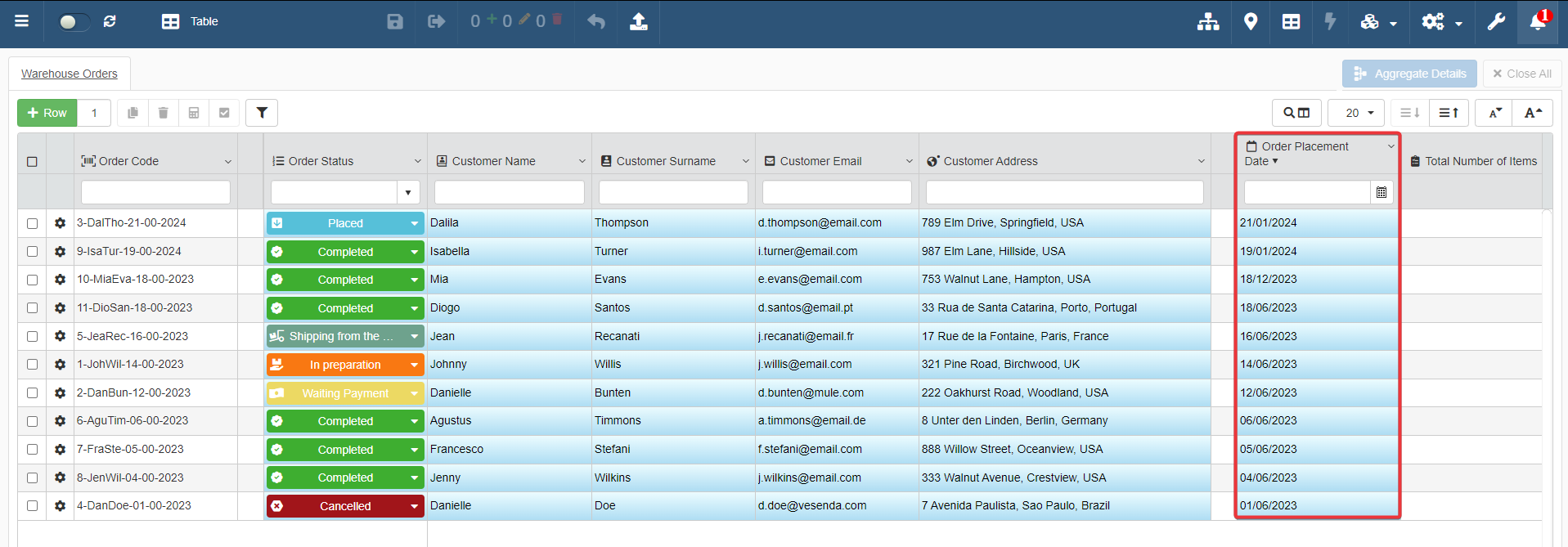
The Designer must configure the application to display only the orders placed within the last 30 days.
They can use a =DATEDIFF() in a Row Restriction from the Settings sub-panel to satisfy this necessity,
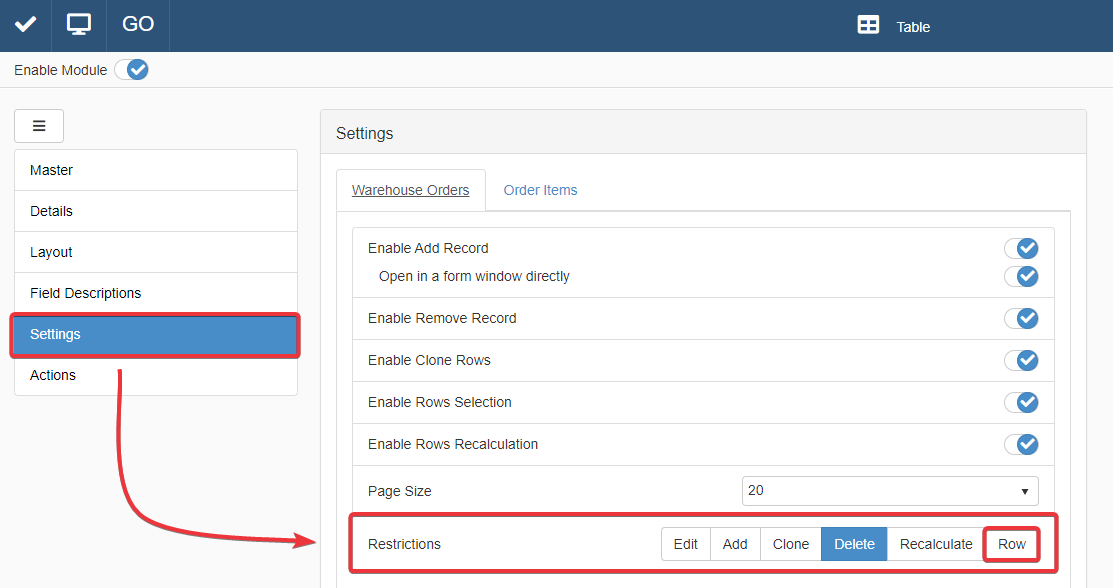
The Designer inserts the following formula in the Row Restriction:
1 2 3 4 5 6 7 8 9 10 11 12 13 14 15 16 17 | |
