Arrange, Organize, and Share Sessions in Folders
Users can arrange their Sessions in folders for navigation. Arranging Sessions in folders enables to organize them according to different criteria.
Also, users can now clone folders for themselves and other people.
Note
Each Sessions folders' tree is personal: each user account has their own Sessions and folders in the Sessions Page.
Example
You can create folders to divide Sessions in the Sessions Page according to task, goal, information category or team.
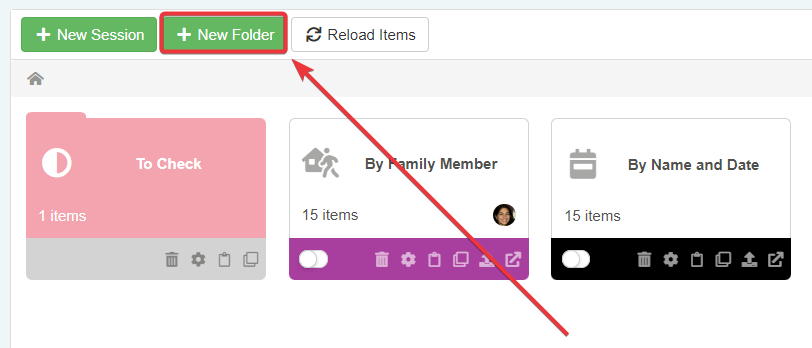
In the Sessions Page, click on the New Folder to create a folder.
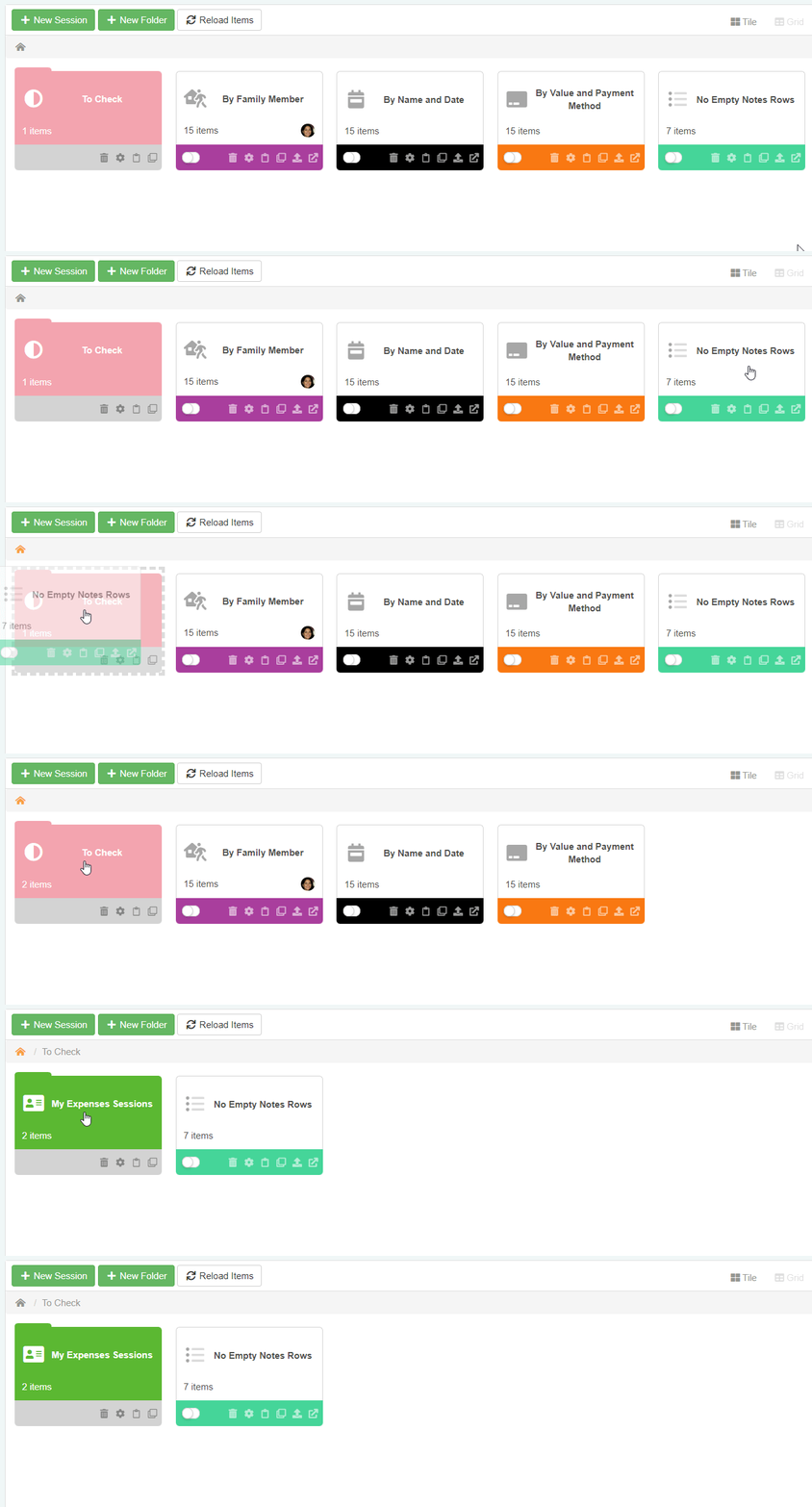
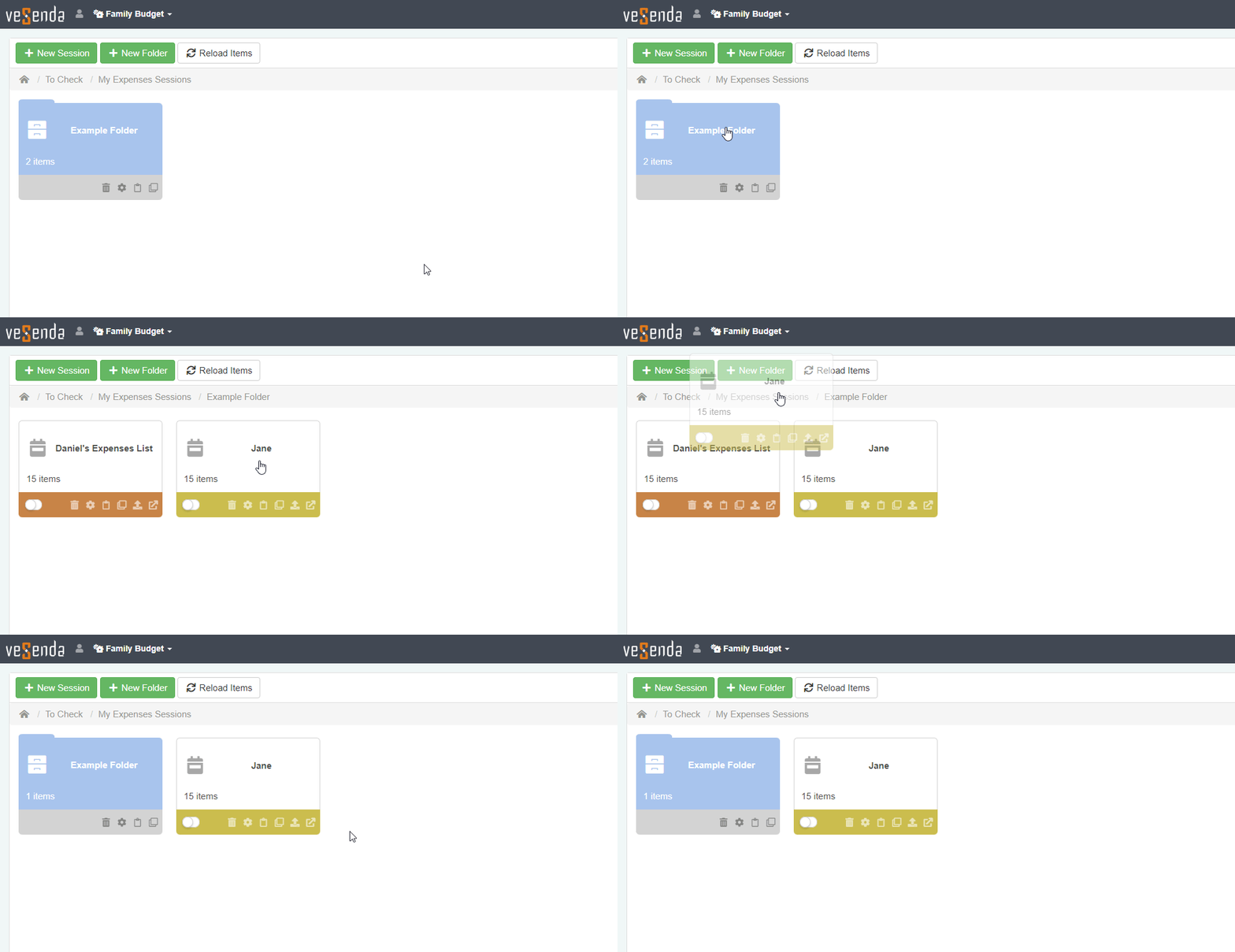
Drag any Sessions or folders to move them into a folder. You can do the same action with folders.
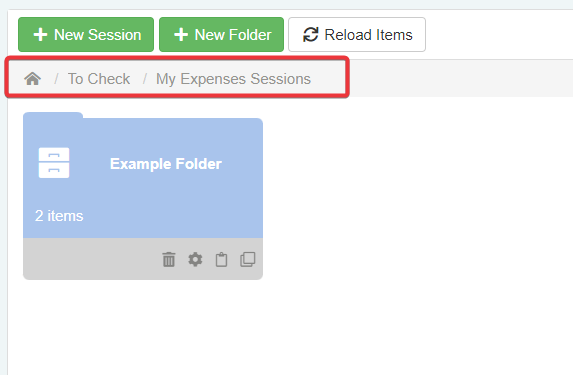
At any time, the upper bar display your position in the folders tree's path.
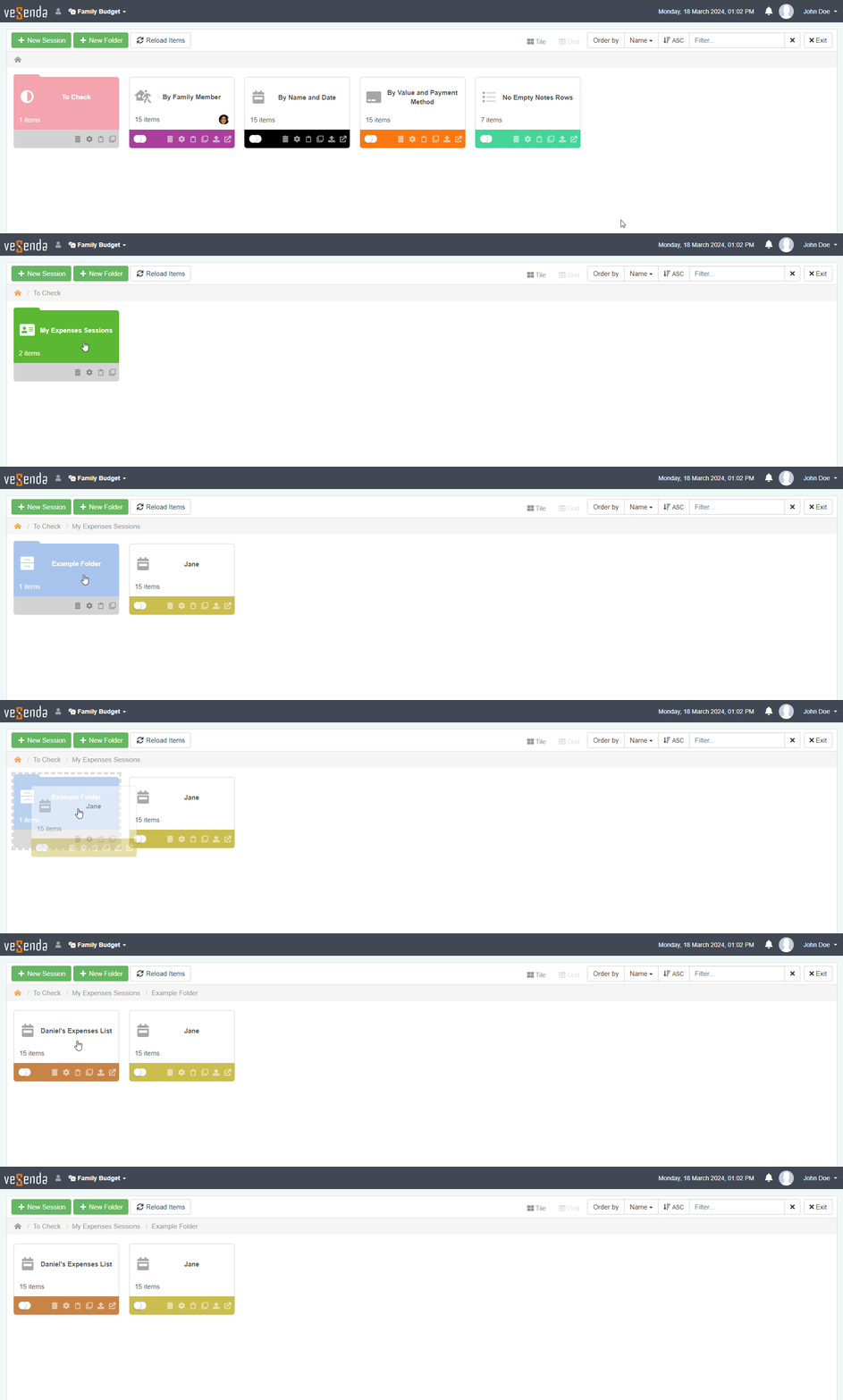
If you drag a Session or a folder in the folders tree' path, you will move it to the corresponding path's directory.
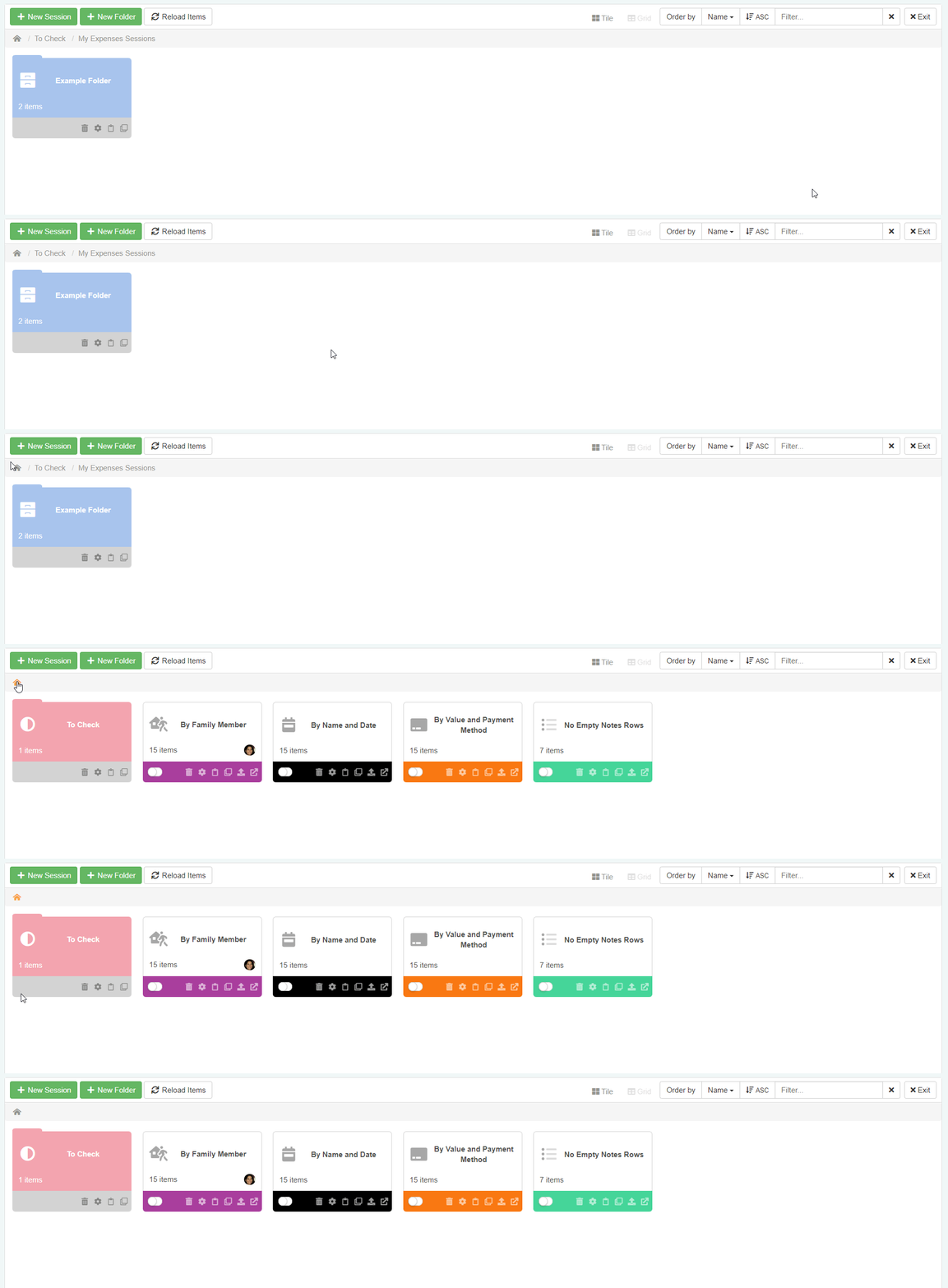
Click on the to return to the Sessions Page's root.
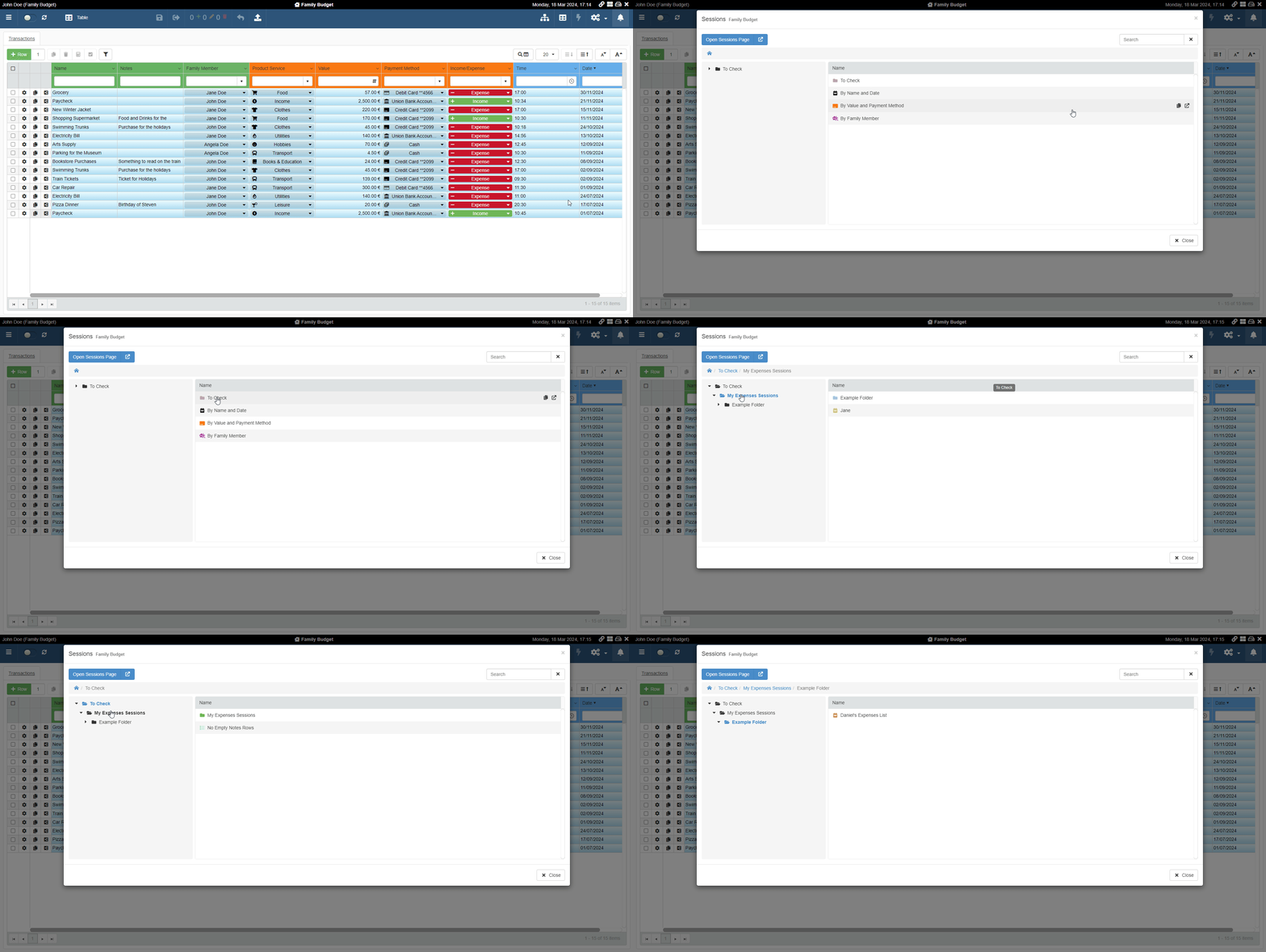
Also, navigate your Sessions and folders directly in the application through the Sessions window. The Sessions window replaces the previous Sessions List. You can access the Sessions window through the same button () in the application's upper-right corner.
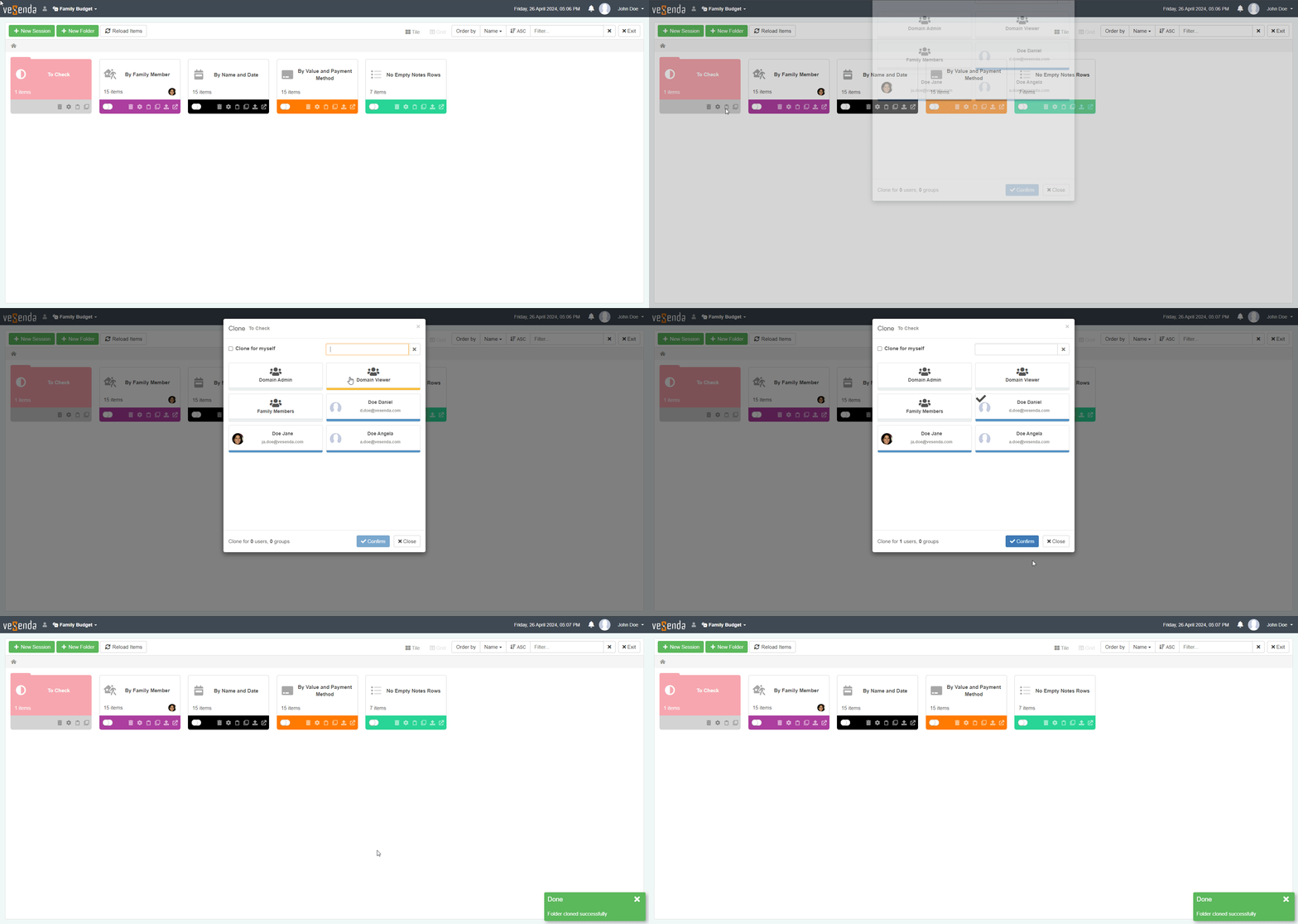
You can also share your Sessions folders with other users through the Clone function.
Click on the icon on any Session folder to open the Clone window. Choose either individual user or User Groups to share your folder and confirm.
Check the Organize Your Sessions, Switch between Sessions, and Clone a Session or Session Folder for Other Users or Yourself sections in the User Guide for more information about Sessions folders and their sharing.